

Optimization and refreshing
Every widget normally calculates its numbers when the dashboard opens, straight from your Odoo data. On large databases that can take a few seconds per widget. This page covers the two things that make a dashboard faster to open, and how to get fresh numbers when you need them.
Optimization
Section titled “Optimization”With Enable Optimization on, each widget’s result is calculated in advance and stored in the database. When someone opens the dashboard, the widgets read the stored result instead of calculating it again.
It applies to tiles, vertical and horizontal bar, line, area, doughnut and funnel charts, tables and pivot tables. Heatmaps, maps, matrix reports and sticky notes always calculate live.
What it helps with, and what it doesn’t
Section titled “What it helps with, and what it doesn’t”Optimization helps a dashboard that people mostly open and read as it is: a morning sales summary, a wallboard.
It doesn’t help once someone filters. The stored result is the widget’s answer for its saved settings, already totalled, so it can’t be narrowed further. As soon as a viewer changes a widget filter, a quick-date button, a global filter or the dashboard’s Date Filter, or clicks Refresh, the widgets calculate live from the current data. That is always correct, but as slow as without optimization.
Also keep in mind:
- The stored results are only as recent as their last refresh. A viewer who opens the dashboard may see numbers from before today’s orders.
- After you change a widget in the builder, viewers keep seeing the old stored result until the next refresh. The builder’s preview always shows the new version.
- Tables whose columns use the picked date range, and widgets on datasets with query parameters, are never optimized.
For a dashboard that is slow and heavily filtered, store the dataset instead: a stored dataset keeps a copy of its rows, so filters still work on it. See Store results.
Turn it on
Section titled “Turn it on”-
Open the dashboard in the Dashboard Builder and click the cog in the top bar (Dashboard Settings).
-
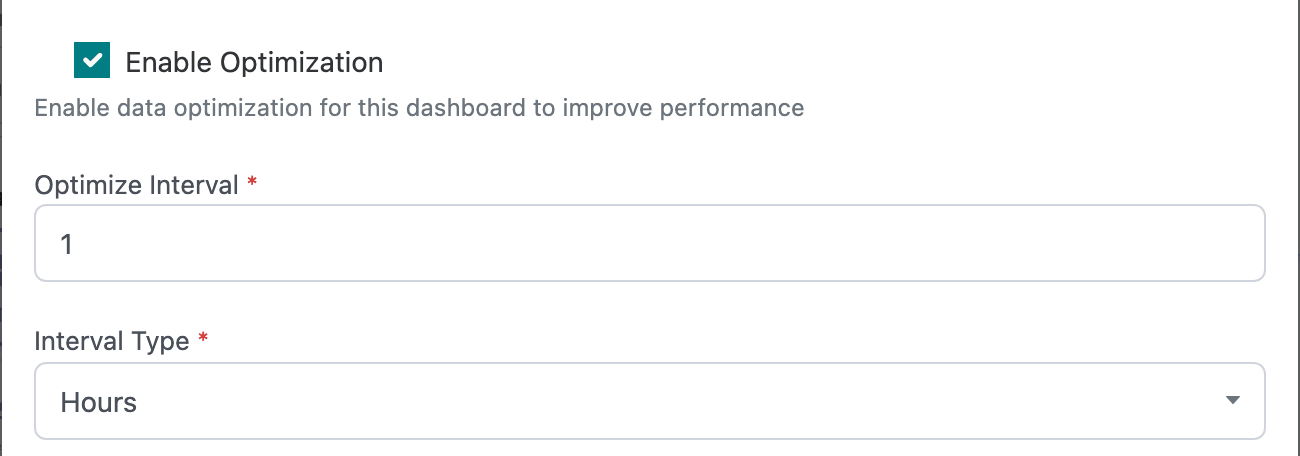
Tick Enable Optimization.
-
Set Optimize Interval and Interval Type (Minutes, Hours or Days), for example 1 hour. This is meant to be how often the stored results are recalculated.
-
Click Save Settings.
-
Build the stored results for the first time with Refresh Data, as described below.
Refresh Data
Section titled “Refresh Data”The back-office form of the dashboard shows when the results were last calculated and lets you rebuild them. It is for Odoo administrators.
-
Go to Odoo Dashboards → Configurations → Advanced Configuration → DSB and open the dashboard.
-
Click Refresh Data in the header. The notification Optimization scheduled confirms that the results are being rebuilt.
-
When the rebuild has finished, Last Optimized shows the new time. Reload the form if it hasn’t changed yet.
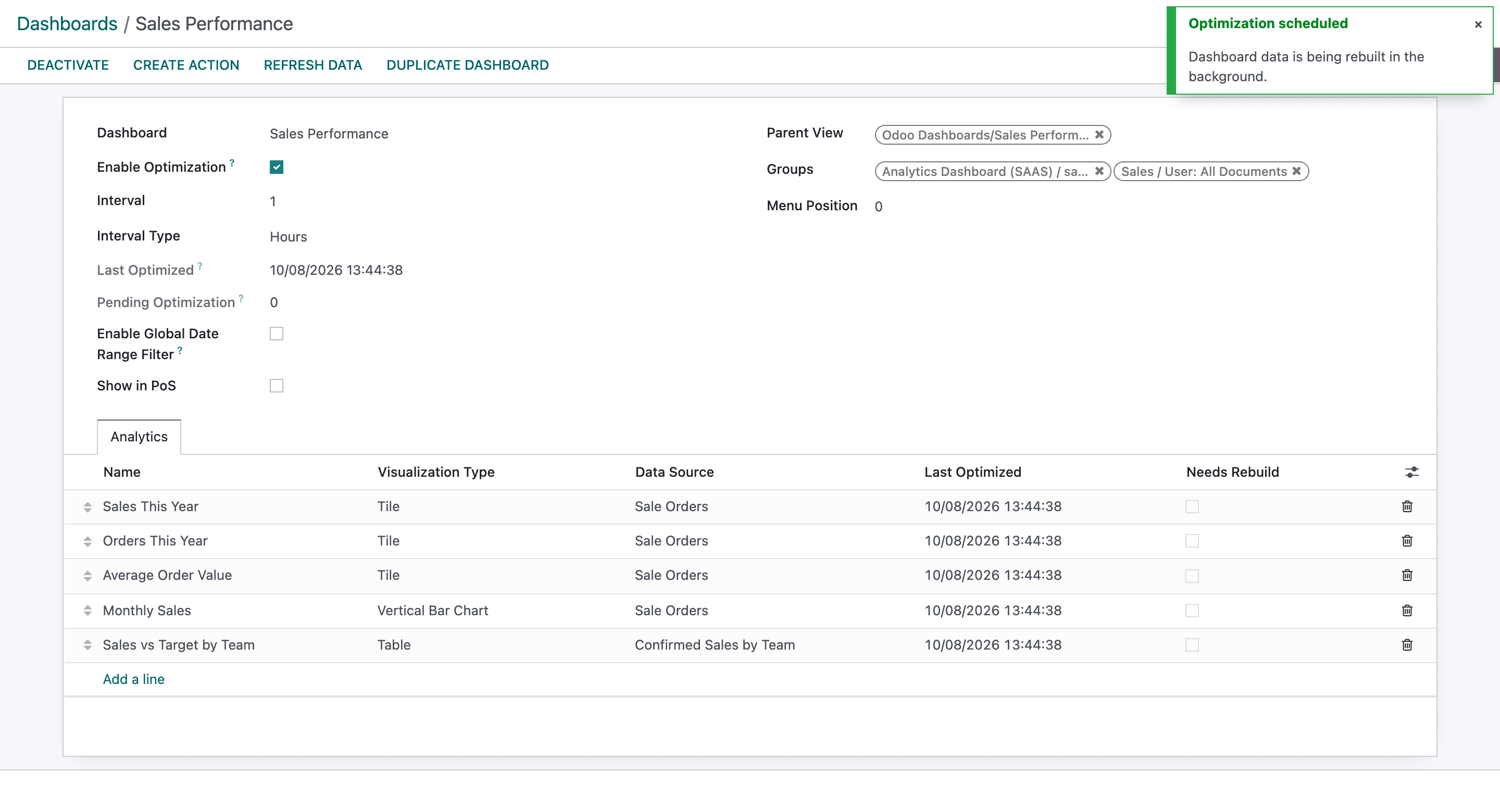
On the form:
- Last Optimized is the latest time any widget’s result was calculated.
- Pending Optimization counts widgets waiting for a rebuild, for example after you changed them.
- The Analytics tab lists each widget with its own Last Optimized time and a Needs Rebuild box.
To switch optimization off, untick Enable Optimization in Dashboard Settings. Widgets go back to live calculation straight away.
The browser keeps recent results for 5 minutes
Section titled “The browser keeps recent results for 5 minutes”Separately from optimization, the dashboard remembers each widget’s data in the browser tab for 5 minutes, for the same widget with the same filters. That is why going back from a drilldown list, or returning to a dashboard you opened a moment ago, shows the widgets at once instead of loading them again.
Any of these skips the remembered data and recalculates:
- a filter change, on a widget or for the whole dashboard;
- the Refresh icon in the dashboard header, which recalculates every widget with the current filters (and also skips optimization);
- opening the Dashboard Builder;
- reloading the browser page.
Tiles also have their own Auto Update option, which recalculates one tile every few minutes while the dashboard is open. See Tiles.