

Edit a template's column
The tiles and table columns of a template dashboard are custom fields: SQL expressions written for each widget. The custom field wizard opens each one in the form when it can show it exactly, and on the SQL tab when it can’t. Either way, nothing is rewritten until you change it.
This recipe opens three of them on the Balance Sheet template. Install it first from Configurations → Dashboard Builder → Templates (it needs Invoicing).
Open a template field
Section titled “Open a template field”-
In the Dashboard Builder, open the Balance Sheet dashboard and click the widget in Analytics Items.
-
On the Configuration tab, click the field: Data Field on a tile, or the column’s field in Table Columns Configuration.
-
At the bottom of the list, pick Edit Custom Field.
If you click Apply without changing anything, the field is kept exactly as it was and Save & Preview has nothing to save.
Total Assets: a condition with Wrap SUM
Section titled “Total Assets: a condition with Wrap SUM”The Total Assets tile opens on the Condition tab. Wrap Result is SUM( … ), so the tile adds up one value per journal item: its balance when account_type is one of the asset types, and 0 otherwise.
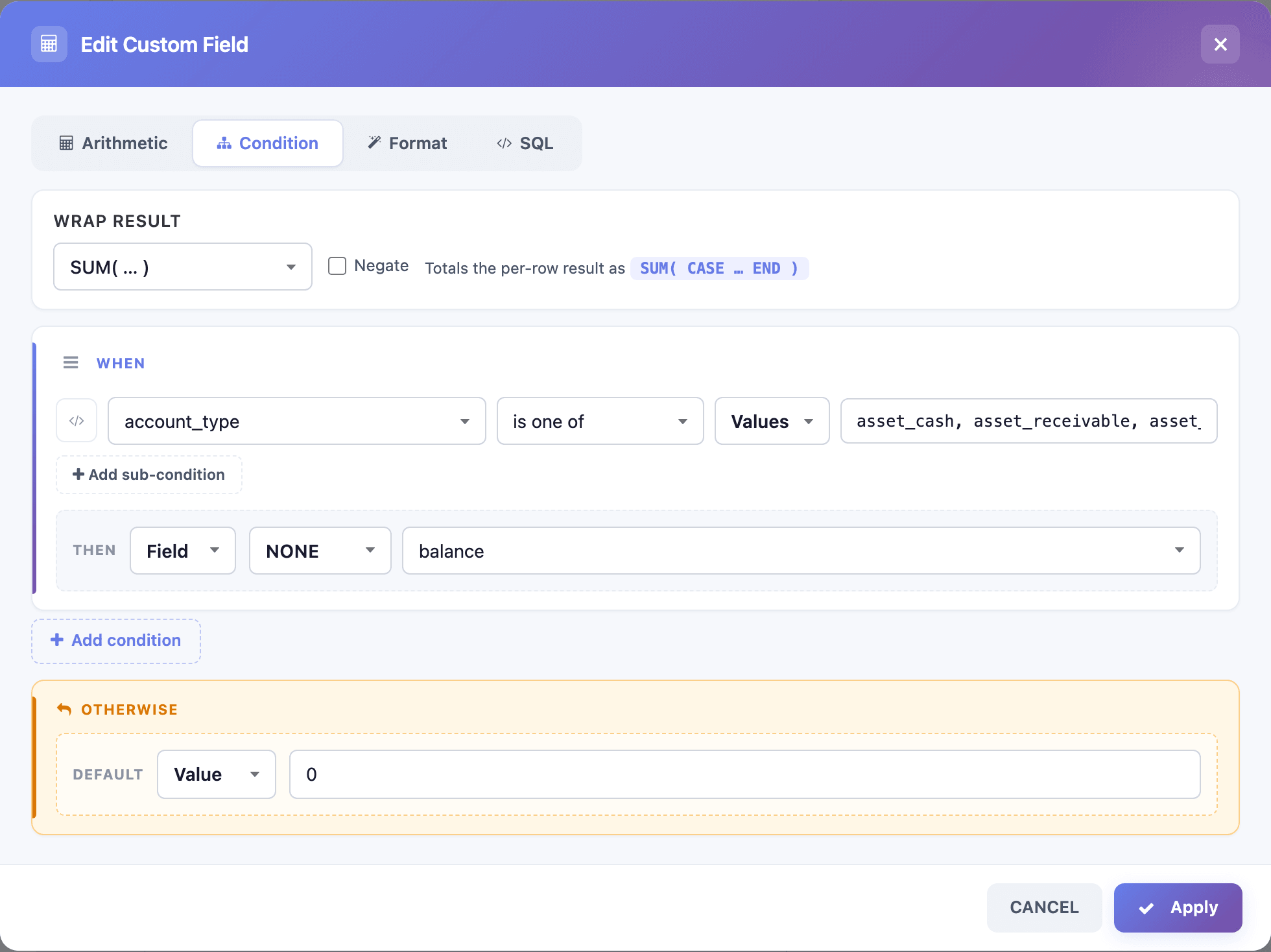
To change which accounts count as assets, edit the list after Values. Type the account types separated by commas, without quotes; the wizard adds them. For example, delete asset_prepayments to leave prepaid expenses out.
Total Liabilities, Equity and Unallocated Earnings open the same way, with Negate ticked: those balances are stored as credits, so the tile multiplies the total by −1 to show them as positive amounts.
The table’s Group column: “is one of” lists
Section titled “The table’s Group column: “is one of” lists”The table’s first column, Group, puts every account under Assets, Liabilities or Equity. It opens on the Condition tab with one branch per heading, each matching a list of account types, and Equity as the Otherwise value.
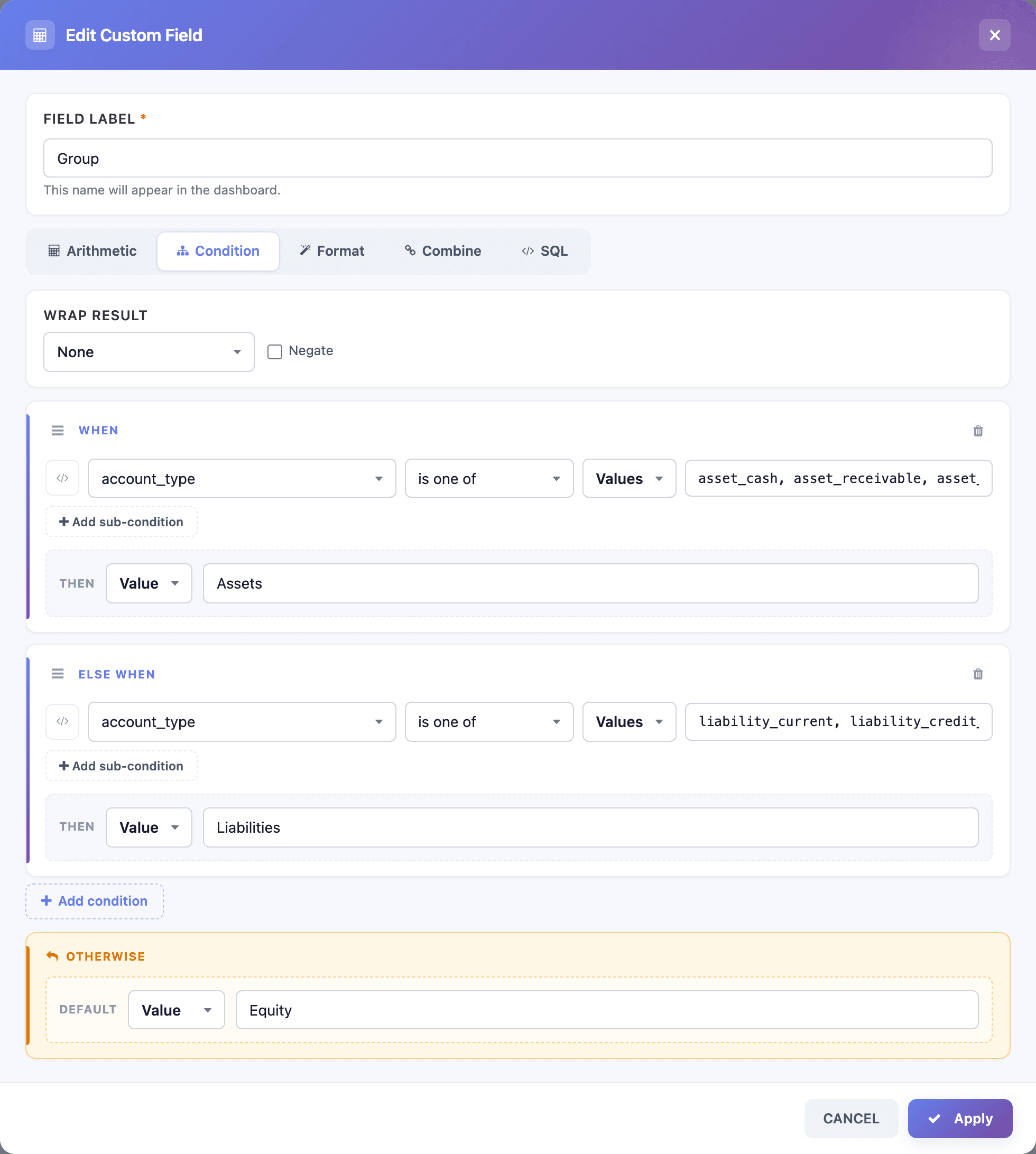
Change a heading by editing its Then value, or move an account type from one list to another. The table groups by this column, so a new heading becomes a new group in the table.
Current Ratio: kept as SQL
Section titled “Current Ratio: kept as SQL”Current Ratio divides current assets by current liabilities and rounds the result. The form has no way to show a ROUND(…) around a division, so the field opens on the SQL tab with the template’s text as it is.
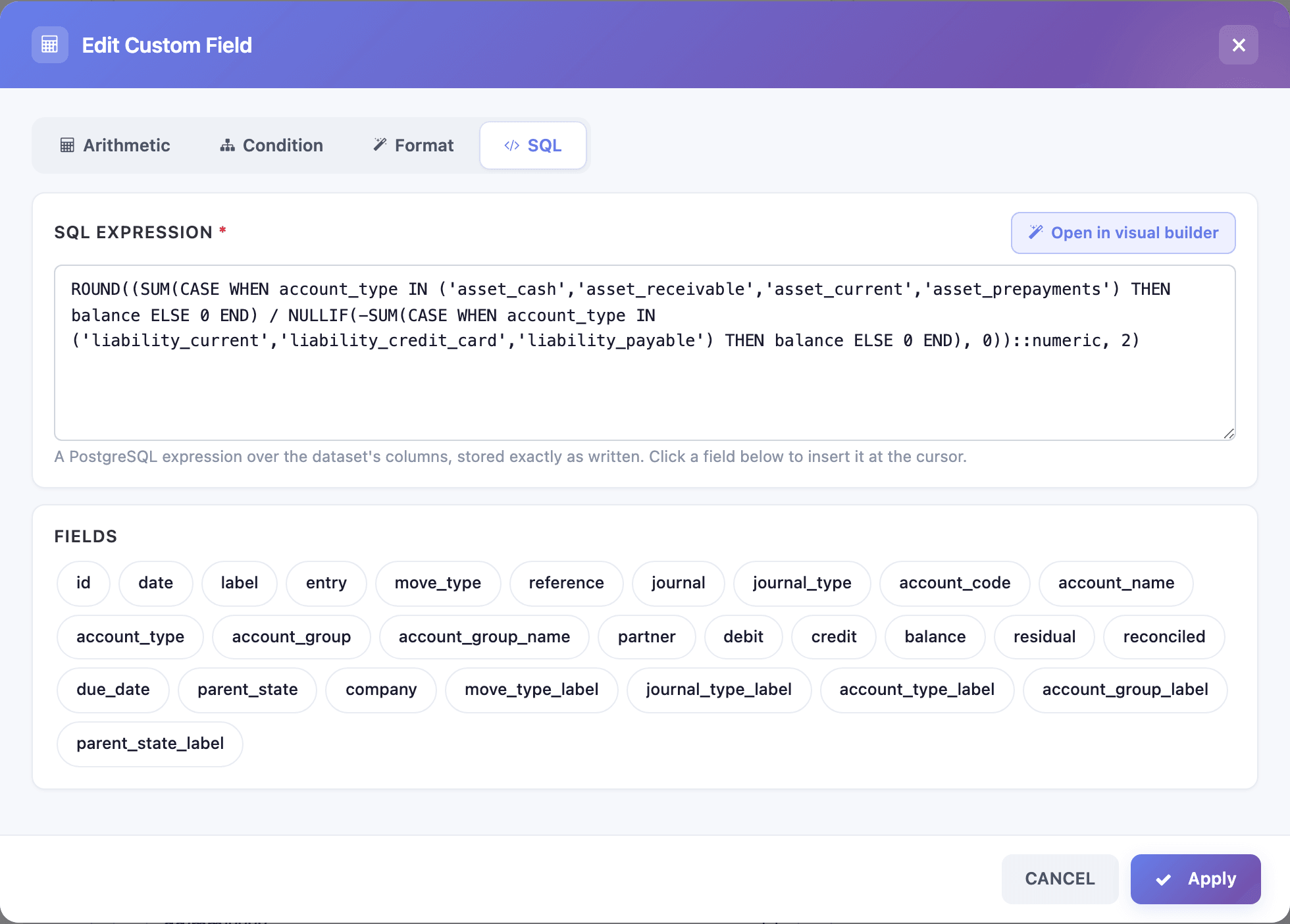
Edit the text directly. To insert a column name, put the cursor where it goes and click the column under Fields. Open in visual builder leaves it on the SQL tab with a note, because the form can’t show it. The checks the wizard runs on SQL (balanced brackets and quotes, no --, ;, /* or */) are listed in Custom fields.
After editing
Section titled “After editing”Click Apply, then Save & Preview. The change applies to this dashboard only: the template itself is unchanged, and installing it again gives the original fields. To change the template for everyone who installs it, duplicate it.