

Add a widget with AI
The AI card in the Dashboard Builder designs one widget from a description. You describe what you want to see, the AI proposes a widget, and you refine it until it is right. When you click Generate this visualization, the AI creates a real widget of the right type (a tile, a bar chart, a table, a matrix report and so on) on the current dashboard.
Use it to add a widget to an existing dashboard without working out every setting yourself, for example “top 10 customers by sales this year as a bar chart” or “open quotations per salesperson as a table”.
You need the Dashboard Builder (SAAS) and AI Analytics (SAAS) rights. Without the second one, the AI card isn’t shown.
Describe the widget
Section titled “Describe the widget”-
Open the dashboard in the Dashboard Builder and click New Item.
-
Under Visualization Type, click AI.
-
Under Data Source, pick the dataset to build on, or leave it empty and let the AI choose the best-fitting dataset you may use.
-
In the Design it with AI box, describe the widget and press Enter.
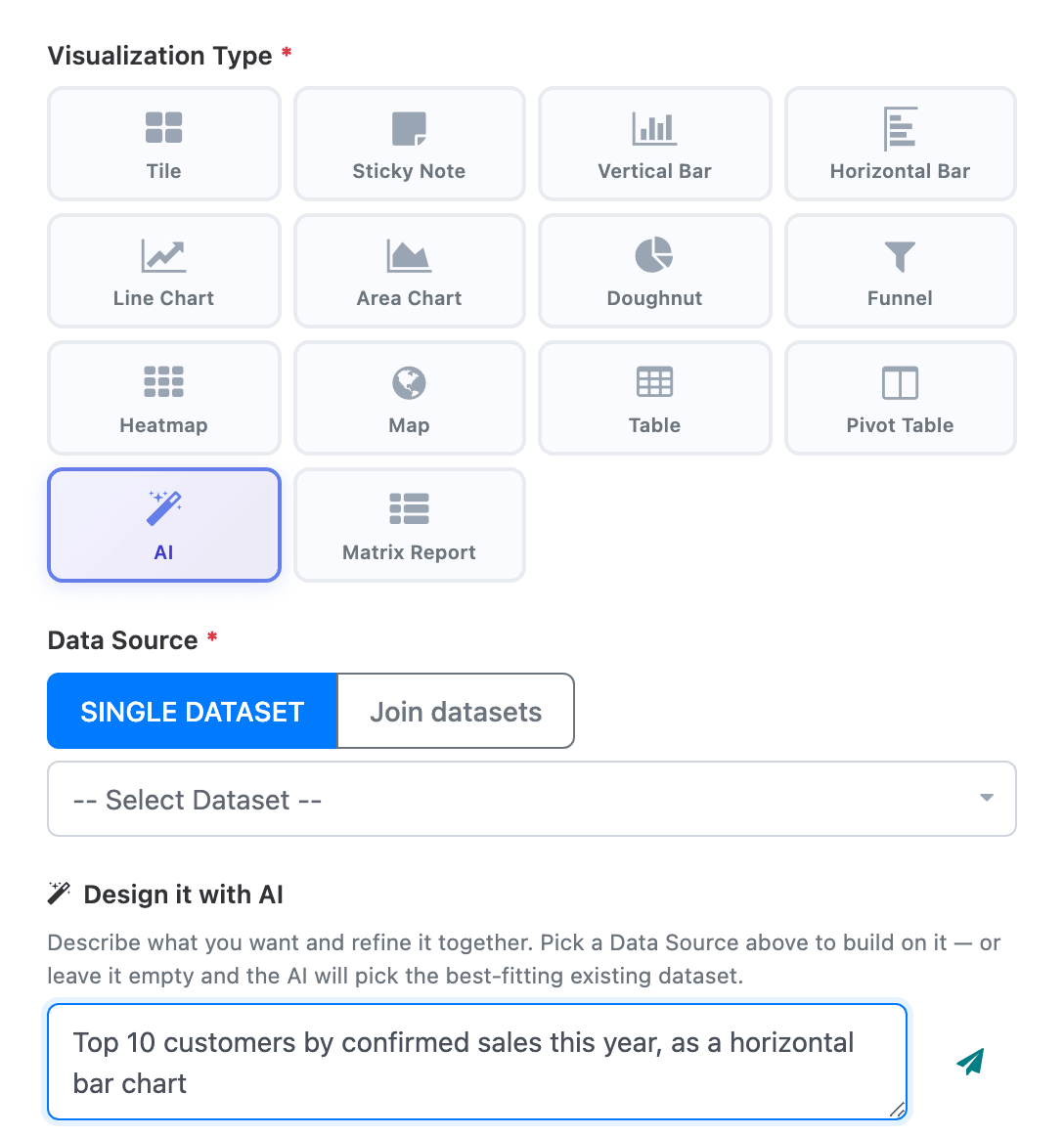
Say what you want measured, how it should be grouped or ranked, the period, and the chart type if you have one in mind.
Agree on the proposal
Section titled “Agree on the proposal”The AI answers in the chat and shows a proposal card under it:
- the widget’s title and type, with a green ready badge once the AI considers the design complete;
- a description of what it will show;
- Uses dataset: and the dataset it will build on;
- Combines: and the datasets, when it needs two or more datasets joined (see Joins and unions);
- a warning line, if your data can only partly support the request;
- Will create filter operation “…”, when the widget needs a date window that doesn’t exist yet, such as “Last 3 days”. The AI asks you first.
Reply in the same box to change it, for example “make it monthly”, “only confirmed orders” or “show it as a table instead”. The placeholder now reads Refine it, or say build it….
Changing the Data Source starts the conversation over, because the AI’s answers depend on the dataset’s columns.
Generate it
Section titled “Generate it”Click Generate this visualization. It reads Generating… while the AI works, with the current step under it.
When it is done:
- the widget is created on the dashboard and saved, with the type the AI chose (AI itself is never saved as a type);
- the builder selects it and shows it in the Live Preview;
- a message confirms AI created “<name>”. Review, edit, and save if needed.
Check the Configuration and Filters tabs and change anything you like. Click Save & Preview after your own changes. To change it by conversation instead, use Refine with AI, which appears on the General tab now that the widget is saved.
If part of what you agreed in the chat couldn’t be built on the dataset, a yellow message stays on screen and says what was left out.
The new widget is placed after the dashboard’s other widgets. Move it in the dashboard viewer (see Layout and presenting).
Your credits
Section titled “Your credits”Under the AI box, a line shows the credits you have left:
| What you see | When |
|---|---|
| Credits remaining: N and a Buy credits link | You draw on your company’s shared credit pool. Buy credits opens a checkout page in a new tab (Opening… while it loads). |
| Your credits this month: N | An administrator gave you a monthly allowance under AI governance. |
| Your credits remaining: N | An administrator gave you a one-time allowance. |
People on an allowance don’t see Buy credits; they ask an administrator for more.
Error messages
Section titled “Error messages”| Message | What it means |
|---|---|
| No existing dataset has the data this request needs. Please add the missing fields to a dataset if you have access, or contact your administrator. | No dataset you may use fits the request. The AI never creates datasets. |
| The selected dataset has no columns to build on. | The picked dataset is empty or broken. Check it in the Dataset Builder. |
| The AI did not return a valid visualization. | The answer couldn’t be used. Click Generate this visualization again. |
| Could not combine the datasets: … / Could not work out how these datasets join. Please try again. | The proposed join didn’t work. Ask for the widget on one dataset, or try again. |
| AI generation failed: … / AI chat failed: … | The AI service returned an error. Your message is back in the box. |
| You don’t have access to this data source. Ask an administrator to add it to your AI policy. | Your AI policy doesn’t include the picked dataset. |
| Top-up is not available right now. / Could not start the top-up: … | Buy credits couldn’t open the checkout. |
Messages about used-up credits are listed in AI governance and credits.