

Ask the Analyst
The Analyst answers questions about the data behind a dashboard: “which salespeople have the most quotations still open?”, “why did sales drop last month?”, “compare this quarter to last”. It looks things up itself by running queries on the dashboard’s datasets, then answers in plain language and shows you the queries it ran.
It only reads. It never changes the dashboard, its widgets or any Odoo record.
Open it
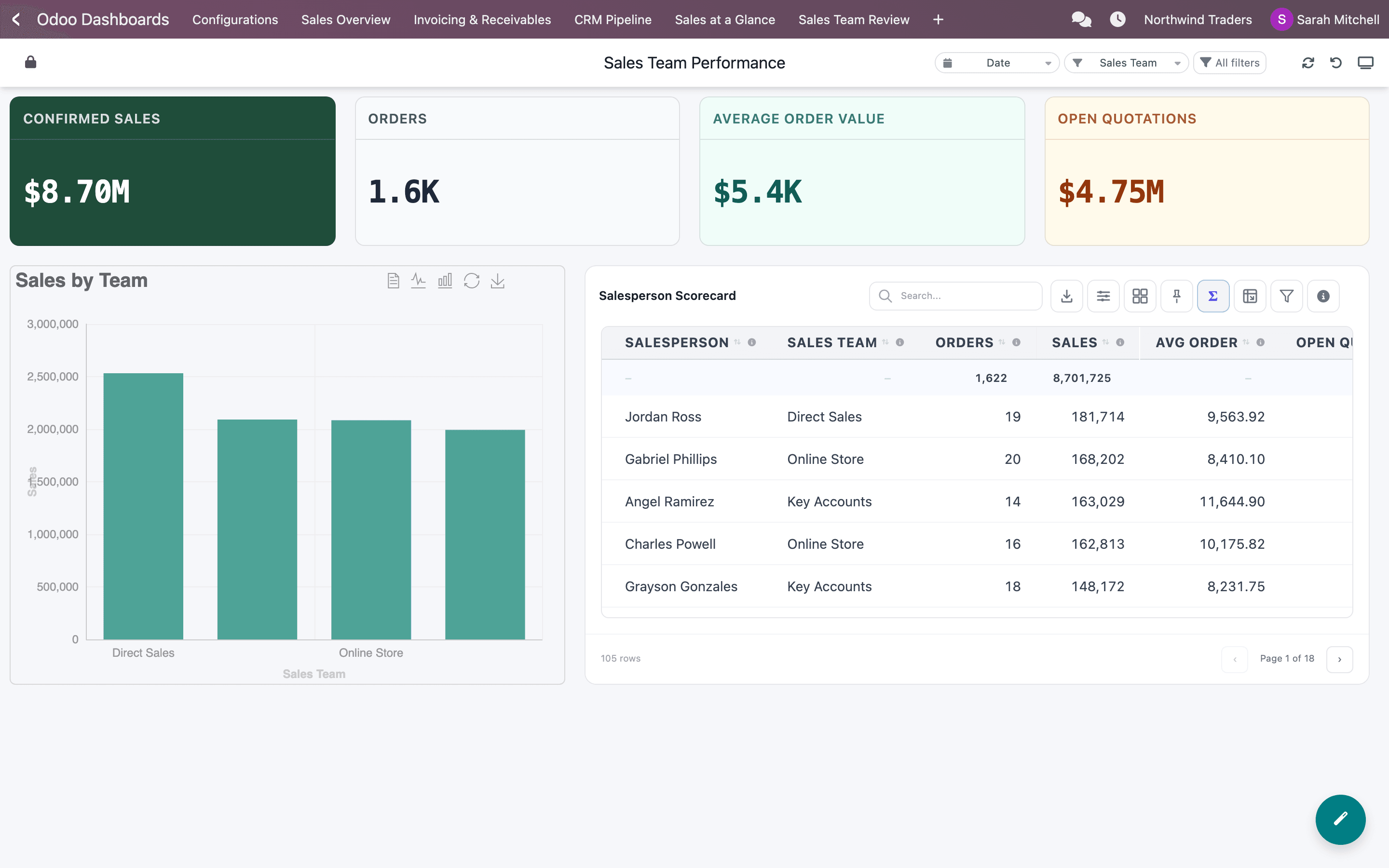
Section titled “Open it”Every dashboard has a round button in the bottom-right corner for people with the AI Analytics (SAAS) right. Its tooltip reads Ask AI about this data.
Ask a question
Section titled “Ask a question”-
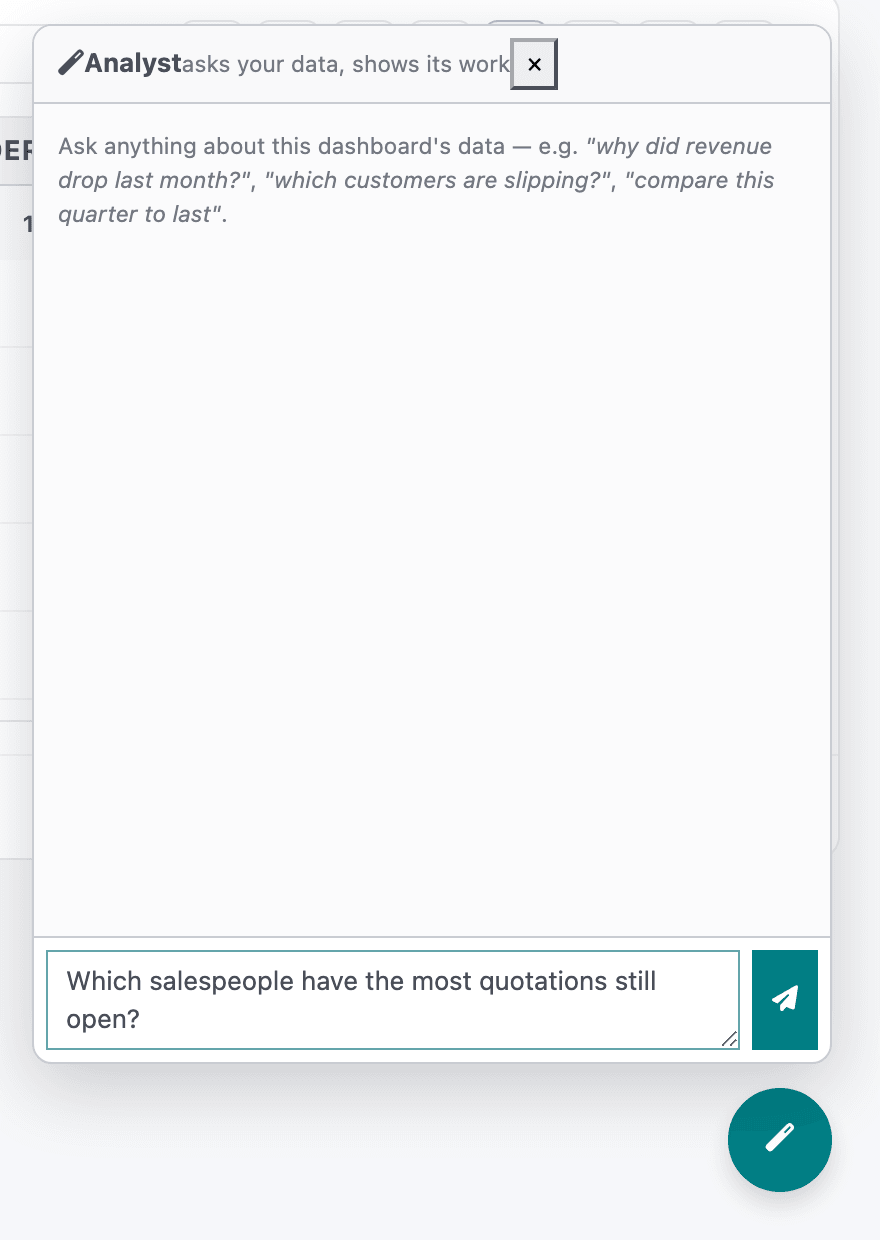
Click the button. The Analyst panel opens with a few example questions.
-
Type your question in the box (Ask about this data…) and press Enter.
-
Wait while it works (digging into the data…). A question can take several steps, each one a query and a look at its result.
-
Read the answer. Ask a follow-up in the same box; the Analyst remembers the conversation.
Check its work
Section titled “Check its work”Under each answer, a link such as 3 queries run opens the list of queries behind it. For each query you see:
- what it was for, in a few words;
- how many rows it returned, or the error if it failed (a failed query doesn’t stop the Analyst: the error goes back to the AI, which can run a corrected query);
- the SQL itself.
Read these when a number matters. They show which dataset the answer comes from, which period it covers and how the figure was worked out, so you can check it against a widget or rebuild it as a widget of your own.
What it can and can’t see
Section titled “What it can and can’t see”- Only this dashboard’s datasets. The Analyst can query the datasets behind the dashboard’s widgets, including every dataset of a widget that joins several. It can’t read other datasets or Odoo tables directly. To ask about other data, open a dashboard that uses it.
- Not your filters. The Analyst queries the full datasets. The global filters, date range and widget filters you picked on the dashboard don’t apply to it, so say the period and the team in your question: “in September 2026”, “for the Online Store team”.
- Read-only queries. Each query must be a single
SELECT, and it is stopped after 15 seconds. - Up to 50 rows per query. The Analyst sees at most 50 rows of each result. Ask for totals and rankings rather than long lists.
- Up to 8 steps per question. If it can’t answer in 8 steps, it stops with The analyst could not finish within 8 steps – try a narrower question.
- Only while the dashboard is open. The conversation isn’t saved. Reloading the page or opening another dashboard starts a new one.
Credits
Section titled “Credits”Each question uses credits for every step the Analyst takes, so a question that needs several queries costs more than one that needs a single query. A question that stops after 8 steps without an answer is still charged for those steps.
Error messages
Section titled “Error messages”| Message | What it means |
|---|---|
| This dashboard has no queryable datasets yet. | The dashboard has no widgets with a dataset, for example only sticky notes. |
| The analyst could not finish within 8 steps – try a narrower question. | The question needed too many steps. Ask about one thing at a time. |
| The analyst returned an empty answer. | Ask again, or rephrase the question. |
| Analyst failed: … | The AI service returned an error. Your question is back in the box. |
| You have no AI credits left. Please top up to keep using AI. | Your company’s credit pool is empty. See AI governance and credits. |