

Convert a table to a dataset
Convert to dataset takes a Table widget exactly as it is built (its columns, custom fields, grouping, ordering and filters) and saves it as a new custom SQL dataset. Other widgets can then use the result like any dataset.
Use it when:
- a table on a joined source is useful elsewhere, and you don’t want to rebuild the join on every widget;
- a table already computes the summary you need (sales per category, say) and you want to chart it or join it to something else;
- you want a starting point for a custom SQL dataset without writing the SQL yourself.
The dataset holds the table’s query, not its rows. Its data stays live.
Convert a table
Section titled “Convert a table”-
In the Dashboard Builder, select the Table widget and save it. The button doesn’t appear on a table that was never saved, and is disabled while there are unsaved changes.
-
On the General tab, under Data Source, click Convert to dataset.
-
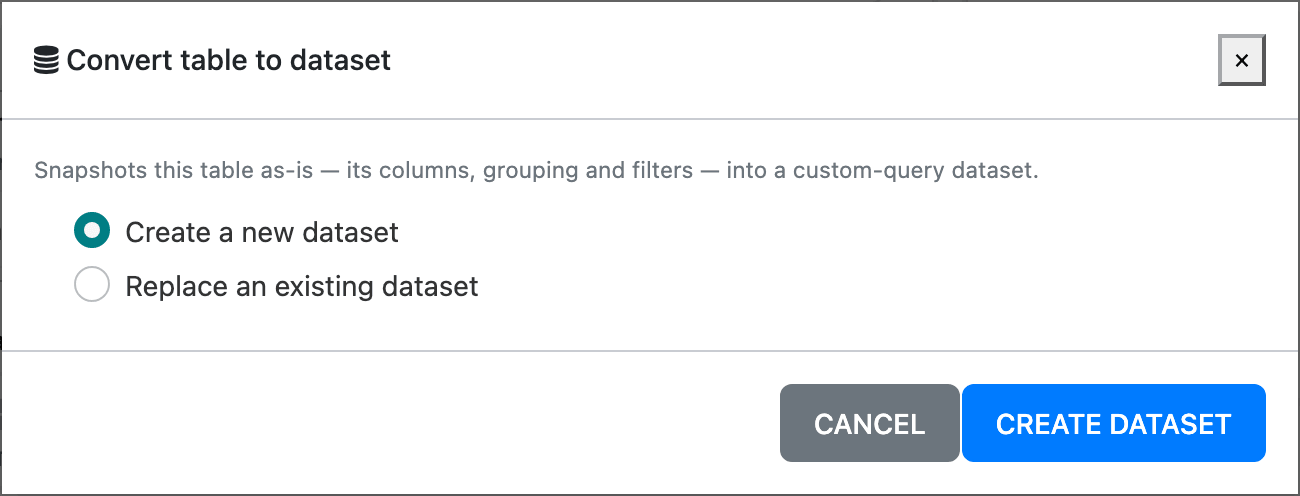
Keep Create a new dataset and click Create dataset.
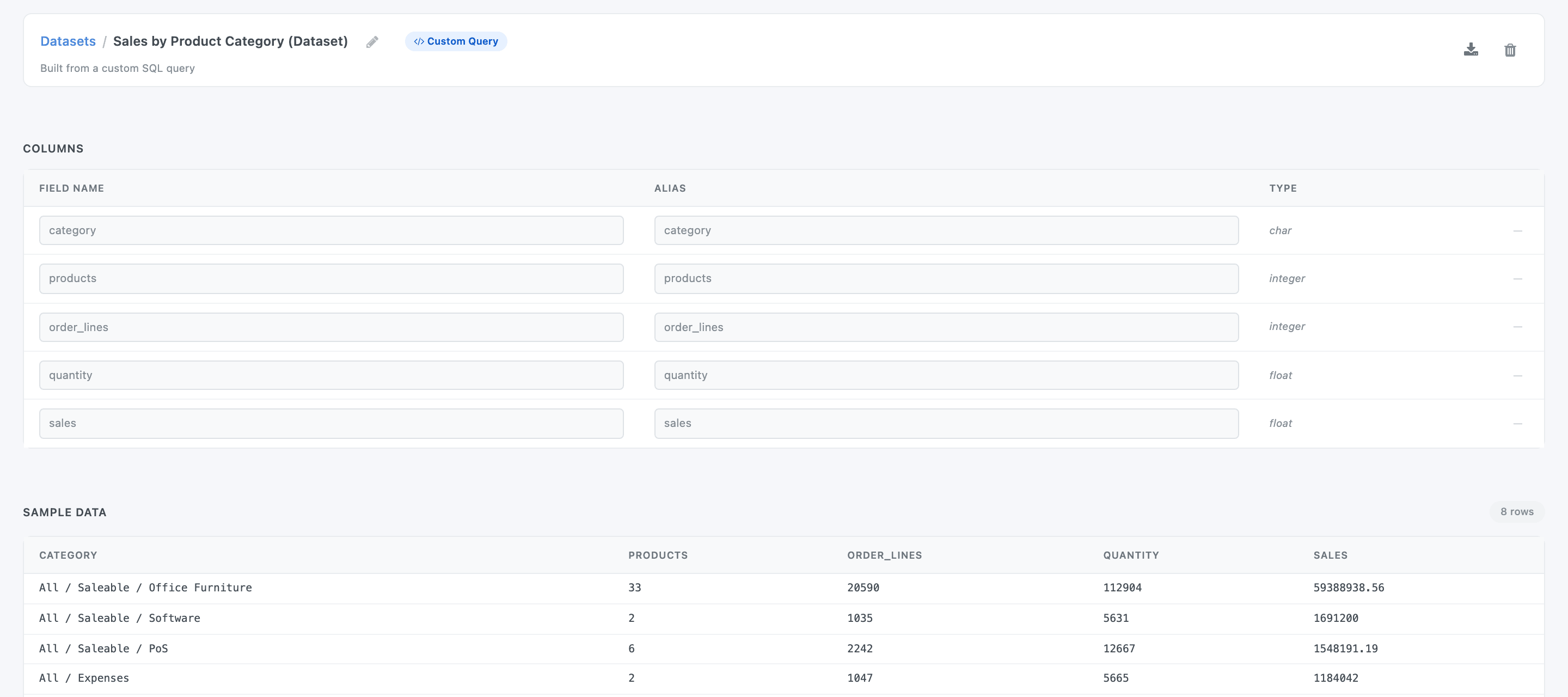
The new dataset is named after the table with (Dataset) added, for example Sales by Product Category (Dataset); a number is added if that name is taken. It opens in the Dataset Builder in a new browser tab, and a message says Dataset created.
What the dataset contains
Section titled “What the dataset contains”- One column per table column, named after the column’s header in lower case, with spaces and punctuation turned into
_: Order Lines becomesorder_lines. Names that are SQL keywords get_coladded, and repeated names get_2. - One row per table row: the table’s Group By, sorting and fixed filters are part of the query. Here the dataset has one row per category, confirmed orders only.
- The filters as saved on the widget, not what a viewer has picked on the dashboard at the moment.
- Joins and unions are written into the query, so the dataset keeps working even if you delete the widget.
Display settings stay on the widget: column formats, colour rules, totals, front-end grouping. Set them again on the widgets that use the new dataset.
Replace an existing dataset
Section titled “Replace an existing dataset”Instead of creating a dataset, you can overwrite one, for example to update a dataset that dashboards already use after you changed the table.
-
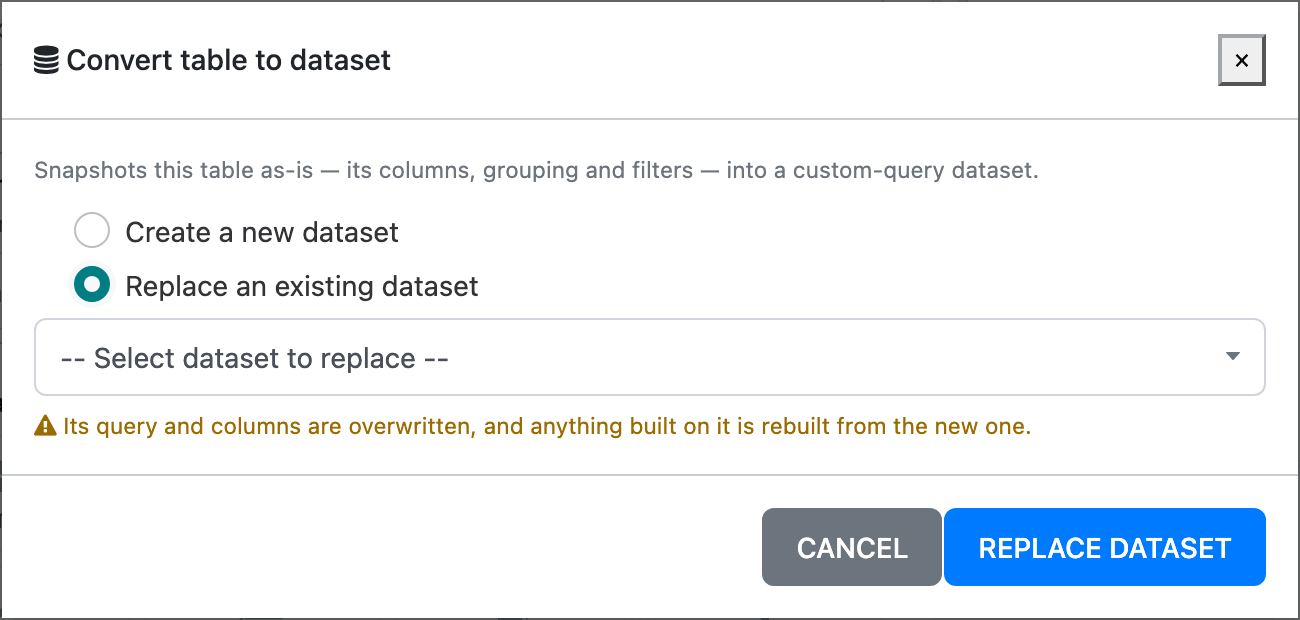
Click Convert to dataset and pick Replace an existing dataset.
-
Pick the dataset in – Select dataset to replace –. The table’s own source datasets are not offered, as replacing them would make the table read from itself.
-
Click Replace dataset.
The dataset’s query and columns are overwritten, and everything built on it is rebuilt from the new query. Widgets that use a column the new query no longer has stop working, so check them, or keep the column headers the same.
How it stays up to date
Section titled “How it stays up to date”- The data is live: every widget reads the current records through the query.
- When a dataset the table read from is regenerated (a column added to Sale Order Lines, say), the converted dataset is rebuilt automatically.
- Changing the original table later doesn’t change the dataset. Convert again with Replace an existing dataset to bring it up to date.
Limits
Section titled “Limits”- The result is always a custom SQL dataset. You can’t edit its columns in the Dataset Builder; to change it, edit the table and convert again, or edit its SQL in DTS (see Custom SQL datasets).
- A dataset made from a join doesn’t remember the join: it’s plain SQL from then on.
- Converting fails with Dataset ‘…’ is not generated yet; generate it before converting. when a source dataset has never been generated.