

Translations
If your team works in more than one language, you don’t need a copy of each dashboard per language. The texts you type on a dashboard can carry a translation for every language active in your database, and each viewer sees the version for the language set in their Odoo preferences.
You can translate:
| Where | Texts |
|---|---|
| Dashboard Settings, under Dashboard Name | Name: the title shown at the top of the dashboard |
| A widget’s General tab, under Name | Title and Info (the text of the ⓘ tooltip). Sticky notes have a title only. |
| A table column’s settings (gear button on the column), General tab, under Column description | Header and Description |
Before you start
Section titled “Before you start”Translations need at least two active languages in Odoo. With only one, every translation section shows this message instead of the table:
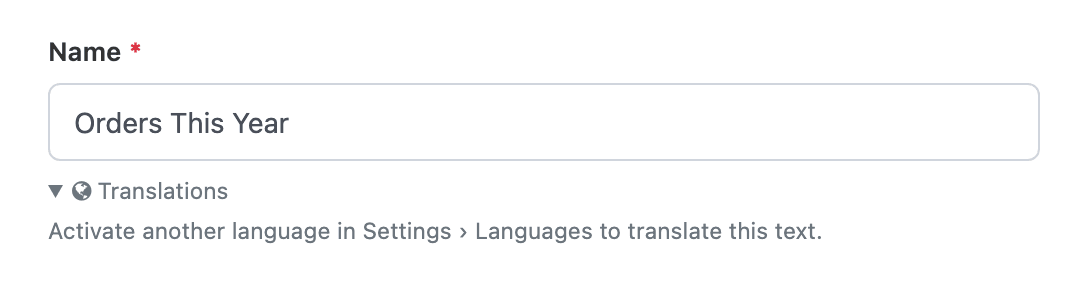
To add a language, open Settings, find the Languages section and click Add Languages, then pick the language and click Add. Odoo installs its own interface translations for it at the same time.
Translate a widget
Section titled “Translate a widget”-
Open the widget in the Dashboard Builder and stay on the General tab.
-
Under Name, click Translations to open the section. It is a small table with one row per active language and one column per text (Title, Info).
-
Type the text for each language. Each box shows the original text in grey as a hint. Leave a box empty to show the original text in that language.
-
Click Save & Preview.
Table column headers work the same way: open the column’s settings, and on the General tab, open Translations under Column description. The column’s translations are kept with the table’s other settings when you save the widget.
Translate the dashboard name
Section titled “Translate the dashboard name”-
In the Dashboard Builder, click the cog in the top bar (Dashboard Settings).
-
Open Translations under Dashboard Name and fill in the Name column.
-
Click Save Settings.
What viewers see
Section titled “What viewers see”Each viewer sees the texts in the language of their own Odoo user (their preferences), the same language Odoo uses for its menus. Where a translation is empty, they see the text exactly as you typed it in the field, whatever language that is.
The original texts stay as they are underneath. A translated column header is only a label: the column’s real name, which filters and settings refer to, doesn’t change, so adding a translation can’t break a widget.
The app’s own interface (the builder, buttons and messages) is a separate matter. It follows the user’s language too where the app has a translation: the current version ships French, which covers most of the interface but not the newest screens.