

Install the app
Odoo Dashboards is a regular Odoo app. You install it once per database, then decide who can build dashboards and who can only view them.
Before you start
Section titled “Before you start”- Odoo.sh or a self-hosted Odoo, Community or Enterprise. Odoo Online (the
*.odoo.comSaaS) does not allow third-party apps, so the app can’t be installed there. - Any set of Odoo apps. The app depends only on Odoo’s
baseandbusmodules, so it works with Sales, Accounting, Inventory, Point of Sale, CRM, custom modules, or any mix of them.
Install it
Section titled “Install it”-
Buy and download the app from the Odoo App Store. Pick the download that matches your Odoo version.
-
Unzip it and copy the
odoo_dashboards_saasfolder into one of the folders listed in your server’saddons_path. -
Restart the Odoo service.
-
In Odoo, turn on developer mode, open Apps, and click Update Apps List.
-
Remove the Apps filter from the search bar, search for Odoo Dashboards, and click Activate.
-
Buy and download the app from the Odoo App Store. Pick the download that matches your Odoo version.
-
Add the
odoo_dashboards_saasfolder to your project’s repository, at the same level as your other custom modules, and push the branch. -
Wait for Odoo.sh to finish building the branch.
-
In the branch’s database, open Apps, click Update Apps List (developer mode), search for Odoo Dashboards, and click Activate.
When the installation finishes, Odoo Dashboards appears on the Odoo home screen, next to your other apps.
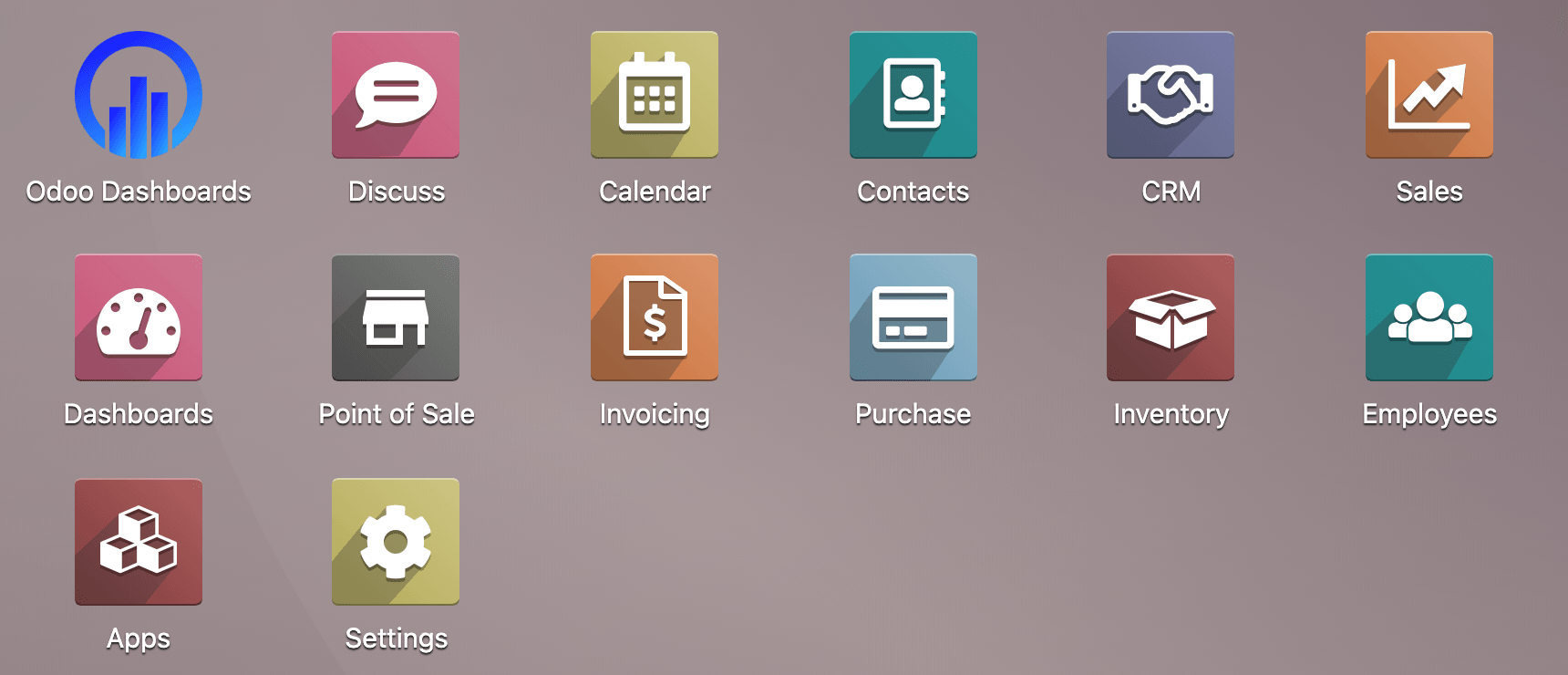
Open the app and continue with A tour of the app.
Give your team access
Section titled “Give your team access”There are two separate things to set up: who can build, and who can see each dashboard.
Who can build
Section titled “Who can build”The app adds four access rights to the user form. Odoo only shows rights like these in developer mode.
-
Turn on developer mode.
-
Go to Settings → Users & Companies → Users and open the user.
-
On the Access Rights tab, scroll to the Analytics Dashboard (SAAS) section and tick the rights this person needs:
Access right What it allows Dashboard Builder (SAAS) Create and edit dashboards and their widgets in the Dashboard Builder. Dataset Builder (SAAS) Everything above, plus create and edit datasets in the Dataset Builder. Targets (SAAS) Plan the targets shown on tables. AI Analytics (SAAS) Use the AI features. Administrators have it automatically. -
Click Save. The user may need to reload the page to see the new menus.
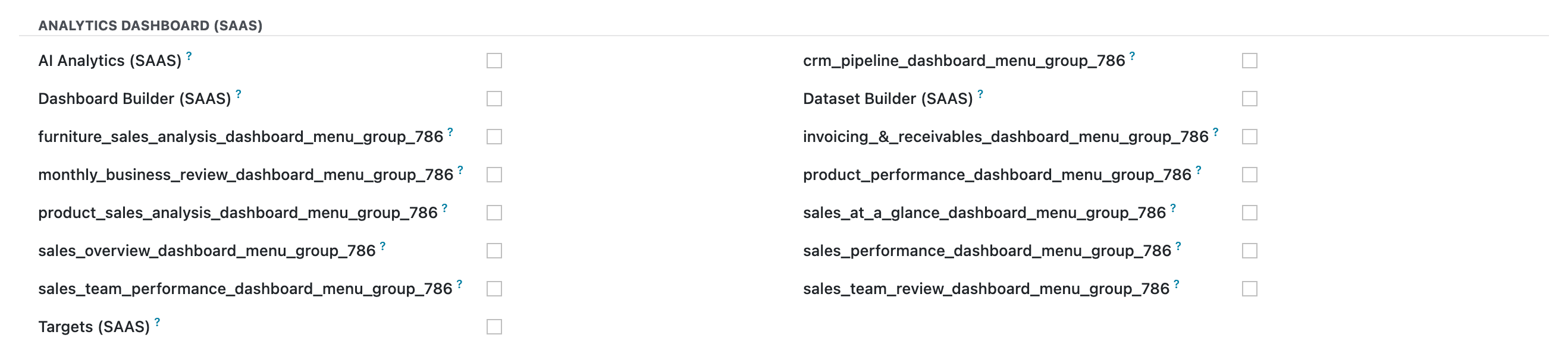
The same section also lists one entry per dashboard, ending in _dashboard_menu_group_786. Those are the dashboards’ own access lists. Leave them alone here and manage them from the dashboard instead, as described next.
Who can see a dashboard
Section titled “Who can see a dashboard”Each dashboard has its own access list, and only the people on it see the dashboard in their menu. Viewers need no access right from the table above.
To share a dashboard, open it in the Dashboard Builder, click the cog (Dashboard Settings), and add people under Add Users, or give a whole Odoo group access under Add Groups (for example Sales / User: All Documents). The administrator always has access to every dashboard.
Update the app
Section titled “Update the app”New versions arrive through the Odoo App Store. To update:
-
Download the new version and replace the
odoo_dashboards_saasfolder with it (on Odoo.sh, commit the new folder). -
Restart the Odoo service. Odoo keeps running the old Python code until it restarts, even after the module is upgraded.
-
Open Apps, find Odoo Dashboards, and click Upgrade (or start the server once with
-u odoo_dashboards_saas).