

Layout and presenting
Widgets are arranged on the dashboard itself, not in the builder. The builder decides what each widget shows; the dashboard decides where it sits and how big it is.
Arrange the widgets
Section titled “Arrange the widgets”-
Open the dashboard (from its menu, or View Dashboard in the builder).
-
Click the lock in the top-left corner (Edit layout). It turns into an orange open lock.
-
Drag a widget to move it. Drag the handle in its bottom-right corner to resize it.
-
Click the lock again (Lock and save layout).
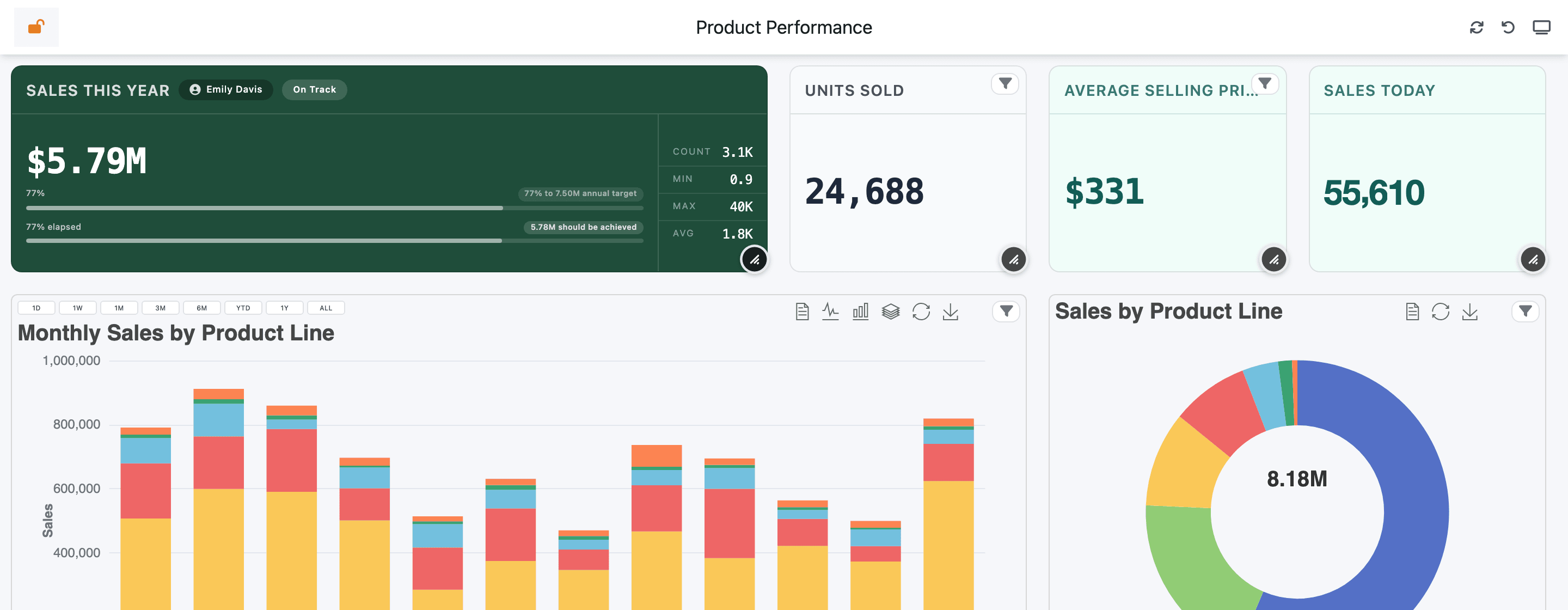
The grid has 12 columns. Widgets snap to it and push others out of the way as you drag. New widgets that have never been placed get a default size: 3 columns for a tile, 4 for a chart, 6 for a heatmap, and the full width for tables, matrices and pivots.
While the layout is unlocked, sticky notes can only be moved, not edited.
Your layout and the default layout
Section titled “Your layout and the default layout”The arrangement you save is yours. Other people keep theirs, and nobody else sees your changes.
What a person sees when they open the dashboard:
- their own saved layout, if they ever saved one;
- otherwise the dashboard’s default layout;
- otherwise an automatic arrangement, filled in from the top.
To publish a default layout for everyone:
-
Arrange the dashboard and lock it, as above, so your own layout is saved.
-
In the Dashboard Builder, open Dashboard Settings (the cog in the top bar).
-
Click Set my layout as default. The message “This layout is now the default for all users.” confirms it.

If you haven’t arranged the dashboard yourself yet, you get “Arrange your layout in the dashboard first, then set it as default.” You need edit rights on the dashboard.
Reset to Default View
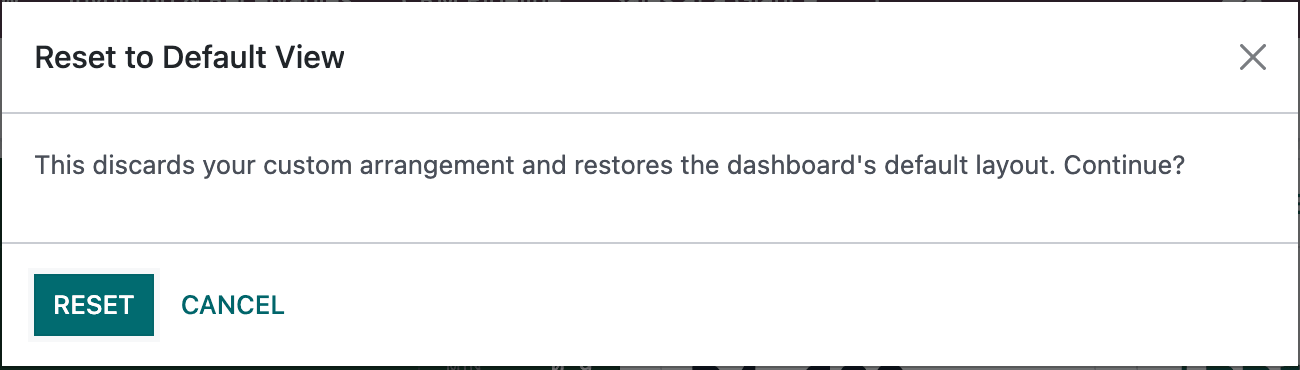
Section titled “Reset to Default View”The undo arrow in the dashboard header, Reset to Default View, throws away your own arrangement and goes back to the default layout. It asks first, then reloads the page.
Small screens
Section titled “Small screens”When the browser window is narrower than 1000 pixels, as on a phone or a narrow laptop window, the widgets stack in a single column, in grid order. Changes made at that width are never saved, so a phone can’t spoil your desktop layout.
Present a dashboard
Section titled “Present a dashboard”Present (slideshow), the screen icon at the right of the header, shows the widgets one at a time, full screen. It suits meetings and wall screens.
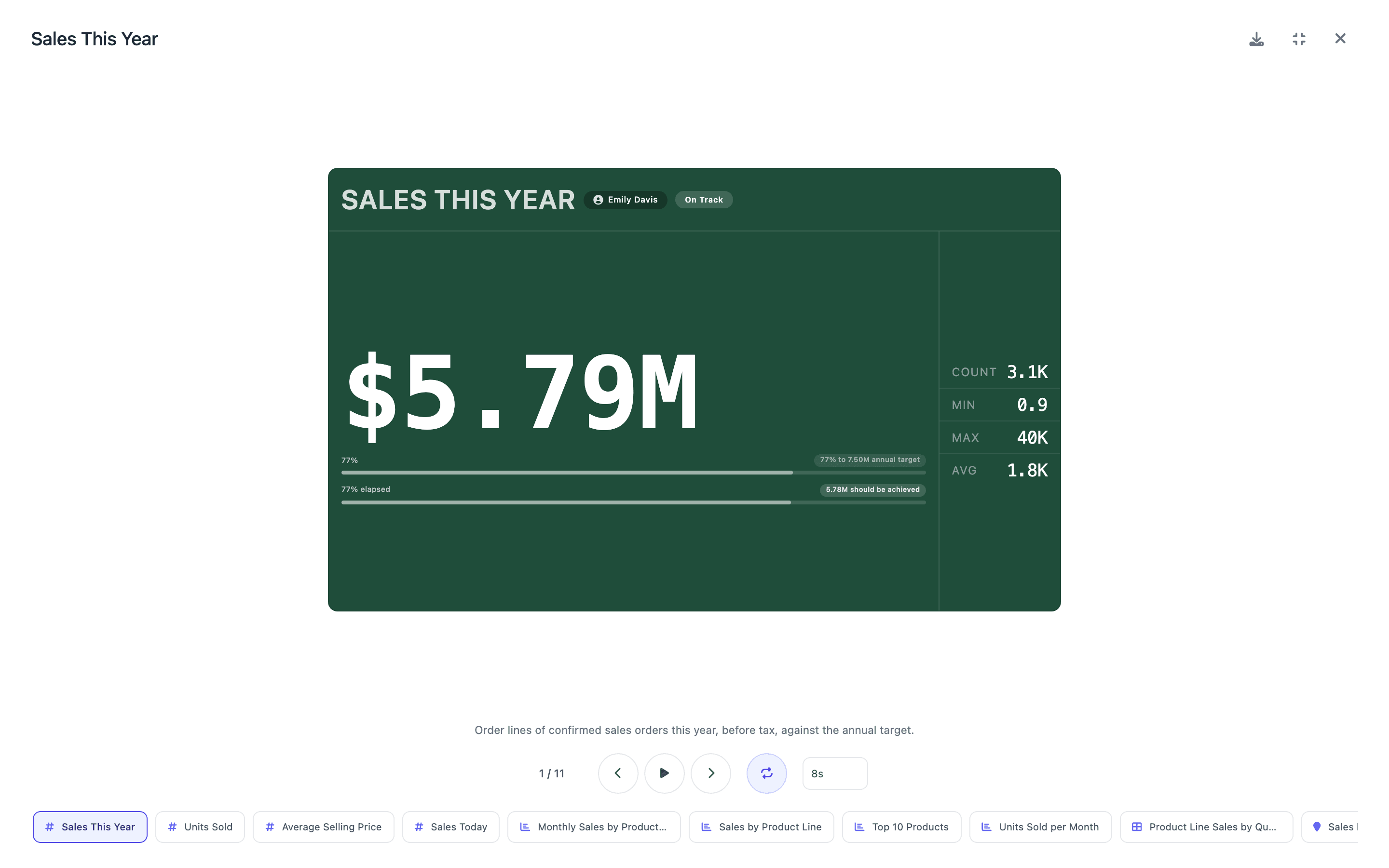
- Download as PDF, Fullscreen, Exit (Esc)
- Previous, Play or Pause, Next, Loop, Autoplay interval
- Jump to any slide
- Slides follow the grid, top to bottom and left to right. Widgets still loading or showing an error are skipped.
- The widget’s info tooltip appears under it. Filter chips and date buttons are hidden.
- Play moves on by itself every 8 seconds; change it under Autoplay interval (5 to 60 seconds). The loop button (Loop: on / Loop: off) decides whether it starts again after the last slide.
- Keys: → or Space for the next slide, ← for the previous one, Esc to leave.
Download as PDF
Section titled “Download as PDF”The download icon in the slideshow’s top-right corner, Download as PDF, saves the whole dashboard as a PDF with one landscape A4 page per widget, named after the dashboard. It shows “Preparing PDF… n / total” while it works through the slides.
The PDF export loads its tools from the internet, so it needs internet access. It is the only way to get the whole dashboard as a PDF; tables also have their own export (see The table toolbar).