

Dataset templates
Picking the right fields for a dataset takes some knowledge of Odoo’s models. Dataset templates do it for you: 61 ready-made datasets for the standard Odoo apps, from Journal Items and Sales Orders to Customer RFM Segments, Timesheets and POS Payments. They are the same datasets the dashboard templates are built on.
Use a dataset template when you want to build your own widgets but don’t want to start from an empty field list.
Find a dataset template
Section titled “Find a dataset template”-
Go to Odoo Dashboards → Configurations → Dataset Builder.
-
Click the Templates tab, under the search box. On a database with no datasets yet, the builder opens on this tab.
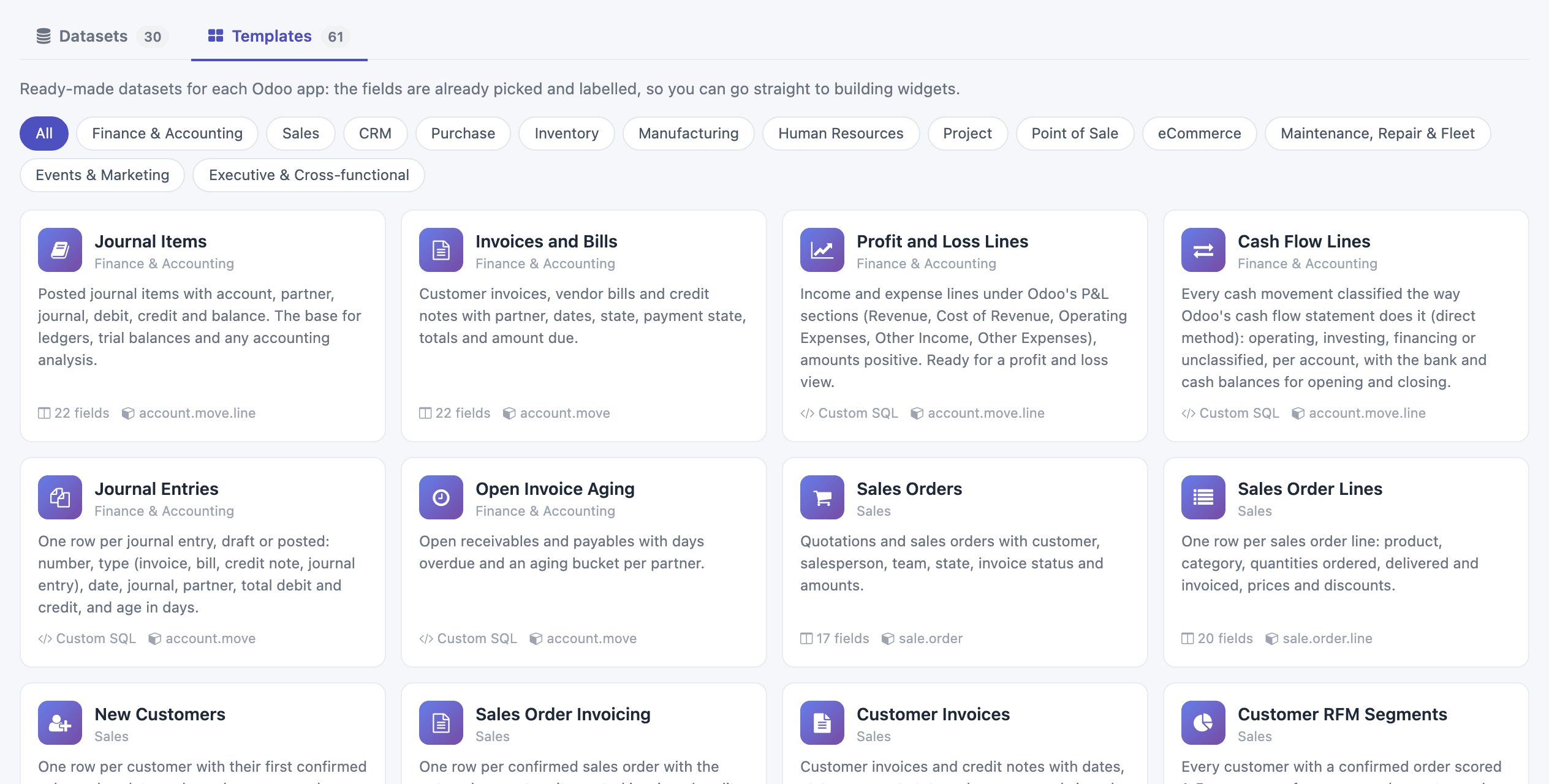
The category pills work as in the dashboard gallery. The search box also matches field names, so searching for salesperson finds every template that has one. Each card shows how many fields the dataset has and the Odoo model it reads, or Custom SQL for the ones written as a query, such as Cash Flow Lines or Customer RFM Segments. A template whose Odoo app isn’t installed is dimmed and shows Needs followed by the app; one that can’t run on your Odoo version shows Not on this Odoo version.
Look inside and install
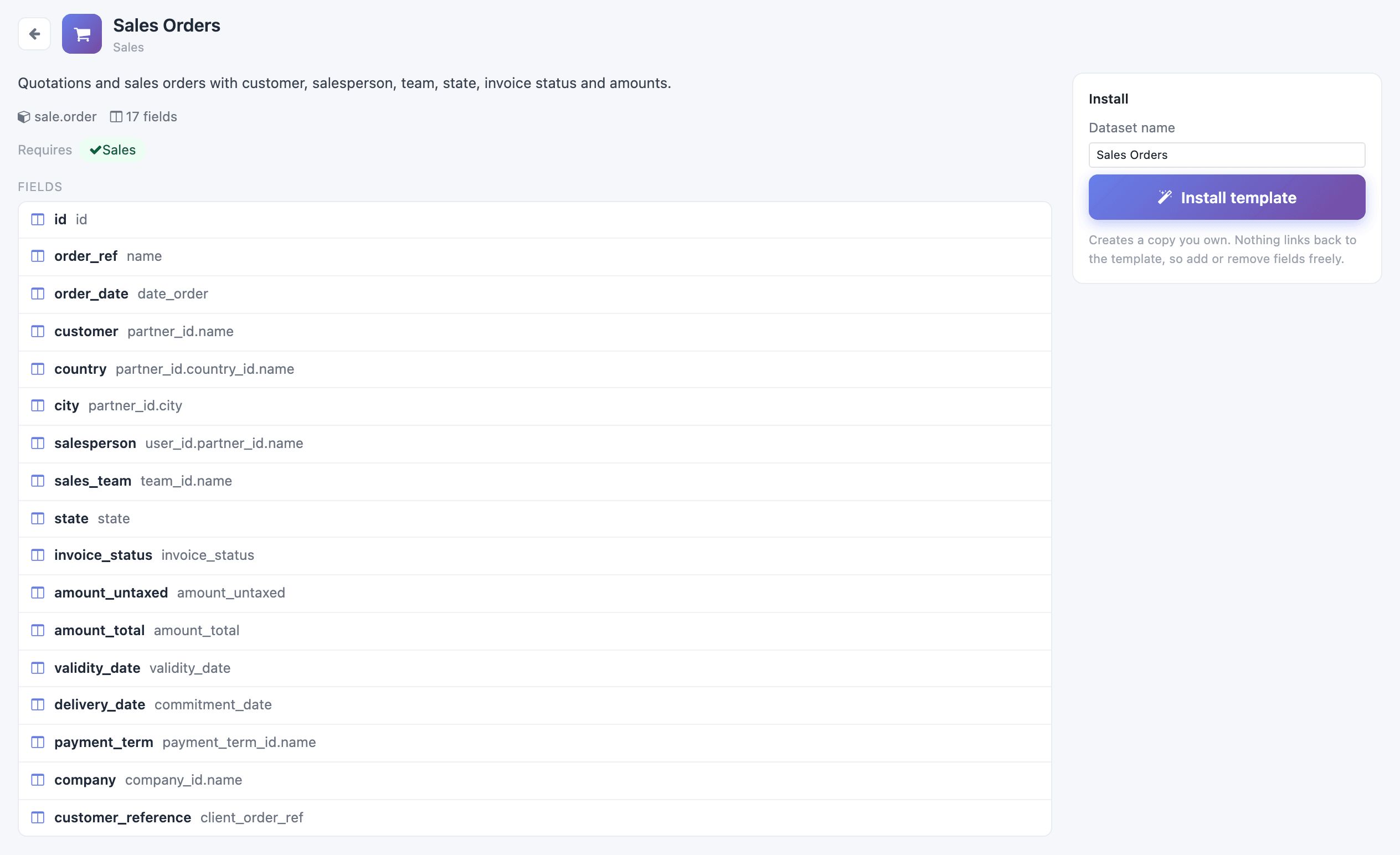
Section titled “Look inside and install”Click a card to see its fields. Each row shows the column name the dataset will have, in bold, and the Odoo field it comes from. Custom SQL templates show a note instead: their columns appear once the dataset is installed.
-
Under Dataset name, keep the template’s name or type your own.
-
Click Install template.
The new dataset opens in the Dataset Builder, where you can add or remove fields like in any dataset you built yourself. Nothing links back to the template. If the name is taken, the new dataset gets a number: Sales Orders 2.
Label columns
Section titled “Label columns”Datasets installed from a template that read an Odoo model get an extra column for each choice field, such as an order’s Status. The extra column has the same name ending in _label and holds the choice in words: state holds sale, state_label holds Sale. Group charts and tables by the label column, and filter on the original column when you type a value.
The label is the stored key in title case, not Odoo’s own translation: a confirmed sales order shows as Sale, not Sales Order. For Odoo’s exact wording, use a Condition custom field.
The label columns count towards the fields number on the dataset’s card, so an installed dataset can show more fields than its template did.
Describe your datasets
Section titled “Describe your datasets”Every dataset now has a description. On the Dataset Builder’s start screen it appears on the dataset’s card, so the people building widgets can tell Sales Orders from Sales Orders 2 without opening them. Templates fill it in; for your own datasets:
-
Open the dataset in the Dataset Builder.
-
Click the pencil under the dataset’s name (Edit description).
-
Type what the dataset holds and what it’s for, then click the check (Save).

The description is also on the dataset’s form under Configurations → Advanced Configuration → DTS.
The full list
Section titled “The full list”The template catalogue lists all 61 dataset templates by app, with the Odoo apps each one needs.
Administrators find them under Odoo Dashboards → Configurations → Dataset Templates, where a template can be archived to hide it from the gallery. The shipped dataset templates are read-only because updates of the app reset them: to customise one, open it and click Duplicate, then edit the copy. See Customise a shipped template.