

A tour of the app
Odoo Dashboards has three screens. Most people only ever use the first.
- The dashboard viewer is what everyone sees when they open a dashboard from the menu.
- The Dashboard Builder is where you create dashboards and the widgets on them.
- The Dataset Builder is where you choose which Odoo data the widgets can use.
The dashboard viewer
Section titled “The dashboard viewer”Every dashboard has its own entry in the Odoo Dashboards menu. Open one and you get the dashboard viewer: a header bar, then the widgets on a grid.
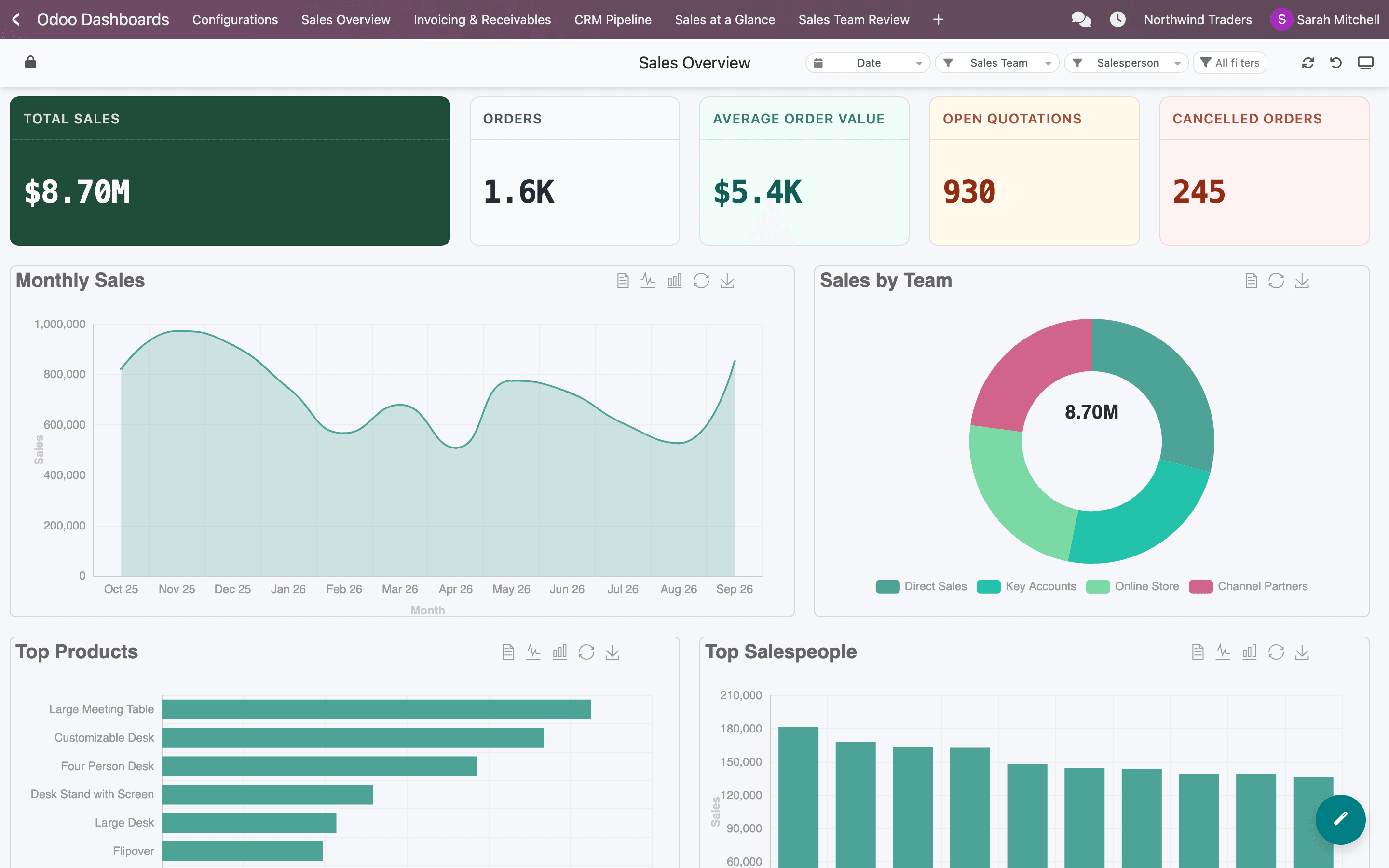
- Edit layout (lock)
- Global filters
- Refresh, Reset to Default View, Present
| Control | What it does |
|---|---|
| Edit layout (lock) | Unlocks the grid so you can drag widgets and resize them from their bottom-right corner. Click the lock again to save. Your layout is saved for you only. |
| Global filters | Filters that apply to several widgets at once, such as a salesperson or a customer. Changes apply straight away. Up to three show in the bar; the rest are under All filters. |
| Date Filter | One date range for the whole dashboard, with presets such as This Month and Last Quarter. It only appears on dashboards that have it turned on (not this one). |
| Refresh | Fetches every widget again from the database. |
| Reset to Default View | Throws away your own arrangement and goes back to the dashboard’s default layout. |
| Present (slideshow) | Shows the widgets one at a time, full screen, with autoplay and a Download as PDF button. |
Users with the AI Analytics (SAAS) right also see a round button in the bottom-right corner, Ask AI about this data, which answers questions about the dashboard’s data.
On each widget
Section titled “On each widget”Hover over a widget to see its controls:
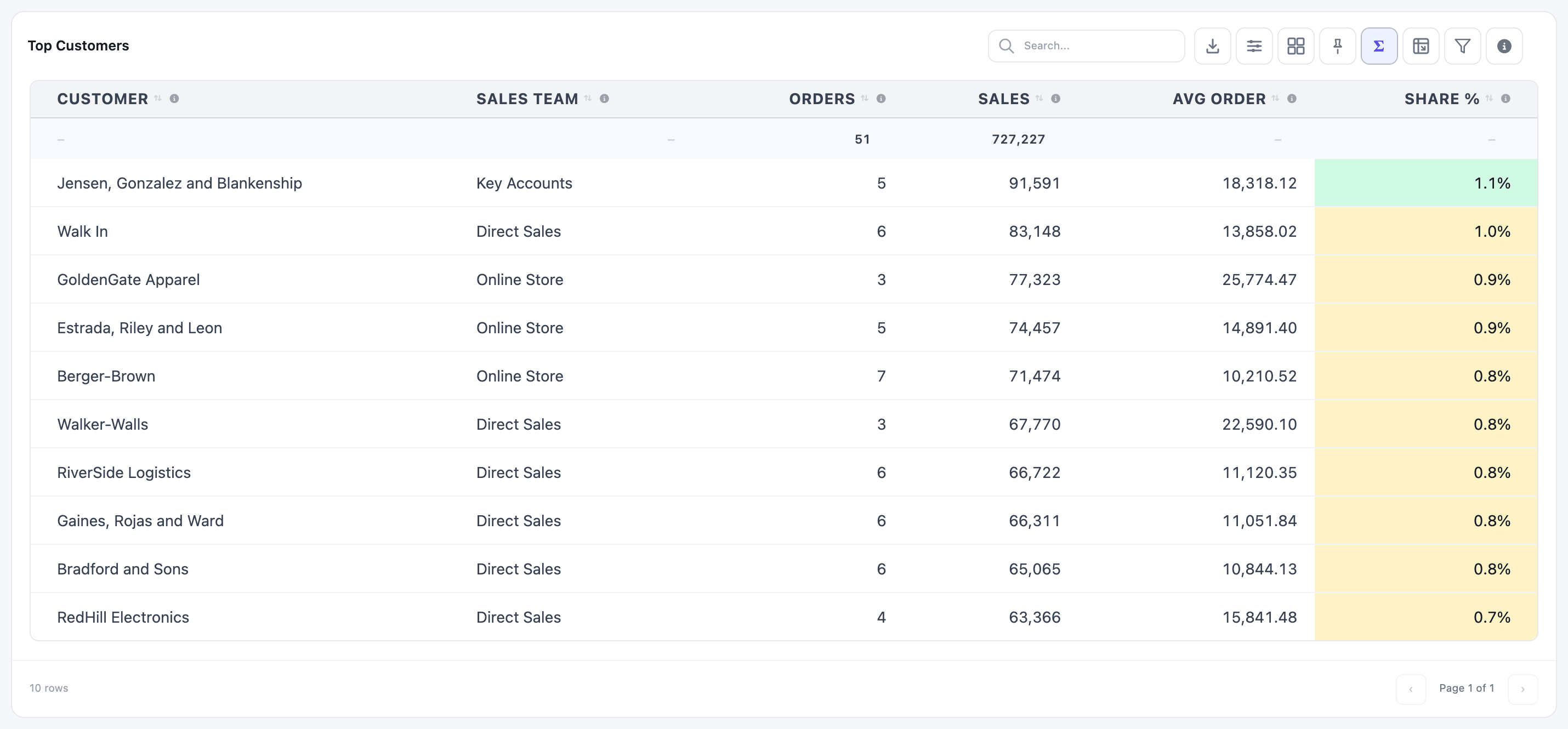
- Filters. Tables show their filters as chips under the header. Tiles and charts show a filter icon in the top-right corner, with a badge counting active filters. Every filter applies as soon as you change it.
- Info (ⓘ). Hover to read what the widget shows and how it’s calculated, if the builder wrote a description.
- Blur (eye icon). Hides the widget’s numbers on your screen, handy when screen sharing. Nothing is saved.
- Drill down. On widgets with drilldown turned on, click a value (or the arrow icon on a tile) to open the Odoo records behind it.
- Open Configuration. Right-click a widget to open it in the Dashboard Builder, in a new browser tab. You need a builder access right for this.
The Dashboard Builder
Section titled “The Dashboard Builder”Open it from Odoo Dashboards → Configurations → Dashboard Builder. It starts on a list of every dashboard, with New Dashboard in the top-right corner.
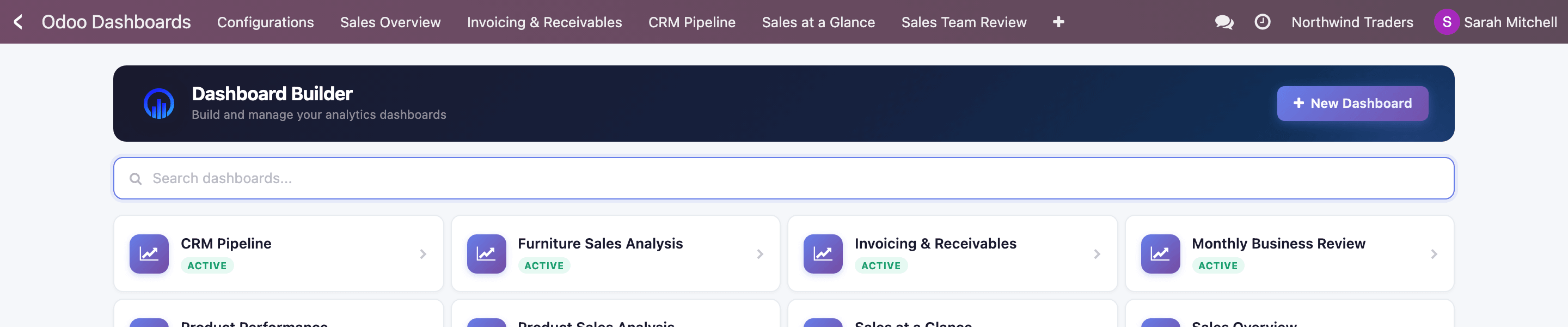
Click a card to open that dashboard in a new tab. To edit it, hover over the card and click its cog (Configure).
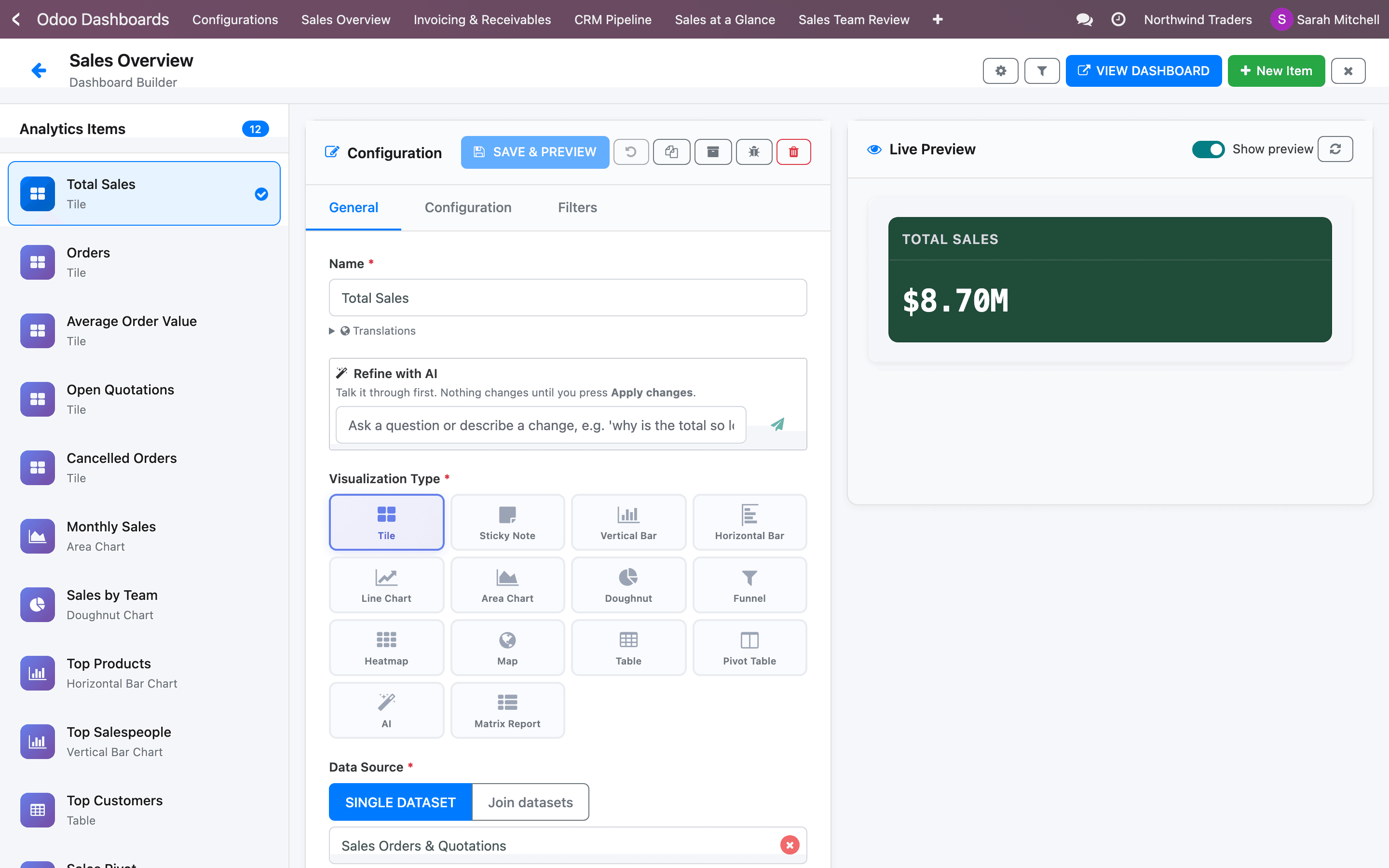
- Analytics Items: every widget on this dashboard
- General, Configuration and Filters tabs
- Save & Preview, Discard, Duplicate, Archive, Open Full Form, Delete
- Live Preview
- Dashboard Settings, Global Filters, View Dashboard, New Item
The builder edits one widget at a time:
- The Analytics Items list on the left shows every widget on the dashboard. Click one to edit it, or click New Item to add one.
- The settings are split into three tabs. General holds the name, the visualization type and the data source. Configuration holds what’s specific to that type, such as the measure of a chart or the columns of a table. Filters holds the widget’s filters.
- Save & Preview saves the widget and redraws the Live Preview. The preview is off when the builder opens; switch it on with Turn on preview.
- The top bar opens the Dashboard Settings (name, sharing, default layout), the Global Filters, and the live dashboard in a new tab (View Dashboard).
The Dataset Builder
Section titled “The Dataset Builder”Open it from Odoo Dashboards → Configurations → Dataset Builder (you need the Dataset Builder (SAAS) right). It lists every dataset, with New Dataset to make one from any Odoo model.
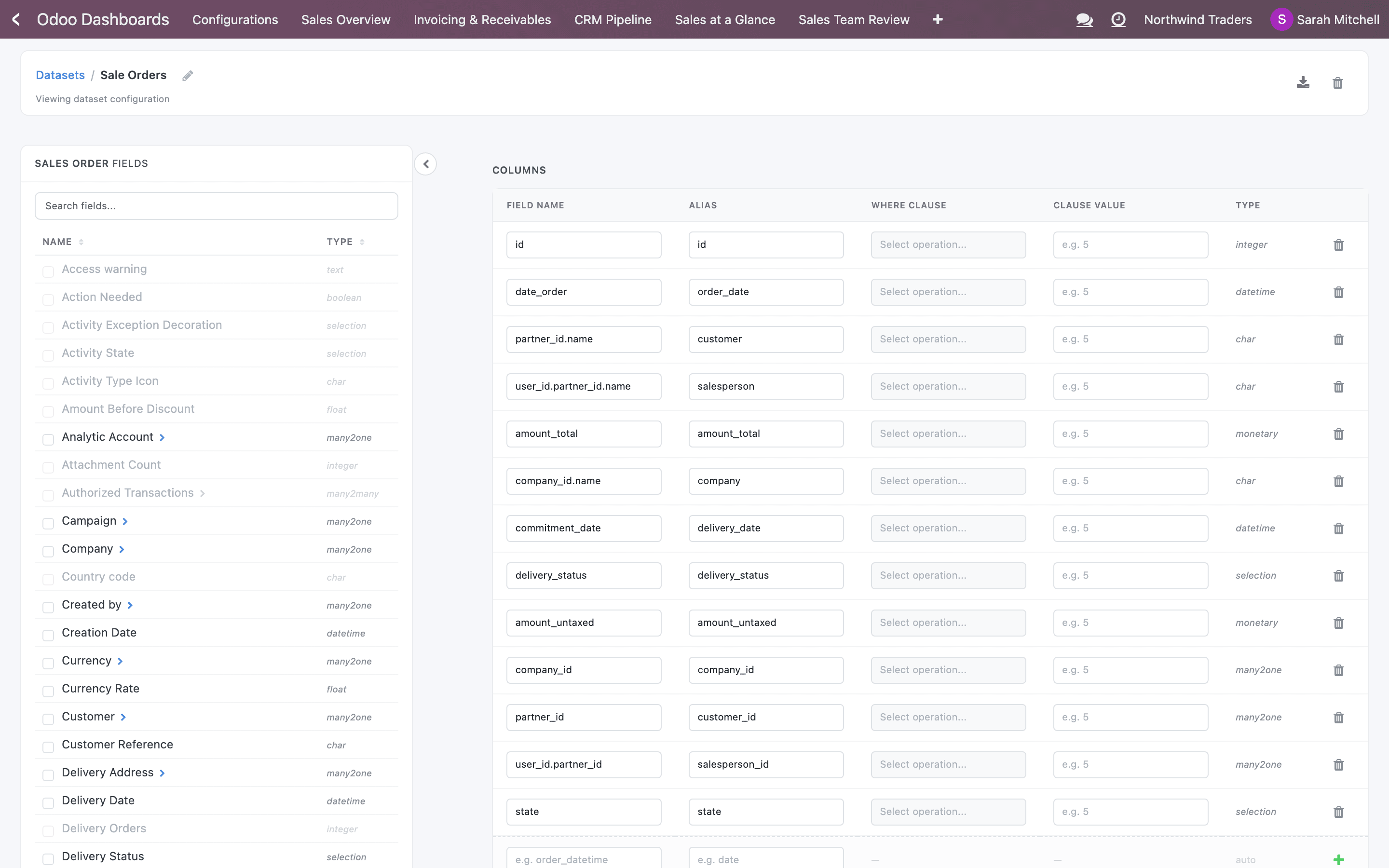
- Fields of the model (click › to open a related record)
- Columns: the fields this dataset provides
Tick fields on the left and click Insert to add them as columns. Fields of related records are one click away: open Customer to pick its country, or Salesperson to pick their team. Under the columns, Sample Data shows the first rows of the result and updates after every change.
The menus
Section titled “The menus”Everything else lives under Odoo Dashboards → Configurations. Which menus you see depends on your access rights.
| Menu | What it’s for |
|---|---|
| Dashboard Builder | Create and edit dashboards and widgets. |
| Dataset Builder | Create and edit datasets. |
| AI Governance | Who may use the AI features, and how many credits each person gets. Administrators only. |
| AI Generation Log | Every AI request, with who made it and what it cost. Administrators only. |
| Custom Operations → Where Operations | The list of filter operations (such as Is between or This month). |
| Advanced Configuration → DSB / DTS | Odoo’s standard list and form views of all dashboards (DSB) and datasets (DTS). DTS is also where you write datasets in SQL. |
| Targets (top bar) | Target plans and the grid to enter targets. Needs the Targets (SAAS) right. |