

Start from a template
The app comes with 52 dashboard templates, built for the standard Odoo apps: Finance & Accounting, Sales, CRM, Purchase, Inventory, Manufacturing, Human Resources, Project, Point of Sale, eCommerce, Maintenance, Repair & Fleet, Events & Marketing, and cross-functional executive views.
A template brings everything a dashboard needs: its own datasets, the widgets with their number formats, colours and tooltips, the dashboard filters and a finished layout. Installing one takes a few seconds, and the result is an ordinary dashboard that you can change like any other.

Templates are the quickest way to a first dashboard. To learn how widgets and datasets fit together, Build your first dashboard walks through the same steps by hand.
Find a template
Section titled “Find a template”-
Go to Odoo Dashboards → Configurations → Dashboard Builder.
-
Click the Templates tab, under the search box. On a database with no dashboards yet, the builder opens on this tab.

Narrow the list in three ways:
- Category pills show one app area at a time, such as Sales or Inventory.
- The Any level box picks a level: Overview templates give the big picture in a few numbers, Standard ones cover one area in depth, and Advanced ones are for analysts and accountants (for example General Ledger & Trial Balance).
- The search box matches template names, descriptions and the names of the widgets inside them, so searching for overdue finds every template with an overdue table.
Each card shows the template’s level, what it covers, and how many widgets and datasets it creates. The template catalogue lists all 52 with the Odoo apps each one needs.

One customer, product or project at a time
Section titled “One customer, product or project at a time”Most templates sum up a whole area. Three of them follow a single record instead: Customer 360, Product 360 and Project 360. Pick the customer, product or project in the filter at the top of the dashboard, and every widget shows that one record: a customer’s sales, quotations, invoices and what they owe; a product’s stock, movements, vendors and customers; a project’s team, tasks, deadlines and hours.
Templates that need another Odoo app
Section titled “Templates that need another Odoo app”A template reads the data of the Odoo app it was built for. When that app isn’t installed in your database, its card is dimmed and shows Needs followed by the app’s name.

You can still open these templates to read what they contain, but you can’t install them until someone installs the app in Apps.
A card can also show Not on this Odoo version. Before listing a template, the app checks that the fields and queries it uses exist in your database. A few store their data differently in some Odoo versions, and those can’t be installed there even when the app is installed.
Look inside a template
Section titled “Look inside a template”Click a card to open it. The page lists every widget the template creates, grouped as Tiles, Charts and Tables, each with a sentence on what it shows. Above the list:
- the level and the number of widgets and datasets;
- Filters: the filters the dashboard gets in its header, such as Date or Salesperson;
- Requires: the Odoo apps it reads, with a tick for each one that is installed.
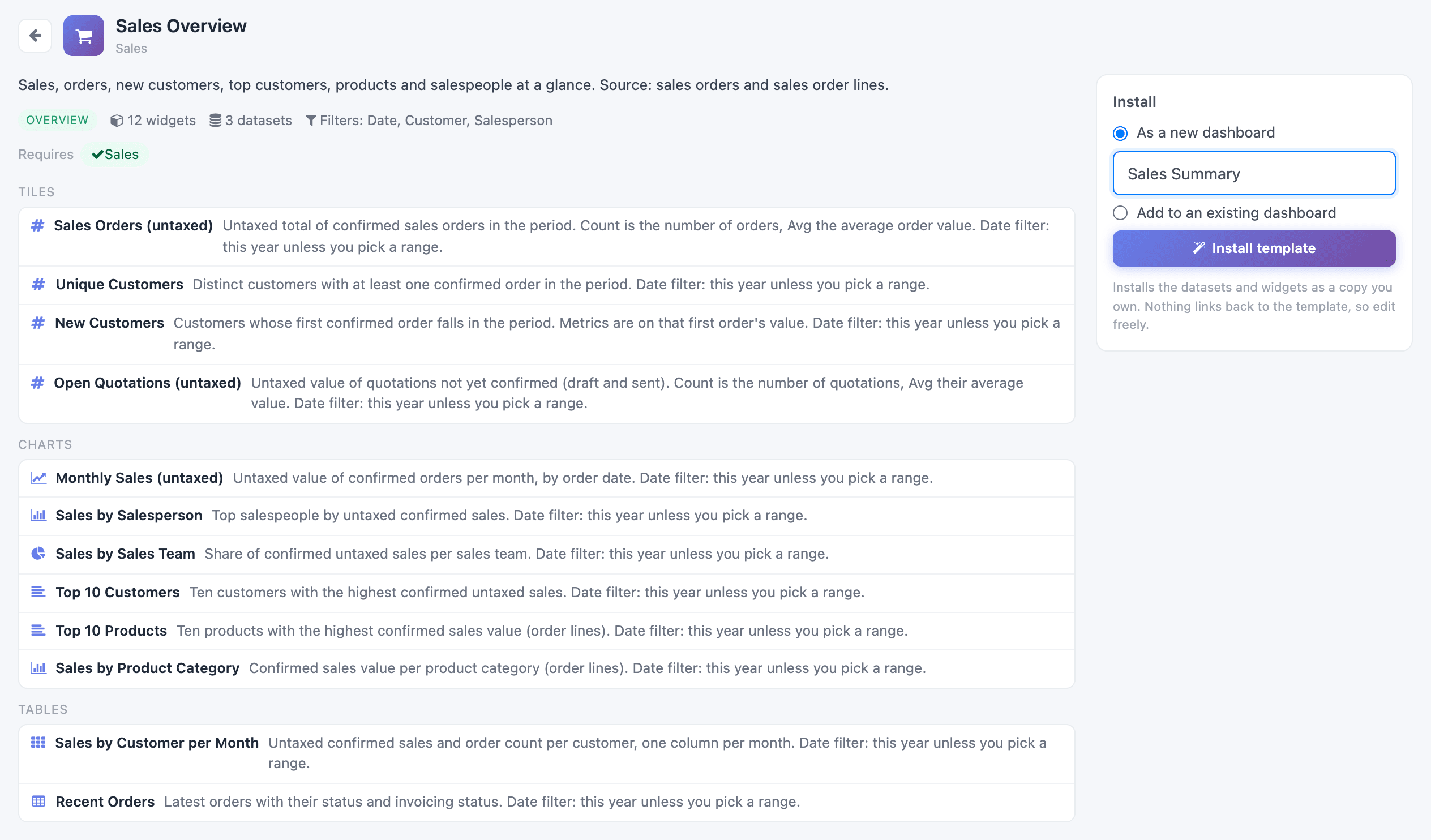
Click the arrow at the top left to go back to all templates.
Install it
Section titled “Install it”The Install panel on the right puts the template into your database, either as a new dashboard or inside one you already have.
As a new dashboard
Section titled “As a new dashboard”-
Keep As a new dashboard selected.
-
Type a name, or keep the template’s own name.
-
Click Install template.
The new dashboard opens in the Dashboard Builder, ready to adjust. It gets the template’s layout, its header filters, and the template’s category and description, so it sits with similar dashboards on the builder’s start screen. It also gets its own entry in the Odoo Dashboards menu which, as with any new dashboard, only the administrator sees until you share the dashboard.
If a dashboard with that name already exists, the new one is called Name (2).
Add to an existing dashboard
Section titled “Add to an existing dashboard”-
Select Add to an existing dashboard.
-
Pick the dashboard in the list. Only active dashboards are listed.
-
Click Install template.
The template’s widgets are added after the dashboard’s own widgets, and its header filters are added to the dashboard’s. The template’s layout isn’t applied, so arrange the new widgets yourself: see Layout and presenting. The dashboard keeps its name, category and description.
What an install creates
Section titled “What an install creates”- New datasets, every time. A template never reuses your existing datasets, even ones with the same fields, so installing it can’t change the widgets you already have. When a dataset name is taken, the new one gets a number: Sales Orders 2.
- A copy you own. Nothing links back to the template. Change the widgets, rename the datasets or delete what you don’t need; a later update of the app doesn’t touch them. Template columns and tiles open in the custom field wizard exactly as they were built, so you can change a list of accounts or a rounding without retyping the rest: see Edit a template’s column.
- Readable labels. Odoo stores choices such as an order’s status as technical keys (
to invoice,liability_payable). Template datasets add a second column for each of these, ending in_label, that turns the key into words: To Invoice, Liability Payable. Template charts, tables and filter lists use the label column; filters with a typed value still use the key. The label is the key in title case, which isn’t always Odoo’s wording: a confirmed order’s state shows as Sale, not Sales Order. - Titled table headers. Table columns get headers such as Order Date instead of
order_date. Rename them like any other column. - The period in each tooltip. Widgets with a date filter say in their tooltip which period they show until you pick a range, for example Date filter: this year unless you pick a range. A few templates use another default, such as the last 365 days in Customer Insights.
If an install fails partway, the datasets it already created are deleted, so a failed install leaves nothing behind.
Who can install templates
Section titled “Who can install templates”Anyone who can open the Dashboard Builder can browse and install templates; it needs no extra access right. If you use AI governance, a policy that doesn’t allow creating dashboards also blocks installing a template as a new dashboard.
The templates themselves are listed under Odoo Dashboards → Configurations → Dashboard Templates. Administrators can archive a template there to hide it from the gallery.
Customise a shipped template
Section titled “Customise a shipped template”The templates that come with the app are read-only: they are reset every time the app is updated. To make your own version, for example with different widgets or your company’s filters, duplicate one:
-
Go to Odoo Dashboards → Configurations → Dashboard Templates and open the template.
-
Click Duplicate. The copy opens, named after the template with (copy) at the end.
-
Change its name, description or specification, and save.
The copy is yours: updates of the app leave it alone, and it appears in the Templates gallery next to the original. Only administrators can edit templates.
To change a single dashboard rather than the template, install the template and edit the installed dashboard instead.
Datasets on their own
Section titled “Datasets on their own”The Dataset Builder has its own template gallery: 58 ready-made datasets, the same ones the dashboard templates are built on. Use them to build your own widgets on well-chosen fields. See Dataset templates.