

Sharing and access
Access in Odoo Dashboards has two separate layers:
- Access rights on the user form decide who can build: create dashboards, datasets and targets, and use the AI.
- Each dashboard’s access list decides who sees that dashboard in the Odoo Dashboards menu.
A person who only reads dashboards needs no access right at all, only a place on the access list of the dashboards they should see.
Who can build
Section titled “Who can build”The app adds these rights to the Analytics Dashboard (SAAS) section of the user form (visible in developer mode). Install the app shows where to tick them.
| Access right | What it adds |
|---|---|
| Dashboard Builder (SAAS) | The Configurations menu with the Dashboard Builder: create and change dashboards and their widgets. |
| Dataset Builder (SAAS) | Everything above, plus the Dataset Builder. |
| Targets (SAAS) | The Targets menu: create and edit target plans. Everyone else can only see targets on dashboards. |
| AI Analytics (SAAS) | The AI features. Settings administrators have it automatically. |
Odoo administrators (Administration: Access Rights or higher) also see Configurations, including technical menus such as Advanced Configuration. Only Settings administrators see AI Governance and AI Generation Log.
Share a dashboard
Section titled “Share a dashboard”Every dashboard starts out visible to the administrator only. To show it to other people:
-
Open the dashboard in Odoo Dashboards → Configurations → Dashboard Builder (the cog on its card).
-
Click the cog in the top bar (Dashboard Settings).
-
Under Add Users, type part of a name and click the person in the list. They appear as a blue tag above the search box. Click the × on a tag to take someone off.
-
Click Save Settings.
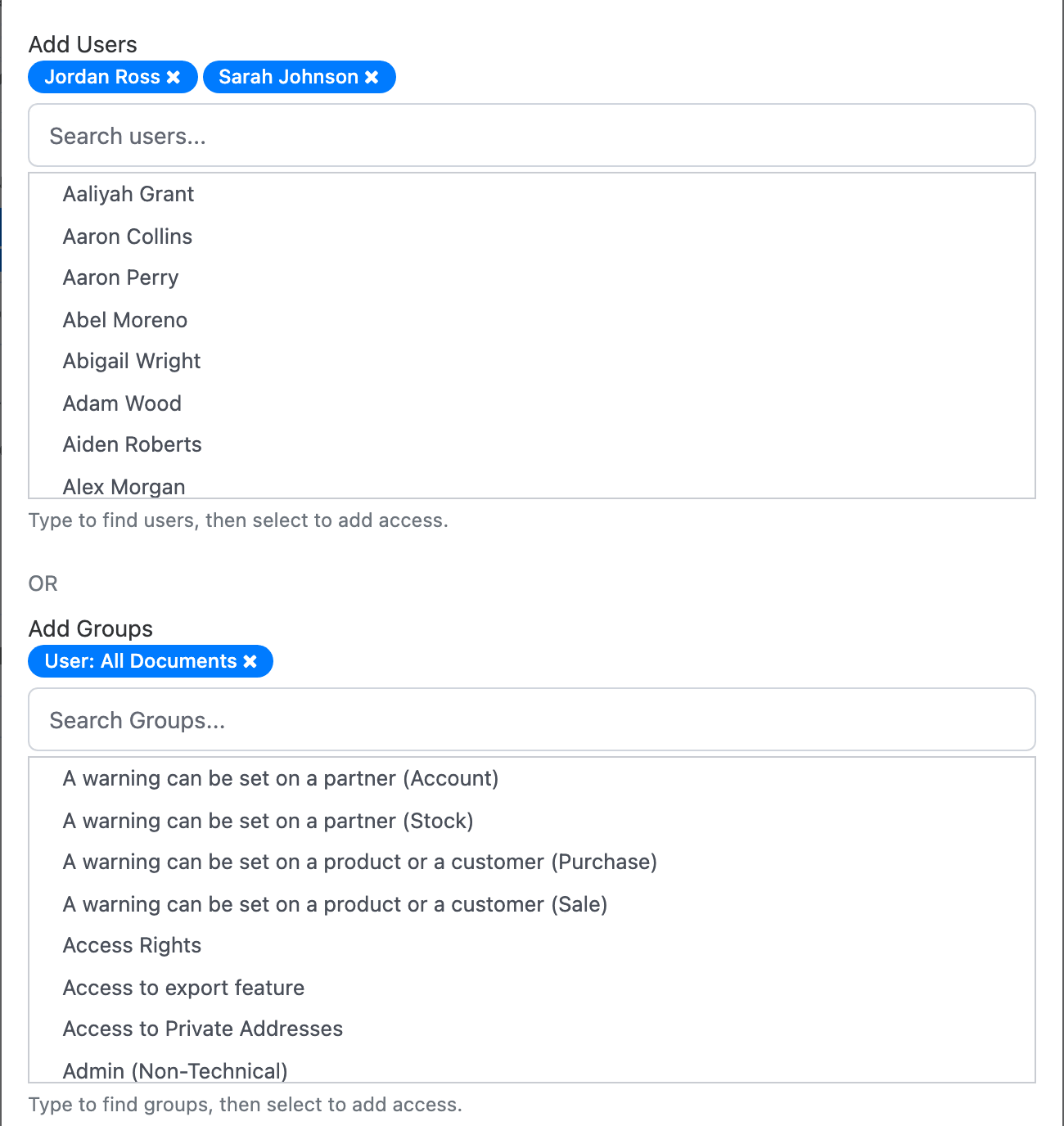
The people you added find the dashboard in their Odoo Dashboards menu after they reload the page. The menu shows only the dashboards they’re on the list of, and no Configurations unless they also have a builder right.
The administrator is never shown in the list and always keeps access.
Share with a whole group
Section titled “Share with a whole group”Add Groups works the same way with Odoo user groups, for example Sales / User: All Documents. Every member of the group gets the dashboard in their menu. The list offers any Odoo group except the app’s own rights.
What viewers can do
Section titled “What viewers can do”A viewer opens the dashboard from the menu and can use everything on it: filters, the date filter, drilldown into Odoo records, exports, the presentation mode, and their own arrangement of the widgets (layouts are saved per person). Filter choices and layouts don’t change the dashboard for anyone else. Text typed into a sticky note does: it is saved for everyone.
The access list decides who sees a dashboard. It is not an editing permission, so don’t rely on it to stop people from changing a dashboard.
Hide a dashboard without deleting it
Section titled “Hide a dashboard without deleting it”Dashboard Settings has an Active checkbox. When you untick it and save, the dashboard keeps all its widgets and settings, shows an INACTIVE badge on its card in the Dashboard Builder, and its record buttons disappear from other apps. Tick it again to bring them back.
Dashboards don’t apply record rules
Section titled “Dashboards don’t apply record rules”This is the most important thing to understand before you share a dashboard.
Widgets read their numbers straight from the database through the dataset’s SQL view. Odoo’s record rules and company restrictions are not applied to those numbers. In practice:
- A salesperson whose Sales right is User: Own Documents Only sees every team’s sales on a dashboard built on all sales orders, not only their own.
- In a database with several companies, a dataset returns the rows of all companies, whatever companies the viewer has selected in the top bar.
Drilldown is the exception: clicking through to the records opens a normal Odoo list, and that list does apply record rules. So a viewer may see a total on a widget but fewer records behind it.
To control what each audience sees:
- Filter the dataset. Add a fixed condition to the dataset or to the widgets, for example
company_idequal to one company, or a team. See Widget filters. - Make separate dashboards. Build one dashboard per audience (per company, per team), each on filtered datasets, and give each its own access list. A filter that viewers can change is a convenience, not a restriction: they can pick another value.
- Keep the AI right for trusted people. AI features can write their own SQL, which can read any table. Give AI Analytics (SAAS) only to people who may see all data.
Finer limits with AI Governance
Section titled “Finer limits with AI Governance”The rights above are all-or-nothing: anyone with Dashboard Builder (SAAS) can work on any dashboard. An AI Governance policy adds finer limits per person: it can stop them from creating dashboards, changing a dashboard’s settings, deleting or sharing it, for all dashboards or for a chosen few, and it can restrict which datasets they may pick in the builder. Policies also set AI credit allowances. See AI governance and credits.