

Row actions
Row actions turn a table into a worklist. Viewers tick rows, pick an action, and Odoo runs it on the records behind those rows: lock a batch of sales orders, confirm quotations, mark activities done. They do it from the dashboard, without opening each record.
Recent Orders lists the last 30 days of furniture orders, with two actions, Lock and Unlock, that lock and unlock the selected sales orders in Odoo Sales.
What the viewer sees
Section titled “What the viewer sees”-
Tick the rows to act on, in the checkbox column on the left. The box in the header (Select all rows) selects every row that matches the current search and filters, on all pages.
-
Click Actions in the toolbar. The button shows how many rows are selected.
-
Pick the action. Clear selection unticks everything.
-
If the action asks for confirmation, check the message and click the action’s button.
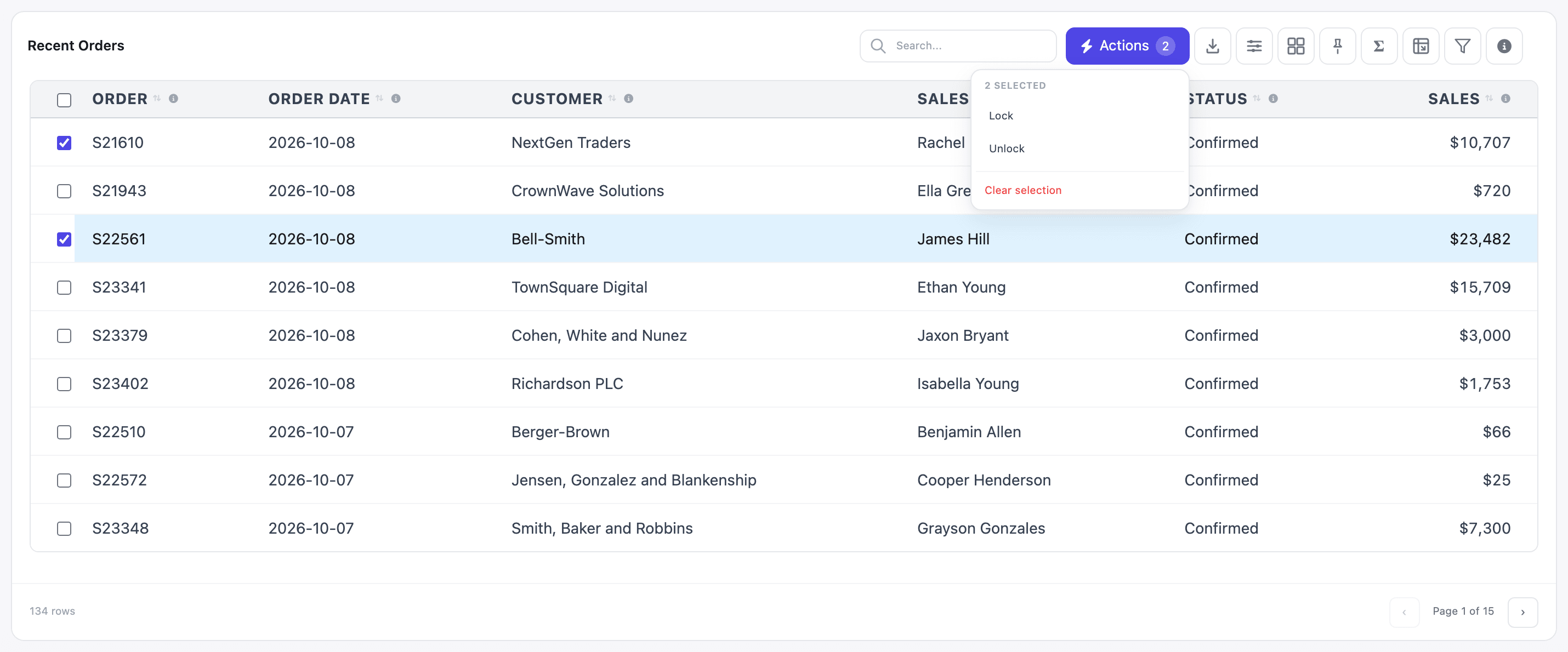
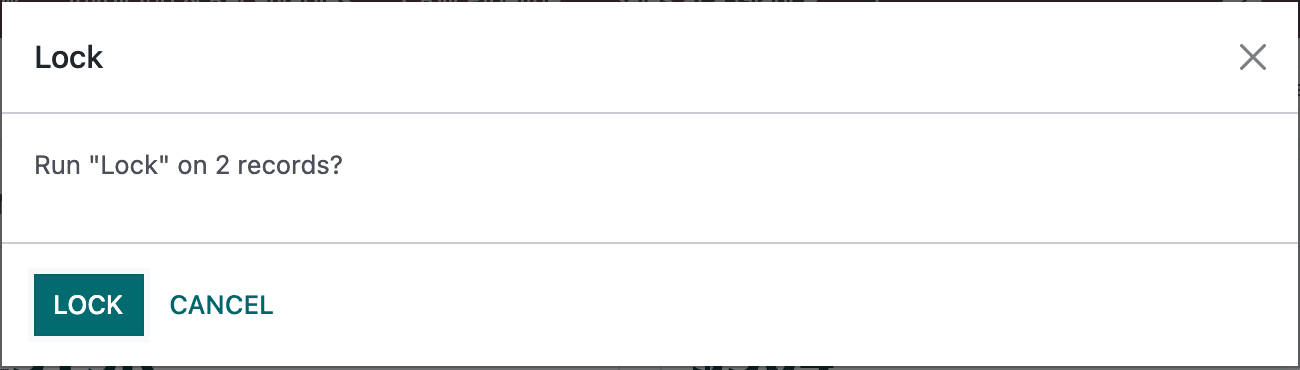
When it’s done, a message such as Lock: done on 2 records. appears and the table reloads. Rows stay where they were, so you can see the change: here the two orders’ Status turns to Locked.
If the action opens a window (a wizard, such as Odoo’s “send by email” form), the window opens instead, and the table reloads when you close it.
Group rows and the Opening row can’t be selected, and clicking a checkbox never opens the record. Selection isn’t available in the builder’s preview or while presenting the dashboard.
Set it up
Section titled “Set it up”Row actions run on the table’s drilldown records, so the table must have drilldown turned on first.
-
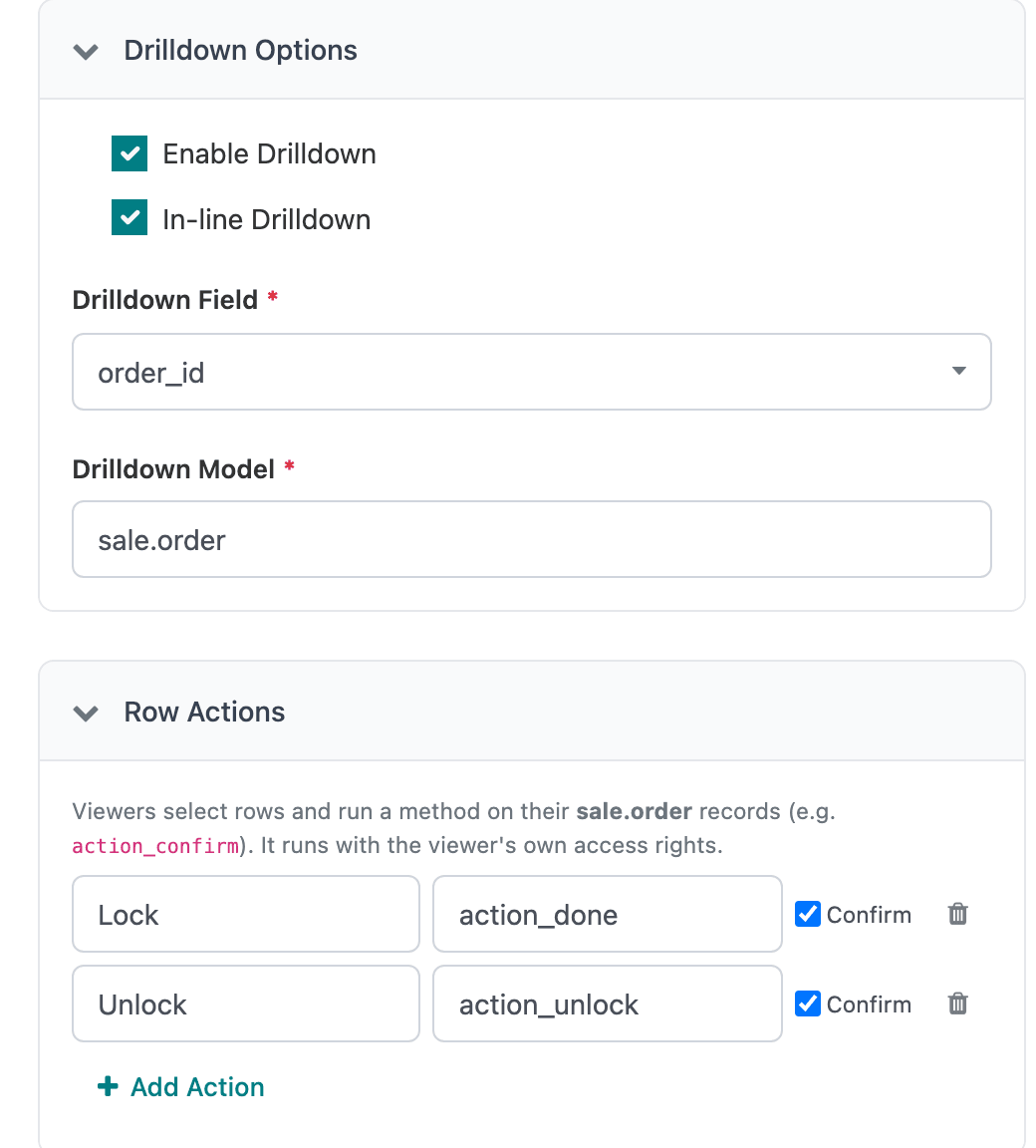
In the Dashboard Builder, select the table, open Configuration and expand Drilldown Options.
-
Tick Enable Drilldown and choose the Drilldown Field that holds the record’s id. On a dataset built on an Odoo model, that’s
id. On a custom SQL dataset, pick the id column (hereorder_id) and type the model in Drilldown Model (heresale.order). -
Expand Row Actions. It says which records the actions will run on.
-
Fill in Button label (e.g. Confirm) with what viewers will see, and Method (e.g. action_confirm) with the Odoo method to call. Start typing the method name to get suggestions.
-
Leave Confirm ticked to make viewers confirm before it runs.
-
Click + Add Action for each further action, then click Save & Preview.
If drilldown is off, the Row Actions section only says: Row actions run on the drilldown records, so enable Drilldown above first.
Rows of a summarised table carry the ids of every record in the row’s group, so an action on one row runs on all those records. The confirmation counts records, not rows.
Which methods you can use
Section titled “Which methods you can use”The suggestions list the model’s public methods whose names start with action_ or button_. These are the methods behind the buttons on Odoo forms. Some common ones:
| Model | Method | What it does |
|---|---|---|
Sales order (sale.order) |
action_confirm |
Confirms quotations |
| Sales order | action_done / action_unlock |
Locks / unlocks orders |
| Sales order | action_cancel |
Cancels orders (may open a confirmation wizard) |
Invoice (account.move) |
action_post |
Posts draft invoices |
Purchase order (purchase.order) |
button_confirm |
Confirms RFQs |
Methods are called with no arguments. One that only works on a single record, as many wizard-opening buttons do, fails with ‘…’ works on one record at a time. Select a single row. Viewers then select one row at a time.
Safety
Section titled “Safety”- Actions run as the viewer, with the viewer’s own Odoo access rights. Someone who can’t confirm orders in Sales can’t confirm them from the dashboard either; they get an error message instead.
- Only the methods listed on the table can run, and never private methods (names starting with
_). Viewers can’t call anything else through the table. - Each run is all or nothing. If the method fails halfway, the changes it made are rolled back and the error shows in a red message.
- There is no undo. What the method does is what happens in Odoo. Keep Confirm ticked for anything you can’t easily reverse, and test new actions on a test database first.
- Anyone who can see the dashboard can see the Actions button. Share dashboards with row actions only with the people who should run them; see Sharing and access.