

Global filters
A global filter sits in the dashboard header and narrows many widgets at once: pick Key Accounts in Sales Team and every widget linked to that filter shows Key Accounts only.
A global filter doesn’t invent conditions. It drives filter lines that already exist on the widgets, the ones you tick when you set it up. So each widget that should follow it needs a filter line on the matching column, shown or not.
Before you start
Section titled “Before you start”Give every widget that should follow the filter a filter line on the right column, on its Filters tab (see Widget filters). Use the operation the global value should go through, usually Is equal to or Is in list. Leave Show in Dashboard unticked if viewers should only use the header.
Set up a global filter
Section titled “Set up a global filter”-
In the Dashboard Builder, open the dashboard and click the funnel button in the top bar (Global Filters).
-
Click Add. A filter called New filter appears in the list on the left.
-
Under Applies to (pick the columns this filter drives), tick the filter line on each widget that should follow it. Type in Search columns… to find them, for example
sales_team. -
Check Value source. It lists the lines you ticked; the first one is picked for you. Its values fill the filter’s list in the header and its column type decides the control.
-
Type a Label, or leave it empty to use the value source’s column name.
-
Optionally set a Default value, which applies when the dashboard opens.
-
Click Save Filters.
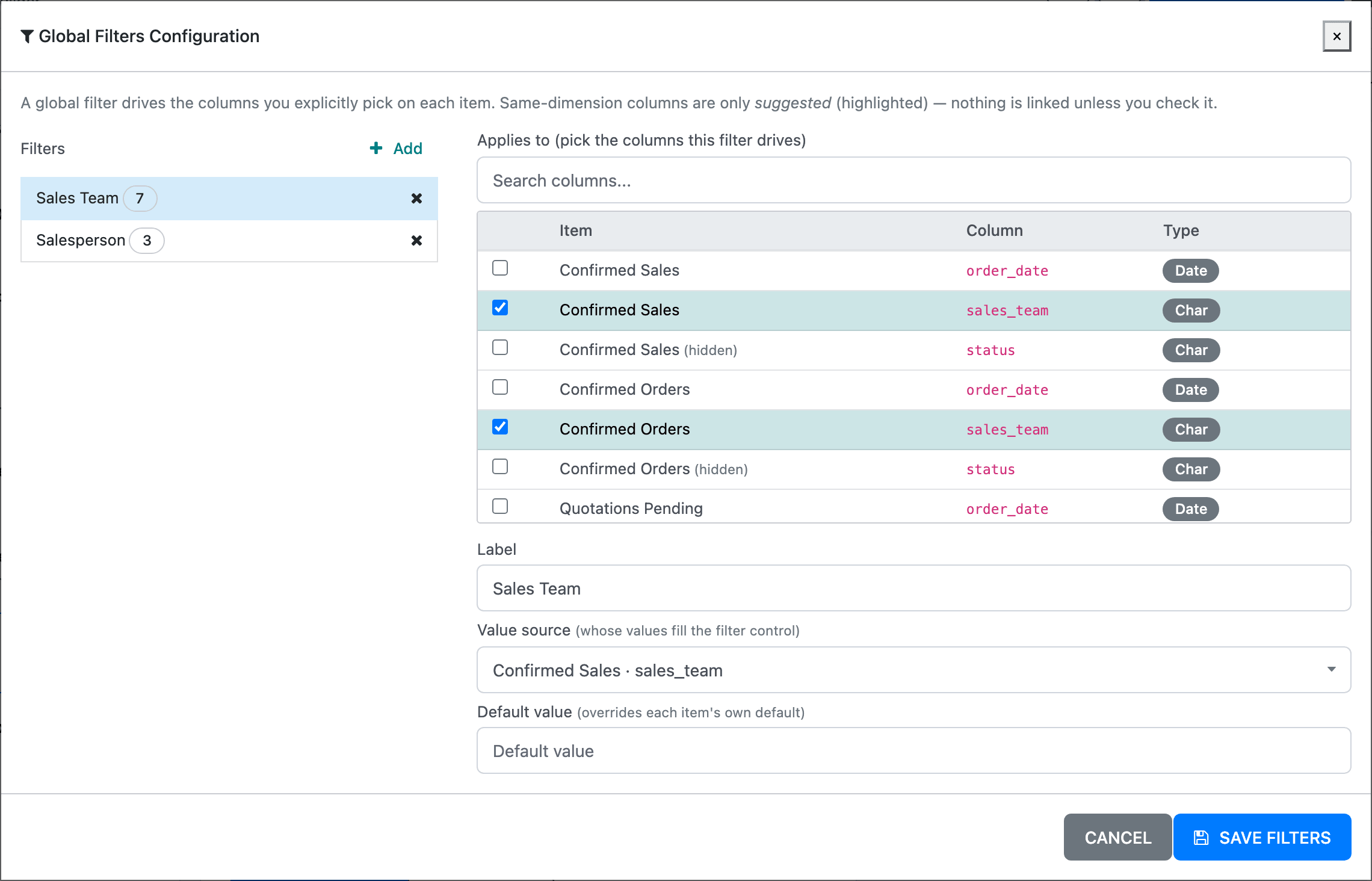
Each filter in the list shows how many lines it drives. The × next to it removes it.
The Applies to table has a row for every filter line on every widget, with the widget (Item), the Column and its Type. Lines not shown on their widget are marked (hidden); a global filter can drive them all the same.
Default value
Section titled “Default value”Default value (overrides each item’s own default) is applied to every linked line when the dashboard opens, and shows as selected in the header. For a value source with a known list it’s a dropdown (— No default — clears it); otherwise you type the value. Date value sources can’t have one here: their defaults come from the date range.
Clearing a global filter that has a default brings the default back rather than removing the filter: the chip looks empty, but the widgets stay filtered by the default. Leave the default empty if viewers need to see everything.
Across datasets
Section titled “Across datasets”Because you tick each line yourself, one global filter can drive widgets built on different datasets: the salesperson line of an orders widget, of an invoices widget and of a CRM widget can all follow one Salesperson filter. Their values only need to match, since the picked value is passed to each line as it is.
On datasets built from Odoo models, lines on the same dimension as the value source are highlighted with a lightbulb (Suggested: same dimension as the value source), for example every line pointing at the same customer model, even across the order and order line datasets. Suggestions are never ticked for you. Custom SQL datasets get no suggestions.
Using it on the dashboard
Section titled “Using it on the dashboard”Global filters use the same chips and window as widget filters, in the header: up to three chips and an All filters button. Unlike widget filters, they don’t apply straight away. Pick values, then click the blue tick (Apply filters) next to the chips, or Apply in the All filters window.
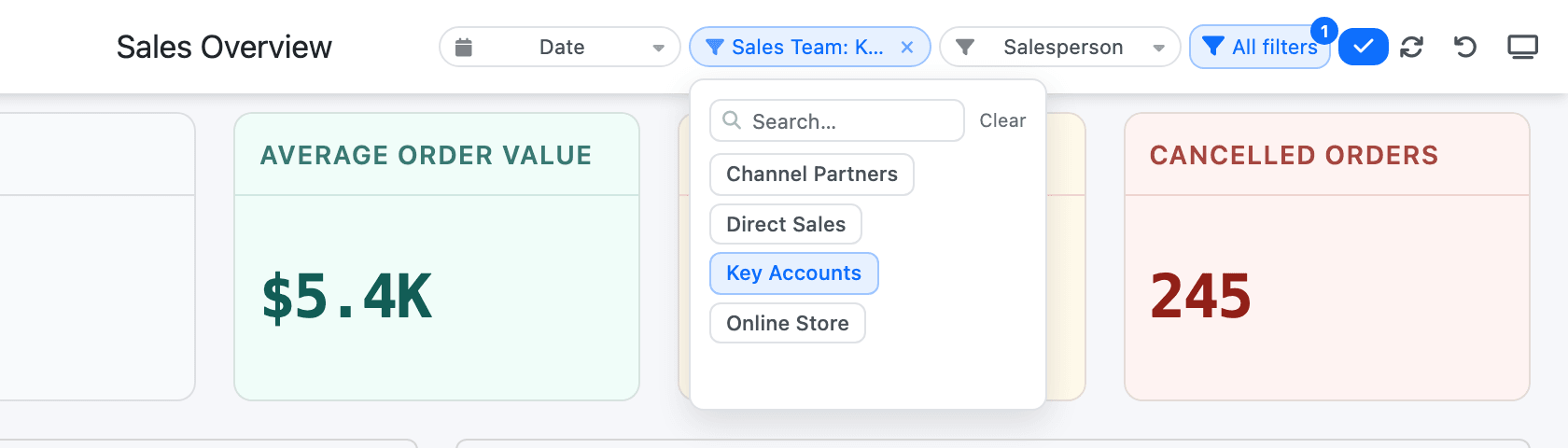
Applying reloads every widget. It also clears the values viewers picked on individual widgets.
The Not filtered badge
Section titled “The Not filtered badge”A widget with no line linked to an applied global filter can’t follow it. It keeps showing everything, with a yellow Not filtered badge at its top left. Hover it to see which filters it ignores (Not filterable by the active global filter(s): Sales Team).
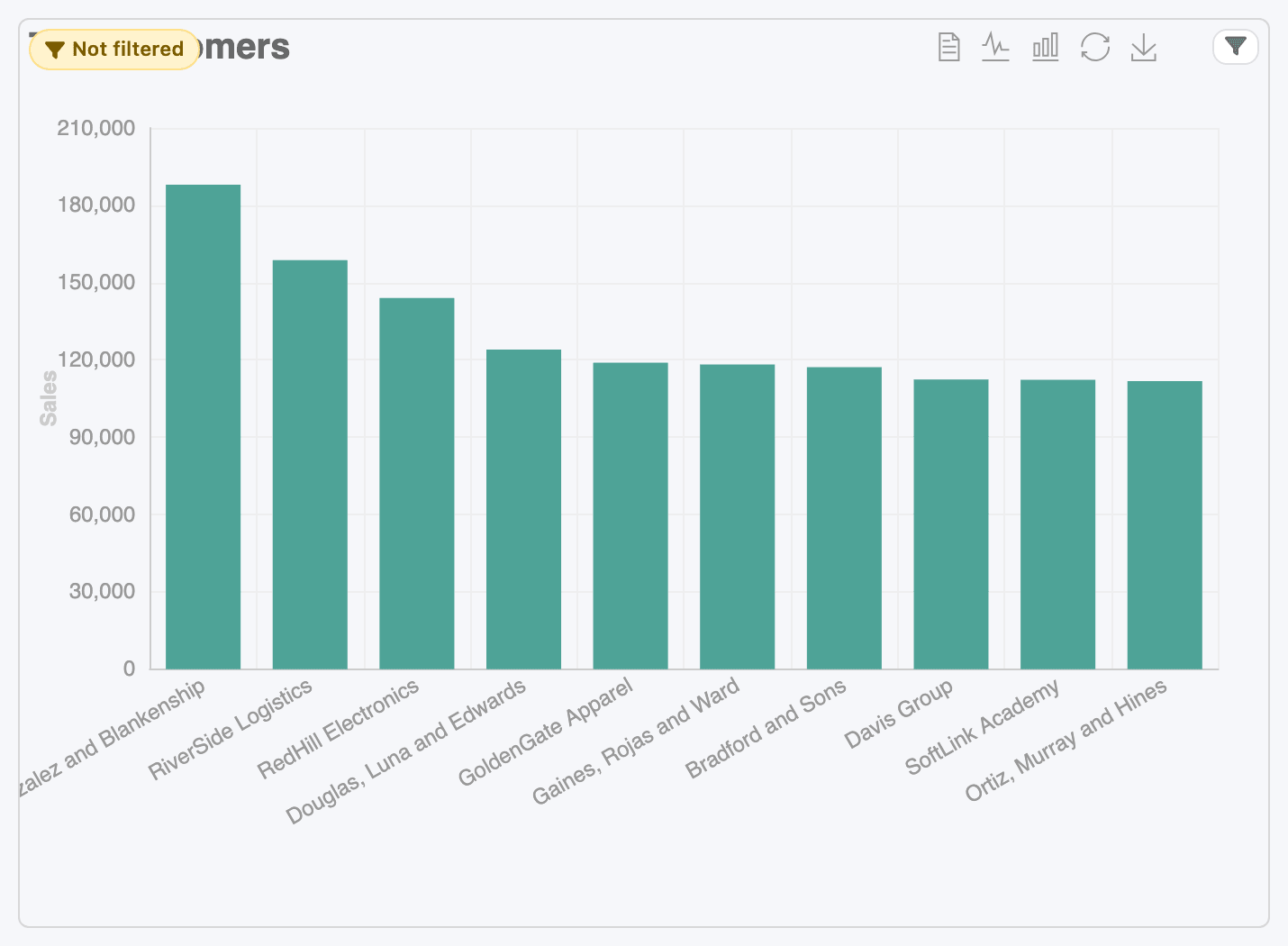
Either link one of its lines to the filter, or leave it if the widget isn’t meant to follow it.
Global and widget filters together
Section titled “Global and widget filters together”- A global filter and a widget filter on different columns combine with AND.
- A global value takes the place of the linked line’s own value, and goes through that line’s operation.
- The widget’s own chip for that column doesn’t show the global value.
Related
Section titled “Related”- Record buttons open a dashboard from an Odoo record with a global filter already set to that record.
- The header Date Filter is separate from global filters.