

Date filters
Dates are the filter viewers change most. There are three ways to offer them:
- a date filter on the widget, shown as a calendar on the widget;
- quick-date buttons (1D to ALL) on charts and tables;
- the dashboard’s Date Filter in the header, which changes every widget at once.
The buttons and the header Date Filter don’t filter anything on their own. They set the widget’s own date filter, so every widget that should follow them needs one.
Give a widget a date filter
Section titled “Give a widget a date filter”-
On the widget’s Filters tab, click Add Filter and name it, for example Order Date.
-
Set Filter By to the date column.
-
Pick the Operation that sets what the widget shows before anyone picks a date (see the table below).
-
Tick Show in Dashboard. Keep Range Mode ticked for a from–to calendar.
-
Click Save & Preview.
When a viewer picks a range, it replaces the saved condition on that column. What you choose in step 3 is only the starting point:
| Before anyone picks | Set up |
|---|---|
| All dates | Is between, with Date From and Date To left empty. |
| A rolling period, such as the last 90 days | A relative operation: Last 90 days, Year to date, This month… These are worked out against today each time the widget loads. |
| A fixed window, such as one financial year | Two lines on the same column: Is on or after with the first day in Date From, and Is on or before with the last day. Show the first one; leave the second one fixed. |
A picked range also lifts relative date conditions such as Last 30 days elsewhere on the widget, including fixed ones on another date column.
The viewer’s calendar opens from the date chip on a table, or from the filter window on other widgets. A range applies when the calendar closes; picking one day gives a one-day range.
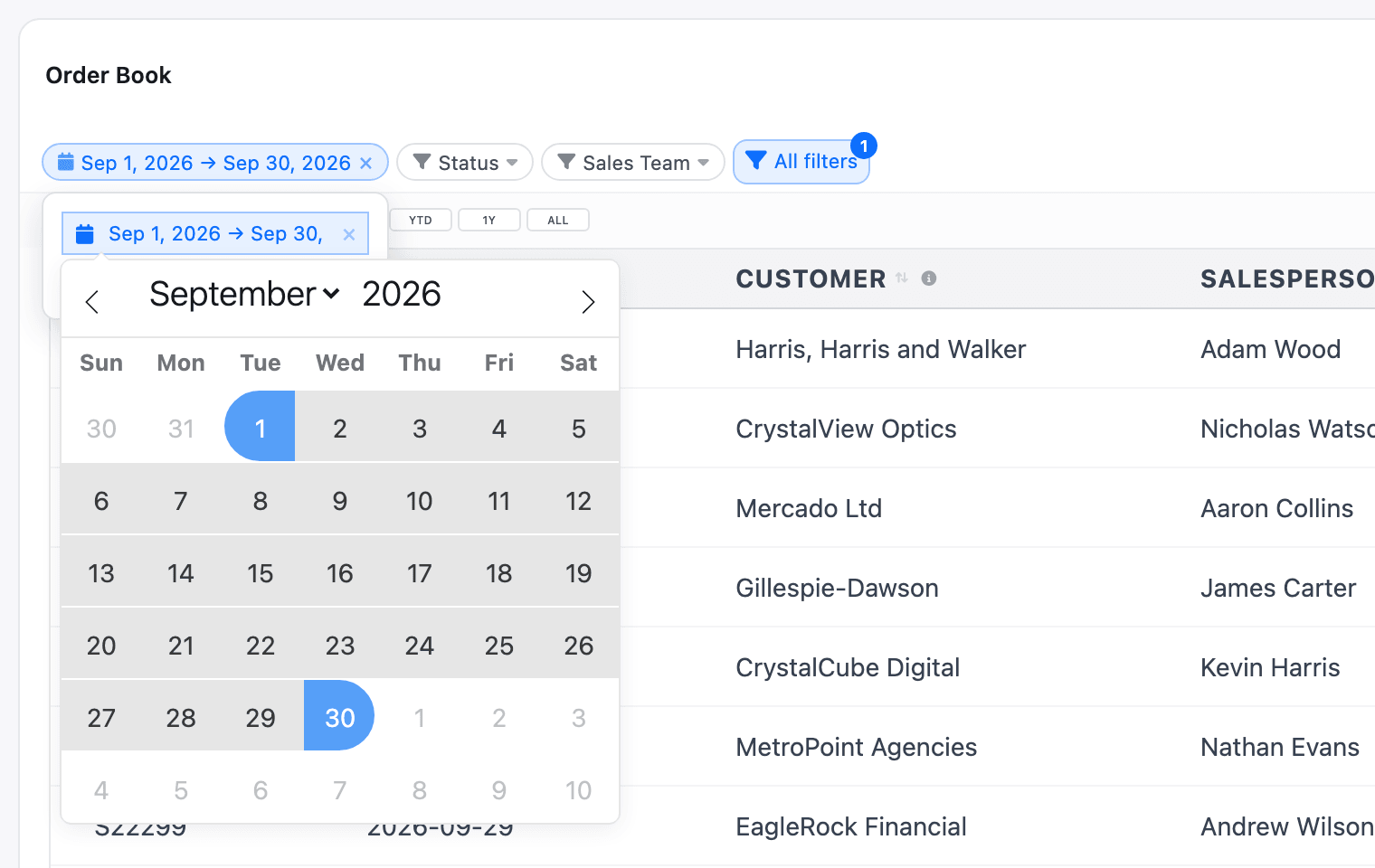
The chip shows a saved default, such as Last 90 days, only by its name; it changes to the dates once a viewer picks some.
Quick-date buttons
Section titled “Quick-date buttons”Charts and tables can show eight buttons that set the widget’s date filter in one click. Tick Show Default Date Range Buttons on the widget’s Configuration tab.
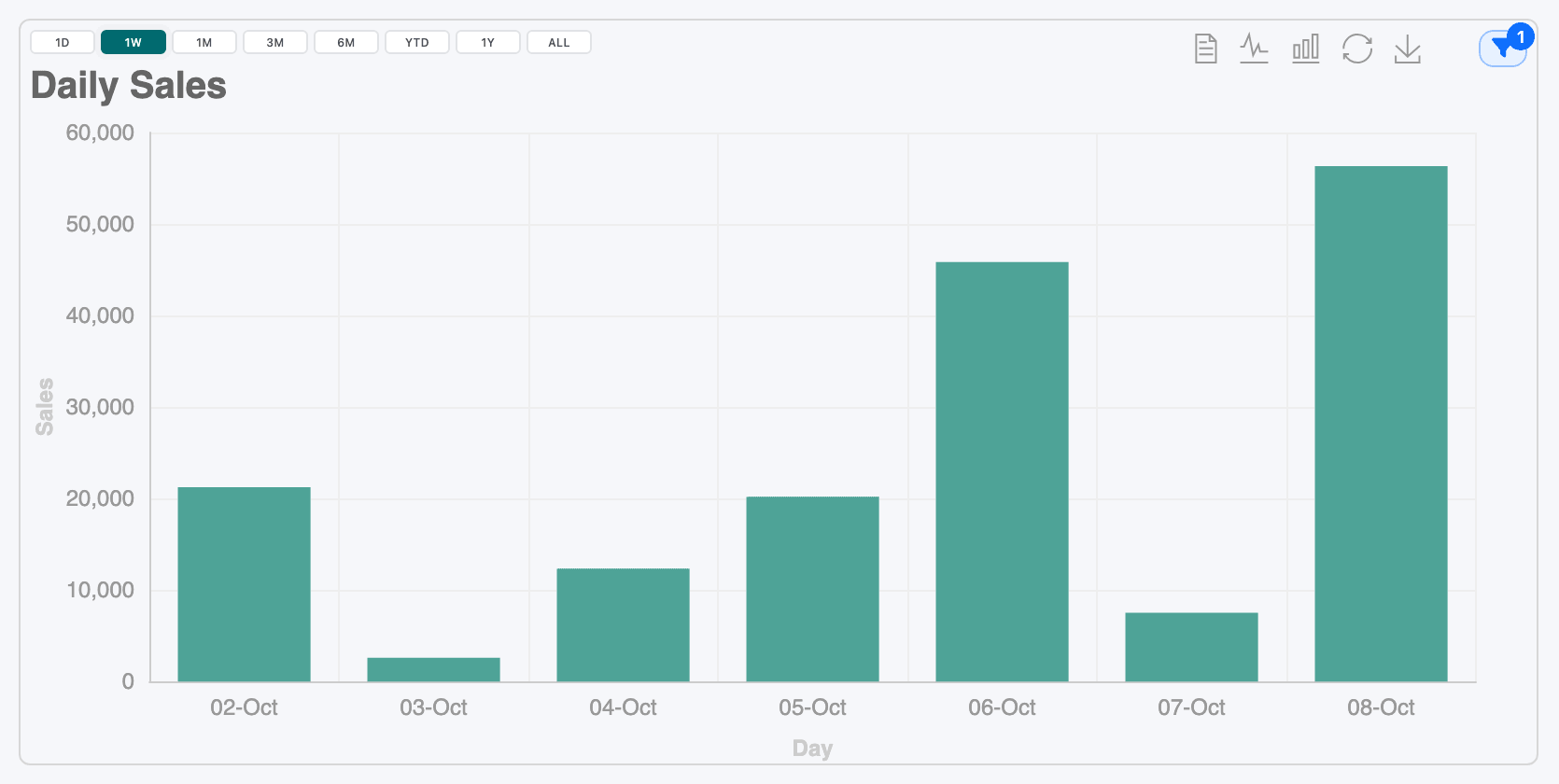
| Button | Dates (all end today) |
|---|---|
| 1D | Today |
| 1W | The last 7 days, today included |
| 1M | The last 30 days |
| 3M | The last 90 days |
| 6M | The last 180 days |
| YTD | 1 January this year to today |
| 1Y | The last 365 days |
| ALL | Everything up to today |
- The buttons drive the widget’s first date filter with Show in Dashboard ticked. Without one they do nothing.
- They’re hidden when that filter has Range Mode unticked.
- On charts they sit at the top left; on tables they have their own row under the filter strip. On a table, the date chip doesn’t change when you click a button, and a date picked on the chip takes over from the button.
- Tiles offer the setting but don’t show the buttons. Use the header Date Filter for tiles.
The dashboard Date Filter
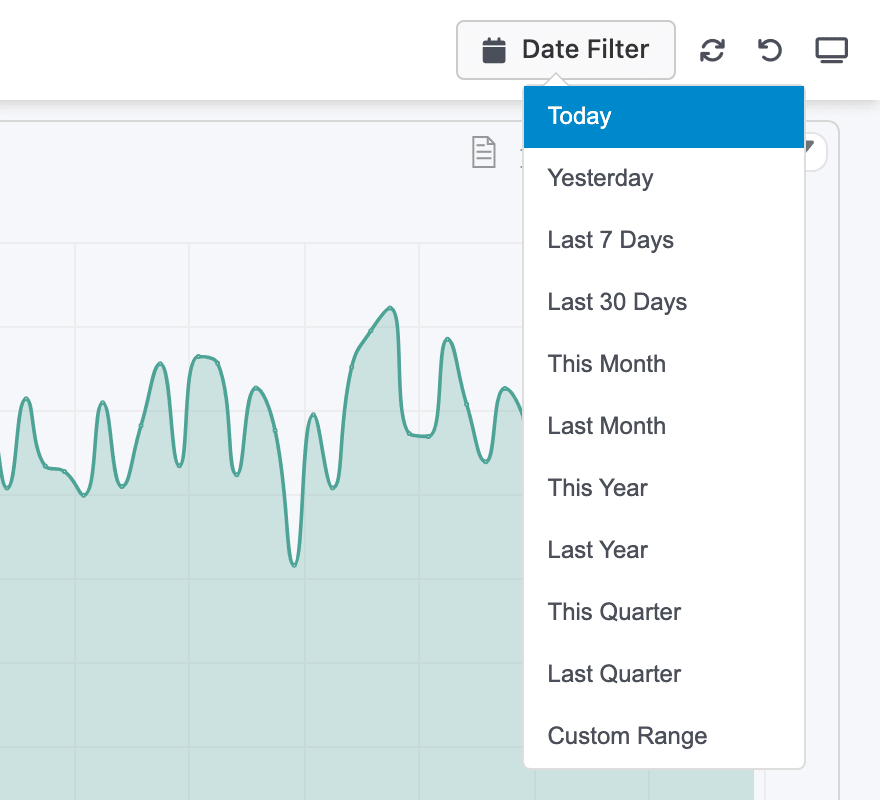
Section titled “The dashboard Date Filter”The Date Filter in the dashboard header changes the date filter of every widget in one go.
-
In the Dashboard Builder, open Dashboard Settings (the cog in the top bar).
-
Tick Enable Global Date Range Filter and click Save Settings.
-
Make sure each widget that should follow it has a date filter with Show in Dashboard ticked.
On the dashboard, Date Filter opens a list of ranges: Today, Yesterday, Last 7 Days, Last 30 Days, This Month, Last Month, This Year, Last Year, This Quarter, Last Quarter and Custom Range (two calendars). Picking a range applies it straight away.
- It sets each widget’s first shown date filter. Widgets without one, such as a widget that shows “as of today”, don’t change.
- Dates after today can’t be picked in Custom Range.
- The button keeps reading Date Filter after you apply a range; open it again to see the range.
- Applying it clears the values viewers picked on individual widgets.
- Tiles with Auto Update ticked ignore it.
Date filter options
Section titled “Date filter options”Three options on a date line change what a pick means. They’re on the filter card, under Show in Dashboard.
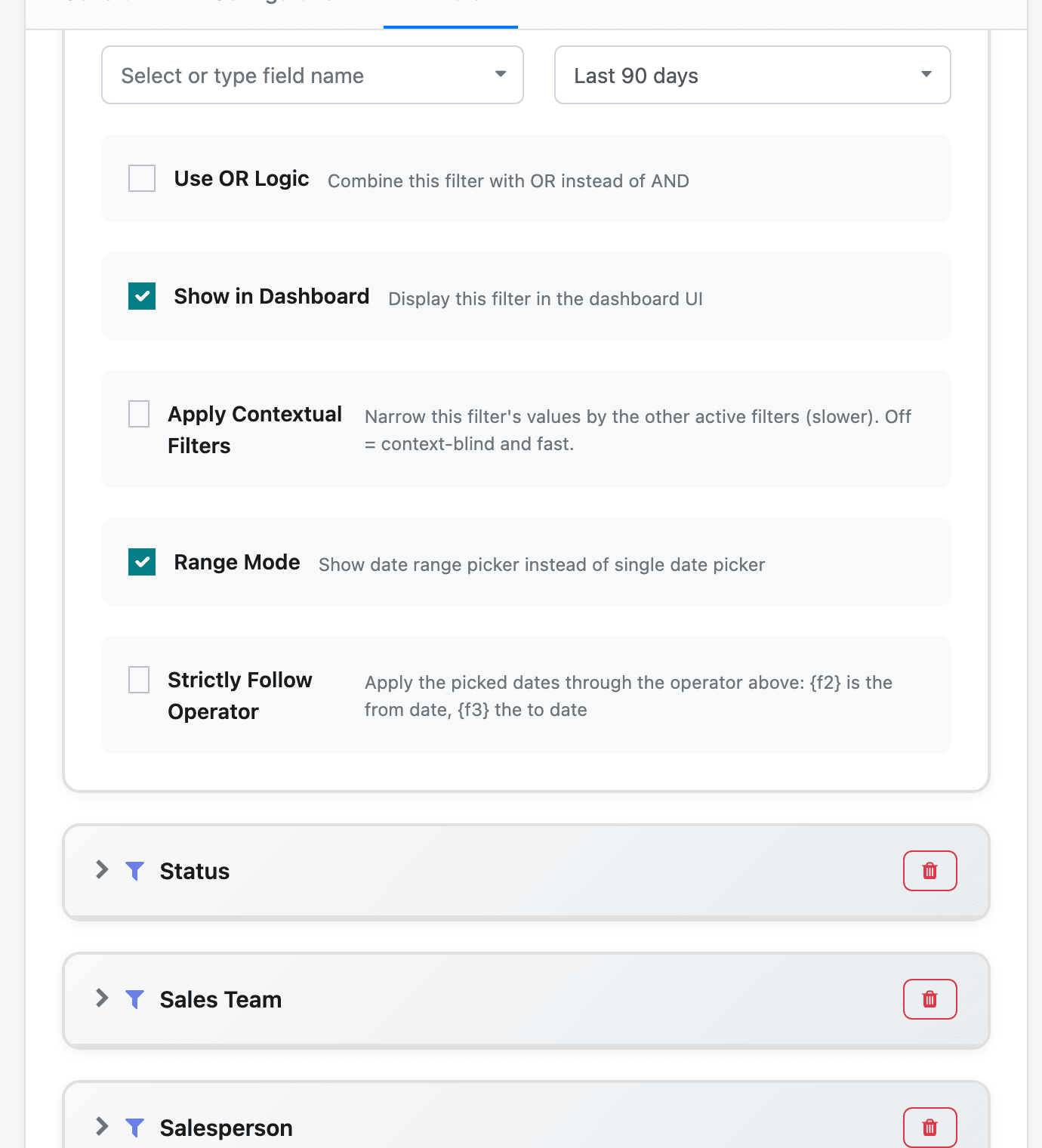
| Setting | Viewer gets | A pick of… | Shows |
|---|---|---|---|
| Range Mode ticked (the default) | A from–to calendar | 1–30 September | Rows from 1 to 30 September, both included |
| Range Mode unticked | A single-date calendar | 6 October | Rows on 6 October only |
| Range Mode unticked, As At Date ticked | A single-date calendar | 31 January | Everything up to and including 31 January |
| Strictly Follow Operator ticked | Either calendar | 1–30 September | Rows matching the line’s own Operation, with the picked dates filled in |
As At Date suits balances and stock levels: “where did we stand on this day?”.
Strictly Follow Operator sends the picked dates through the line’s operation instead of a plain range: the from date fills the first value and the to date the second. With Is up to range end, picking September shows everything up to 30 September, the basis of a trial balance. With Is on or after, it shows everything from 1 September on. A one-value operation uses the from date.
Several date filters on one widget
Section titled “Several date filters on one widget”A widget can have more than one shown date filter, for example an order date and a delivery date. Each gets its own chip and calendar and filters its own column. The first one is the one the quick-date buttons and the header Date Filter drive.
Use the picked dates in a table column
Section titled “Use the picked dates in a table column”A table column can use the dates picked on one of the widget’s date filters, for example to show sales before the picked period next to sales in it.
-
Give the table a date filter with Show in Dashboard ticked, and save.
-
Add or edit a column with Custom… to open the custom field wizard.
-
Open Date Tools. Under Date Filter Range, pick the filter in Select date filter… and click + Date from or + Date to. A token such as Order Date (from) is inserted.
-
Build the expression around it, for example
SUM(CASE WHEN order_date < Order Date (from) THEN untaxed_amount ELSE 0 END).
Behind the label the token is stored as {{date_from:<key>}} or {{date_to:<key>}}. When the widget loads, it is replaced by the date picked on that filter. Until a viewer picks dates, the tokens stand for no limit: from is the earliest possible date and to the latest. A “before the period” column therefore stays empty until a range is picked, so say so in the column’s description.
For a full example with this period, the previous period and the change between them, see Compare with the previous period.