

Widget filters
A widget filter narrows one widget. You add it on the widget’s Filters tab in the Dashboard Builder, and choose whether it is fixed (always applied, invisible to viewers) or shown (a control viewers change on the dashboard).
Use fixed filters for rules that define the number, such as “confirmed orders only”. Use shown filters for questions viewers ask, such as “one team only” or “last month”.
Add a filter
Section titled “Add a filter”-
In the Dashboard Builder, select the widget and open the Filters tab.
-
Click Add Filter (or Create Your First Filter on a widget with none). The new filter appears at the top of the list, already open.
-
Type a Filter Name. Viewers see it on the filter’s chip and in the filter window.
-
Pick the column in Filter By.
-
Pick an Operation. The list only offers operations that suit the column’s type; see Operators.
-
Set a Default Filter Value if the filter should apply one before anyone picks. Date columns show Date From and Date To instead.
-
Tick Show in Dashboard to give viewers a control, or leave it unticked for a fixed filter.
-
Click Save & Preview.
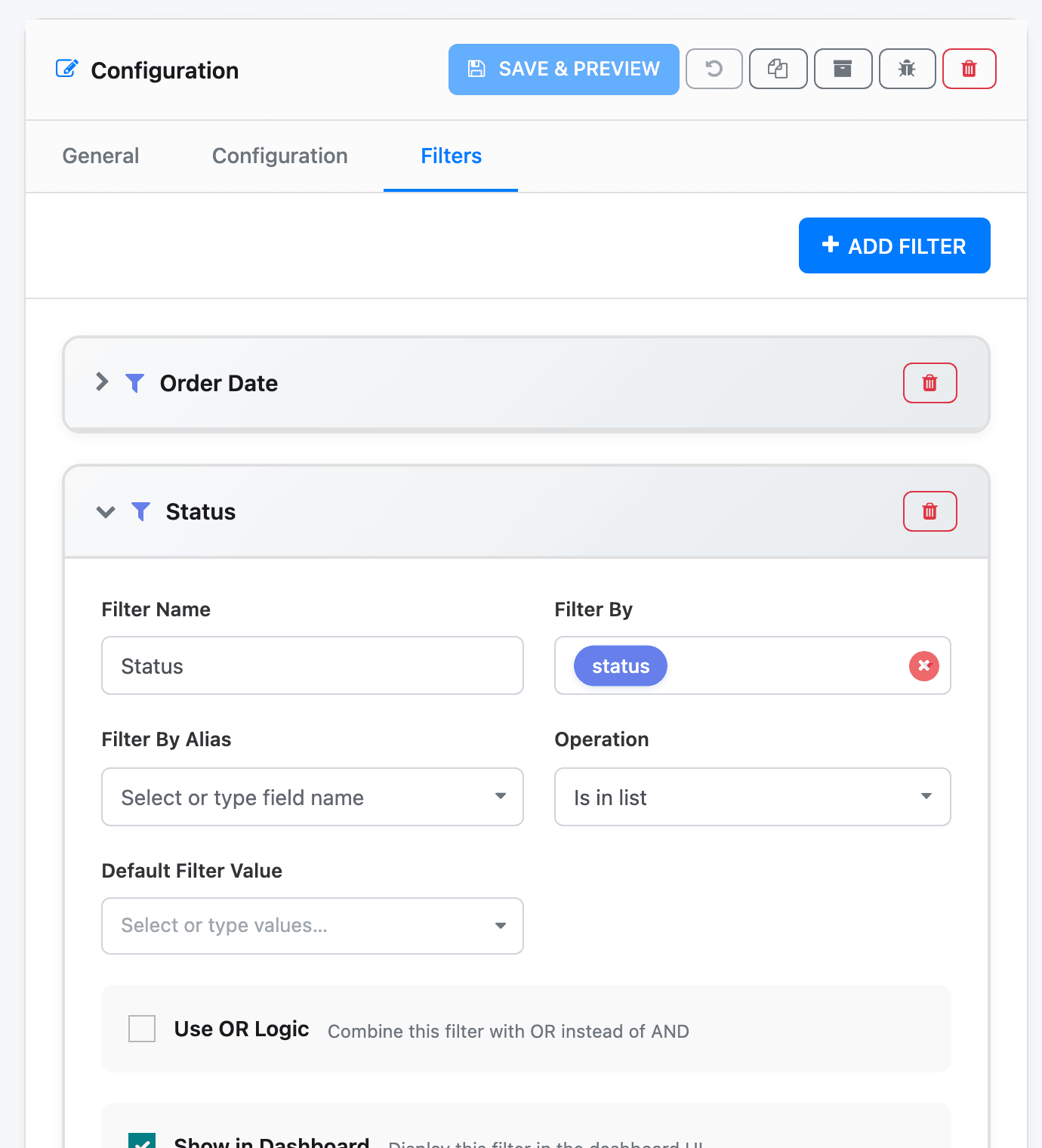
Each filter is a card titled with its name (or Filter 1, Filter 2 when unnamed). Click the title to open or close it. The red bin (Delete Filter) removes the filter without asking; the deletion only takes effect when you save.
The fields on a filter card
Section titled “The fields on a filter card”| Field | What it does |
|---|---|
| Filter Name | The label viewers see. |
| Filter By | The column to filter. Custom… at the end of the list lets you filter on an expression instead (see Custom fields). |
| Filter By Alias | A second column whose values are shown to viewers while Filter By is what’s filtered, for example show customer names but filter by customer id. See Filter values. |
| Operation | How the column is compared: Is equal to, Is in list, Contains, Last 30 days and so on. |
| Default Filter Value | The value used until a viewer picks one. A value picker with the column’s real values; numbers get a plain box. Hidden for operations that take no value, such as Is empty. |
| Second Filter Value | The upper value for Is between and Is not between on non-date columns. |
| Date From / Date To | The saved dates for a date column. Date To appears only for two-date operations. |
| Use OR Logic | Joins this filter to the next one with OR instead of AND. Read the caution first. |
| Show in Dashboard | Turns the filter into a viewer control. Not offered on Map widgets. |
| Apply Contextual Filters | Shown filters only: limit the list of values to those left after the widget’s other filters. Slower. See Filter values. |
| Is Query Parameter | Only on datasets whose SQL has {{int:name}} tokens. See Query parameters. |
| Use HAVING Clause | Only when Filter By is a custom expression. See Filter on a total. |
| Range Mode, As At Date, Strictly Follow Operator | Date columns only. See Date filters. |
Fixed or shown
Section titled “Fixed or shown”A fixed filter (Show in Dashboard unticked) always applies its saved value. Viewers can’t see or change it, except through a global filter you link to it. The showcase dashboards use fixed filters this way: every widget carries hidden Sales Team and Salesperson lines that the header filters drive.
A shown filter becomes a control on the widget. Viewers’ picks apply immediately; there is no Apply button on a widget.
What viewers see
Section titled “What viewers see”| Widget | Filter controls |
|---|---|
| Table, Matrix Report | A filter strip under the header: up to three chips that fit the width, plus an All filters button. Quick-date buttons, when switched on, sit on their own row below. |
| Pivot Table | Up to three chips above the pivot, and a filter button when there are more. |
| Tile, charts, Heatmap | A filter button at the top right of the widget. A blue badge counts the values picked. Click it to open the filter window. |
| Map | None. A map’s filters are always fixed. |
| Sticky Note | No filters. |
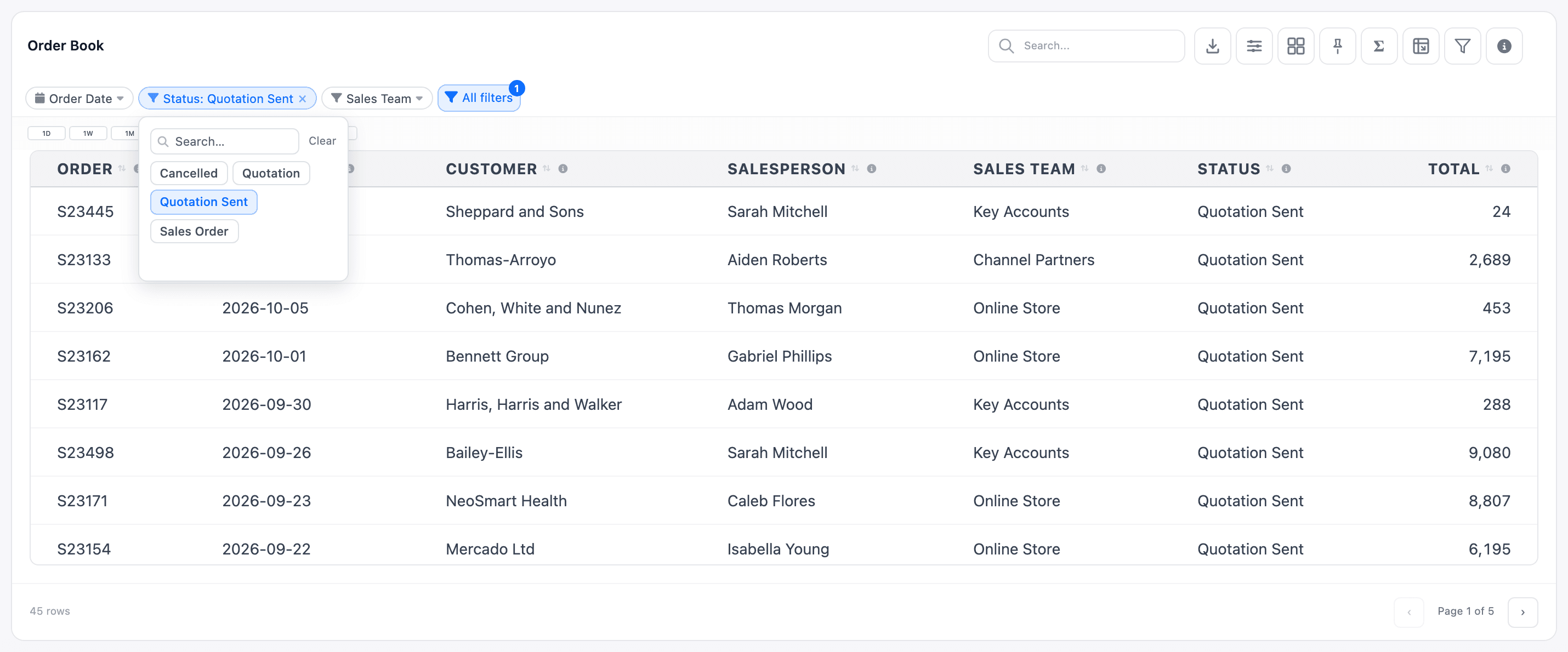
Date filters come first, then the others. A chip shows the filter’s name until something is picked, then the picked values, as many as fit: Status: Quotation Sent, Quotation. A date chip shows the range, such as Sep 1, 2026 → Sep 30, 2026.
Click a chip to open its panel. Click outside it or press Esc to close it. The × on a chip clears that filter.
The filter window
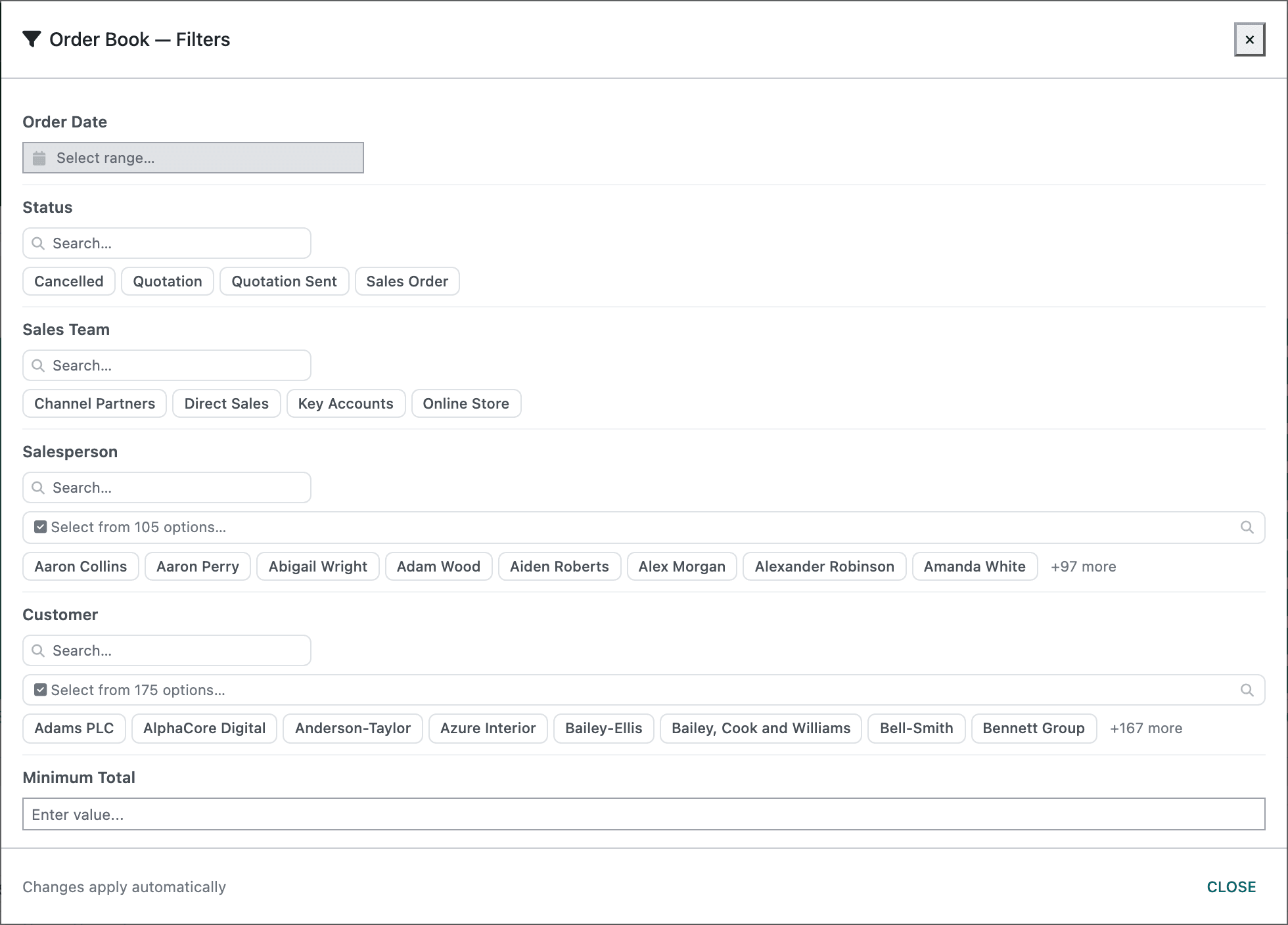
Section titled “The filter window”All filters on a table, or the filter button on any other widget, opens a window titled <widget name> — Filters with every shown filter, dates first. Changes apply as you make them (the window says Changes apply automatically). Clear all filters appears once something is picked; Close or Esc closes the window.
Controls by column type
Section titled “Controls by column type”- Lists of values show as pills. Click a pill to select or deselect it. Eight pills show at a time, with +N more and Show less for the rest. Longer lists also get a search box and a Select from N options… button that opens a searchable list with checkboxes (see Filter values). Clear clears that filter.
- Numbers get a box (Enter value…). The filter applies a moment after you stop typing; empty the box to remove it.
- Dates get a calendar (Select range…, or Select date… for a single date). A range applies when the calendar closes. The × in the field clears it.

In the builder’s Live Preview the controls respond to clicks but don’t change the data; preview the result on the dashboard itself.
Use OR Logic
Section titled “Use OR Logic”Use OR Logic joins a filter to the next filter line with OR instead of AND.
To match several values of one column, you don’t need OR Logic: use Is in list with several values, or let viewers pick several pills. For an either-or across columns, build one custom field that combines both conditions and filter on it.
Filter on a total (HAVING)
Section titled “Filter on a total (HAVING)”A table grouped by customer can hide the customers whose total is below a threshold. That needs the filter to apply after the rows are added up, which is what Use HAVING Clause does.
-
Add a filter and set Filter By to the aggregated expression through Custom…, for example the same
SUM(untaxed_amount)the table’s Sales column uses. -
Pick an Operation such as Is greater than or equal to.
-
Tick Use HAVING Clause and choose the Filter Value Type (Float, Integer or Monetary).
-
Tick Show in Dashboard to give viewers a number box, or type a Default Filter Value.
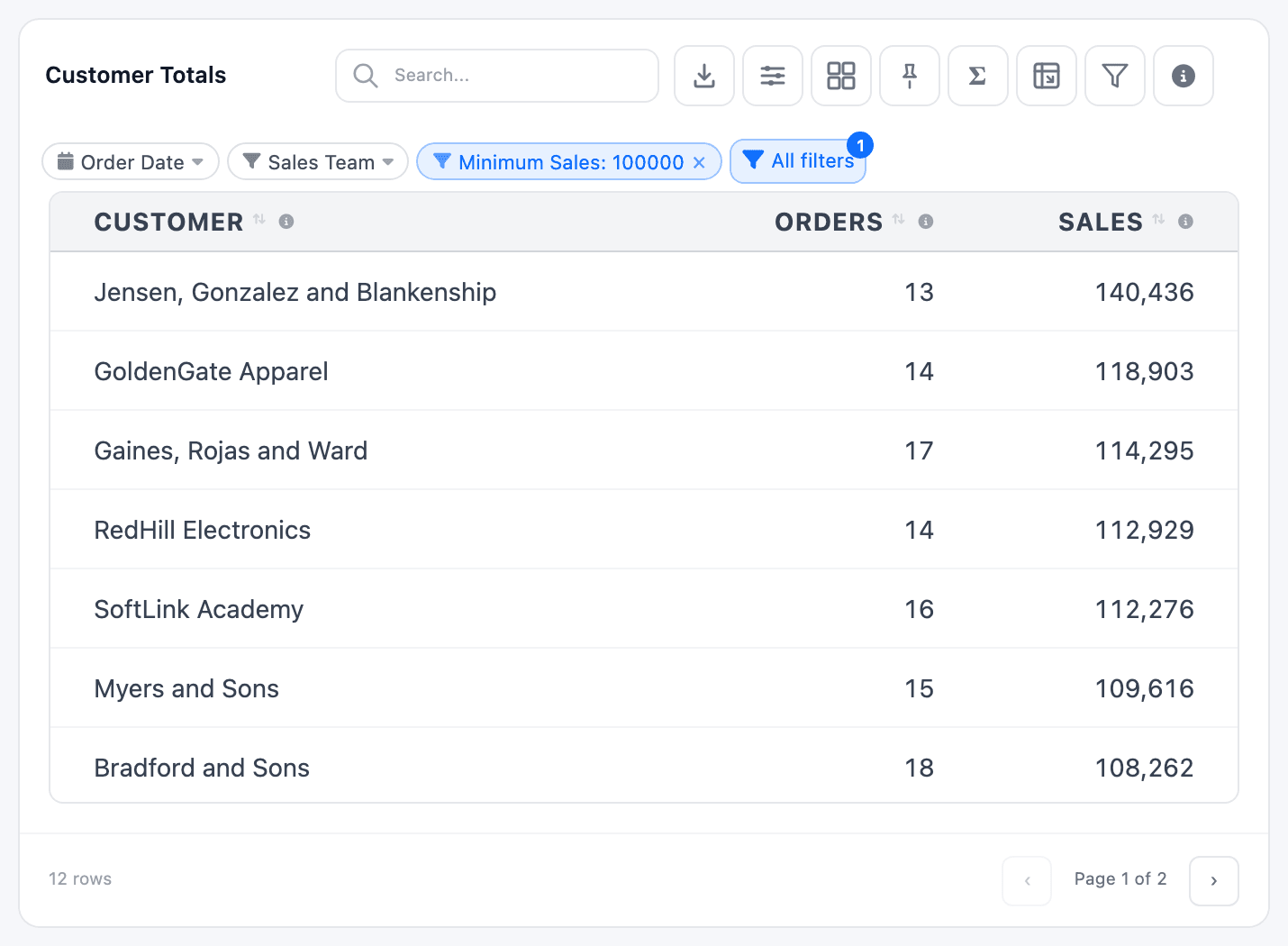
A HAVING filter always shows a number box to viewers.
Query parameters
Section titled “Query parameters”On a custom SQL dataset whose query contains a token such as {{int:min_qty}}, a filter can feed a number into the query instead of filtering a column. Tick Is Query Parameter and pick the token in Query Parameter Name (Select a parameter…). Viewers get a number box; their value replaces the token. Query-parameter filters can’t be linked to global filters.
Things to know
Section titled “Things to know”- Use an including operation for pick lists. With Is equal to or Is in list, picked values are included. With Is not equal to or Is not in list, one picked value is excluded, but picking two or more excludes nothing. Keep excluding operations for fixed filters, where the saved list works as expected.
- A pick goes through the filter’s operation. On a filter whose operation takes no value (Is empty, This month), a pick has nothing to fill and changes nothing.
- Number boxes take one value. Use a one-value operation such as Is greater than or equal to; Is between needs two values and a viewer can only type one.
- Clearing goes back to the default. Clearing a filter (its ×, Clear or Clear all filters) brings back its saved Default Filter Value, not “no filter”. The chip doesn’t show a saved default as selected, even though the data is filtered by it.