

Sticky notes
A sticky note is a yellow card of text on the dashboard. Use it for what the numbers can’t say on their own: this quarter’s priorities, how to read the dashboard, who to ask about a figure, when the targets were last updated.
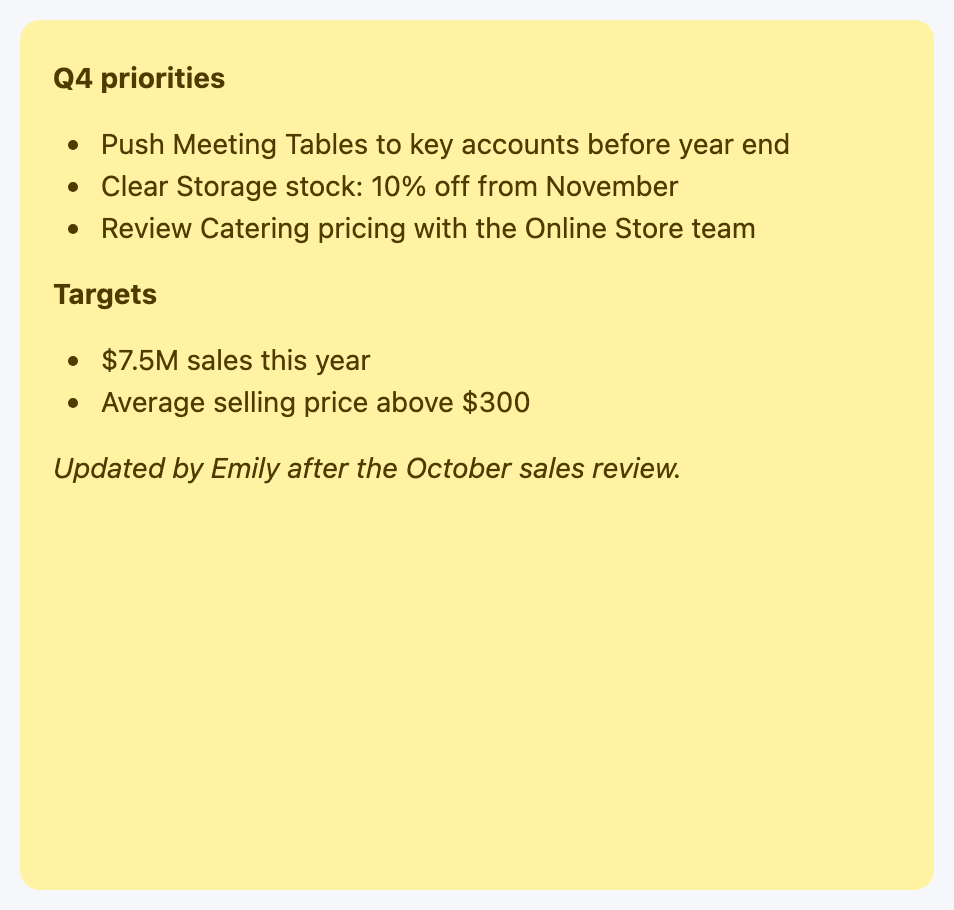
Add a note
Section titled “Add a note”-
Click New Item, give it a Name and choose Sticky Note. The name only appears in the builder’s item list; the note itself has no title.
-
On the Configuration tab, type into Sticky Note Content. Use Ctrl+B / Cmd+B for bold and Ctrl+I / Cmd+I for italics, or paste formatted text (headings, bullet lists) from elsewhere.
-
Click outside the editor, then click Save & Preview.
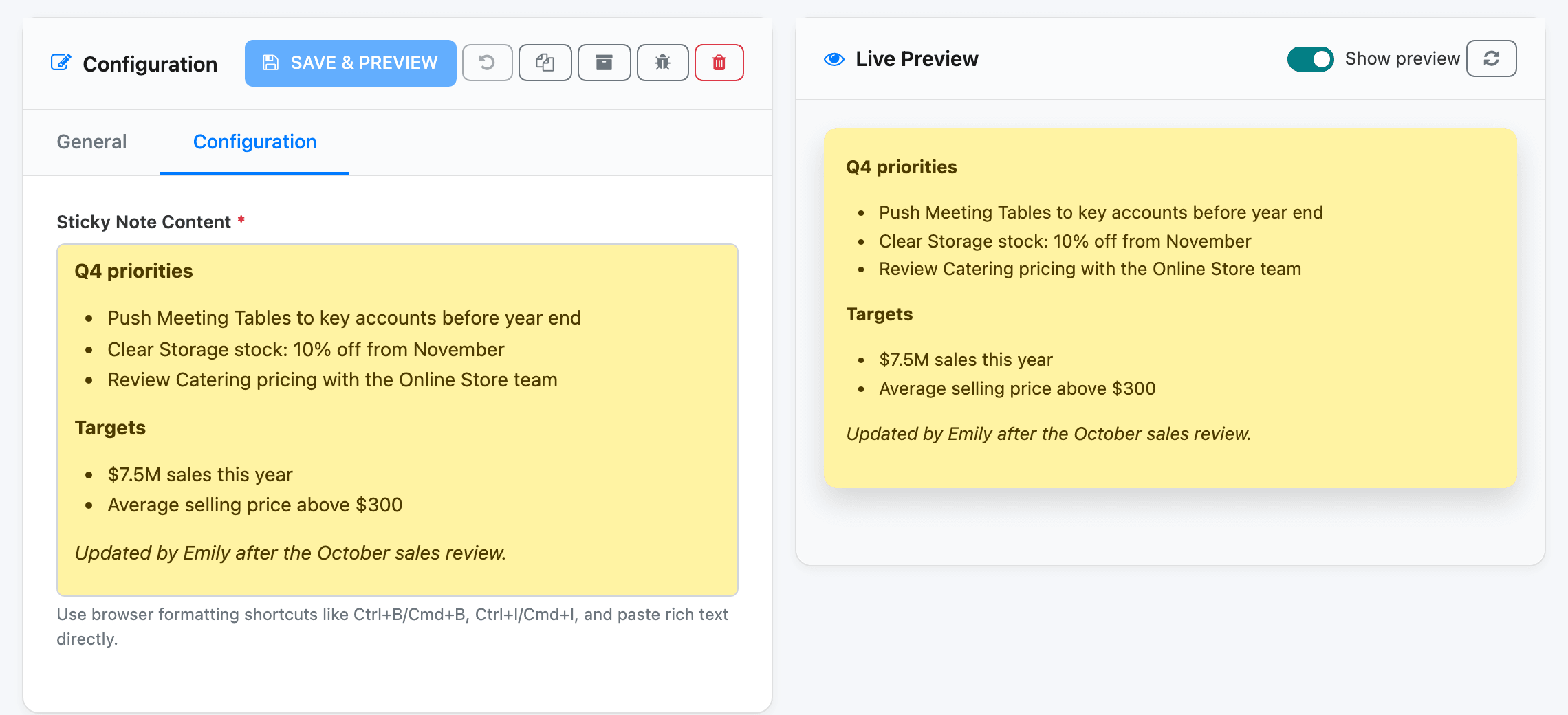
A sticky note has no data source and no Filters tab. Its preview updates as you type.
Edit it on the dashboard
Section titled “Edit it on the dashboard”You don’t need the builder to change a note. On the dashboard, click into the note and type. The change is saved when you click outside the note.
- The note is saved for everyone: all viewers see the new text, not just you. It is the only widget that viewers can change this way, and anyone who can open the dashboard can do it.
- If the save fails, the old text comes back with the message “Failed to save sticky note. Please try again or contact support if the problem persists.”
- While the layout is unlocked for moving widgets, the note can’t be edited; lock the layout first. See Layout and presenting.