

Design a dashboard with AI
When you create a dashboard, you can describe what it should show and let the AI plan and build it. You agree on the plan in a short conversation first. Nothing is created until you press Build this dashboard.
Use it to get a first version quickly: a sales overview, a receivables dashboard, a pipeline review. You then adjust the widgets by hand or with Refine with AI.
You need the Dashboard Builder (SAAS) and AI Analytics (SAAS) rights, and the datasets the dashboard needs must already exist (see What it can’t do).
Describe what you need
Section titled “Describe what you need”-
Go to Odoo Dashboards → Configurations → Dashboard Builder and click New Dashboard.
-
Under Design it with AI (optional), describe the dashboard: who it is for, the numbers you want, the trends and rankings. Name the datasets if you know which ones to use.
-
Press Enter or click the send button. While the AI works, a rotating word such as Thinking or Consulting the schema shows under your message.
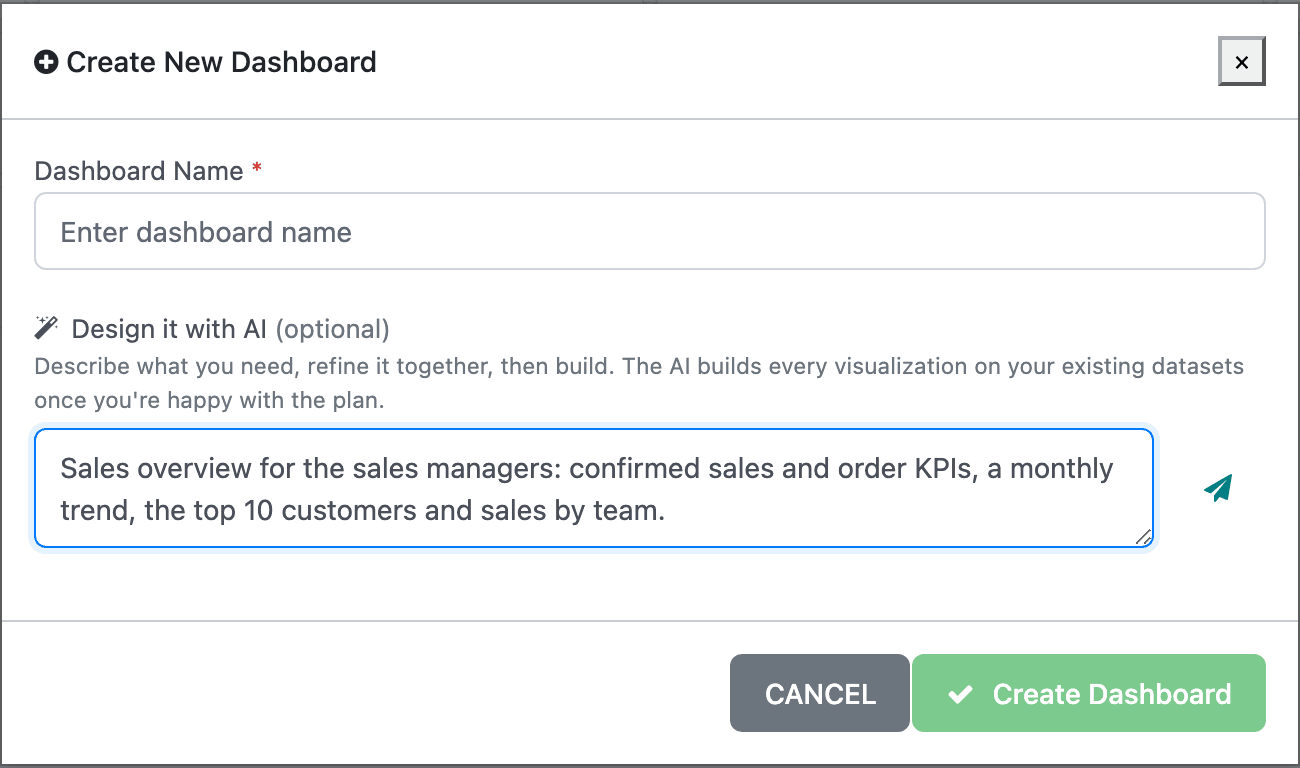
You can leave Dashboard Name empty. The AI suggests a name with its plan and fills it in for you.
Refine the plan
Section titled “Refine the plan”The AI answers in the chat and shows its plan in a card under the conversation. The window gets wider once the conversation starts. The card lists:
- the proposed dashboard name, with a green ready to build badge once the AI considers the plan complete;
- one line per widget: its title, its type in brackets, the dataset in square brackets, and what it shows;
- Combines: and the datasets, when a widget needs two or more datasets joined;
- a warning line on any widget your data can only partly support;
- Will create filter operation(s): when the plan needs a date window that doesn’t exist yet, such as “Last 3 days”. The AI asks before it plans one.
Reply in the same box to change the plan, for example “drop the pie chart”, “use the invoices dataset for the receivables part” or “add the top 10 products”. The placeholder now reads Refine the plan, or say build it…. Each reply updates the card. You can keep going until the plan is right; each message uses credits.
Build it
Section titled “Build it”-
Check the Dashboard Name. The build button stays disabled while it is empty.
-
Click Build this dashboard. It replaces Create Dashboard as soon as the AI has proposed a plan.
-
Wait for the build. A progress line shows the current step, such as Matching your request to your datasets or Building ‘Monthly Sales’ (3/8), and the seconds elapsed. A dashboard usually takes under a minute; big ones take longer.
When it is done, a message confirms AI built “<name>” with N visualizations. Review and edit as needed. and the new dashboard opens in the builder. The widgets are ordinary widgets: open each one, check its settings and the Live Preview, and change anything you like.
If a dashboard with the same name already exists, the new one gets a number after its name, for example Sales Overview (2).
Like any new dashboard, it appears in the Odoo Dashboards menu only for the administrator until you share it. Arrange it, add global filters if you need them, and share it from Dashboard Settings (see Sharing and access).
When something is left out
Section titled “When something is left out”If the plan includes something your datasets can’t provide, the dashboard is still built with everything else. A yellow message that stays on screen until you close it lists each item under Not included: with the reason.
If the build of a widget fails, the AI gets the error and tries once more before giving up. If it still fails, nothing is kept: the half-built dashboard is removed.
What it can’t do
Section titled “What it can’t do”- It only uses existing datasets. The AI never creates or changes a dataset. If the data you ask for isn’t in any dataset you may use, it says so in the chat. Ask someone with the Dataset Builder (SAAS) right to add the fields, or create the dataset yourself.
- It only sees the datasets your AI policy allows, if you have one.
- It doesn’t set up global filters, the layout, sticky notes or targets.
- It builds a new dashboard. To change an existing one, use AI visualization to add widgets and Refine with AI to change them.
Error messages
Section titled “Error messages”| Message | What it means |
|---|---|
| There are no datasets to build on yet. Please create the datasets you need first if you have access, or contact your administrator. | No dataset exists that you may use. |
| The AI could not plan this dashboard on your datasets. | None of the widgets in the plan could be matched to a dataset. Describe the dashboard again in terms of the data you have. |
| AI planning failed: … / AI generation failed: … | The AI service returned an error. The rest of the message says why. |
| The AI did not return a valid dashboard. | The answer couldn’t be used. Click Build this dashboard again. |
| AI chat failed: … | A chat message failed. Your message is back in the box; send it again. |
| You have no AI credits left. Please top up to keep using AI. | Your company’s credit pool is empty. See AI governance and credits. |