

Conditional formatting
Conditional formatting colours a cell, or its whole row, when the value matches a rule. It turns a column of numbers into something people can scan: which salespeople are growing, which invoices are overdue, which orders are large.
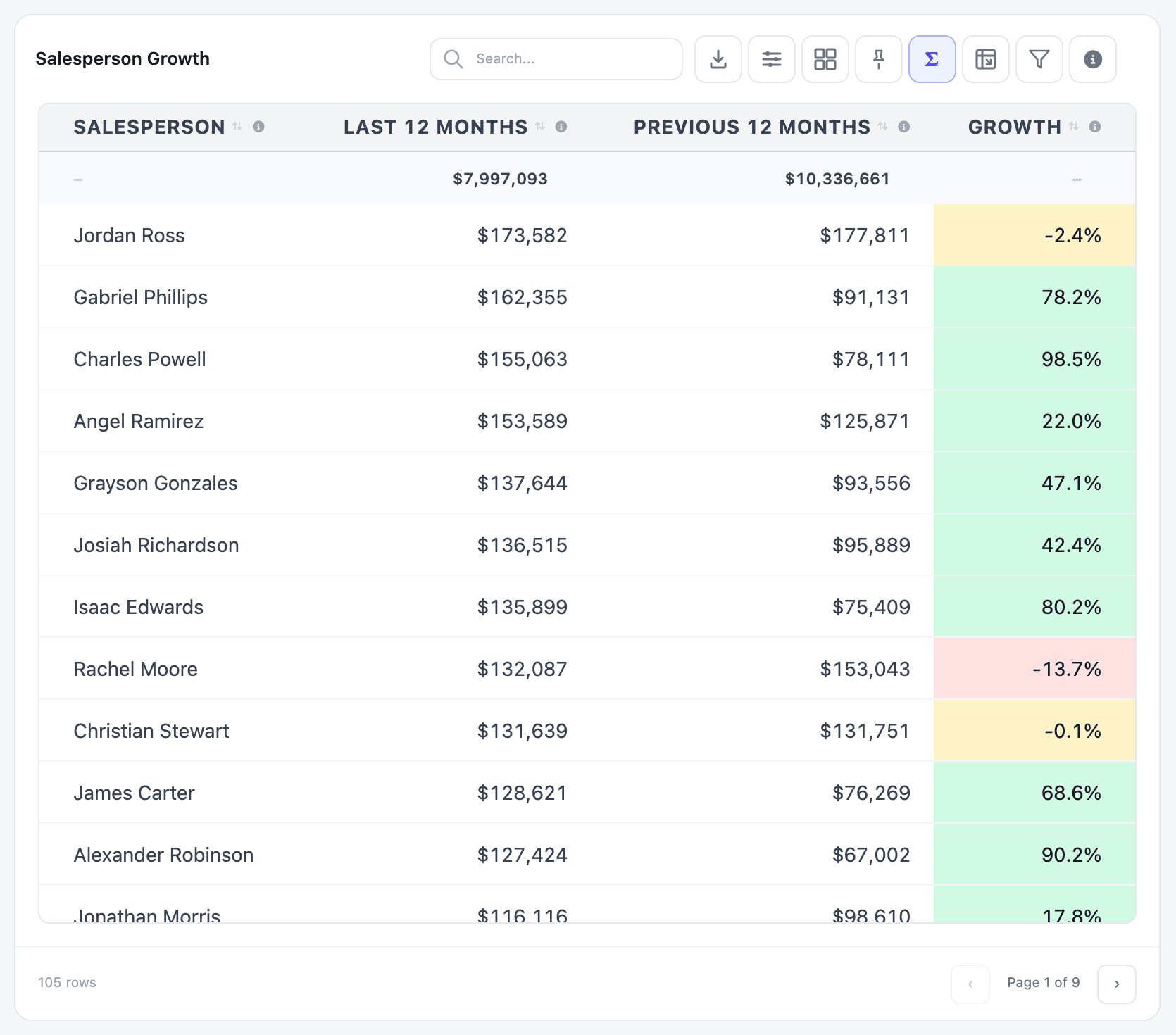
The Salesperson Growth table compares each salesperson’s last 12 months with the 12 months before. Its Growth column is green from +5%, amber between −5% and +5%, and red below −5%:
Add colour bands to a column
Section titled “Add colour bands to a column”-
In the Dashboard Builder, select the table and open the Configuration tab.
-
Click the gear (Column settings) of the column to colour, and open the Rules tab.
-
Click + Add rule. A rule has a match type, an operator, a value, a scope and a colour.
-
For the green band: keep Number, choose ≥, type
0.05, keep Cell, and pick a light green in the colour swatch. -
Click + Add rule again for amber: Between,
-0.05and0.0499, light amber. -
Add the red band: <,
-0.05, light red. -
Click Apply, then Save & Preview.
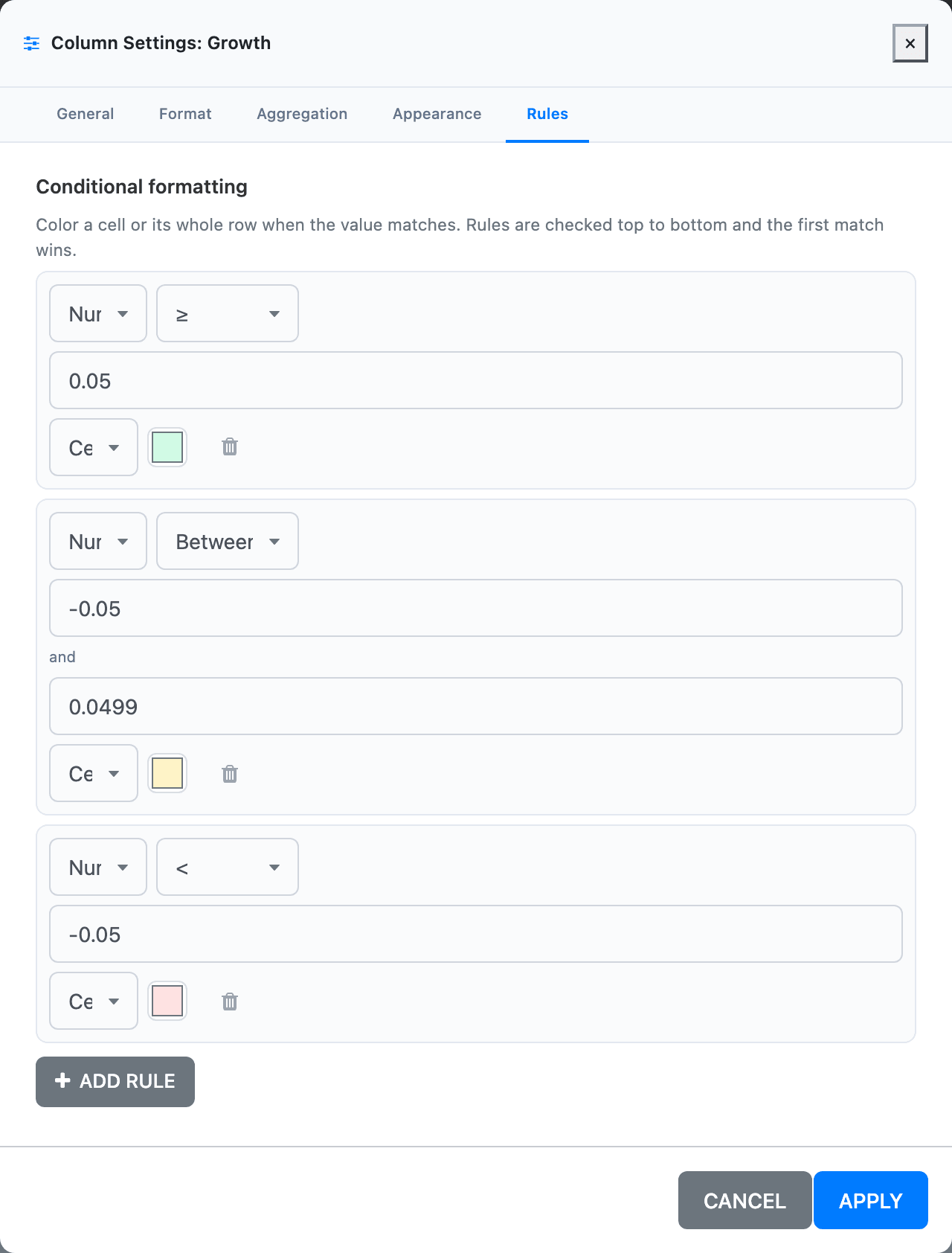
In this build the match type and scope boxes are too narrow for their labels, so Number shows as “Nur” and Cell as “Ce”. Click a box to see the full choice.
How rules are applied
Section titled “How rules are applied”- Rules are checked from top to bottom, and the first match wins. Put the narrowest rule first.
- Between includes both ends. Leave a small gap, as in
-0.05to0.0499, so a value on the boundary only matches one band. - A rule that has no value or no colour is dropped when you click Apply.
- The text colour is picked automatically, dark or white, so the value stays readable on your background.
- Rules only colour normal data rows. Group rows, the totals row and the Opening row are never coloured.
- A matching rule overrides the column’s fixed colours from the Appearance tab.
Rule types
Section titled “Rule types”| Match type | Operators | Value |
|---|---|---|
| Number | >, ≥, <, ≤, =, ≠, Between | A number; Between has a second box after “and”. = and ≠ also accept text, for example a status. |
| Text | Contains, Doesn’t contain, Equals, Not equals, Starts with, Ends with, Is empty, Is not empty | Text. Matching ignores upper and lower case, except Equals and Not equals, which must match exactly. |
| Date | Before, After, On, Between, Is empty, Is not empty | Specific date (a date picker) or Today, which moves with the calendar. |
Changing the match type clears the operator and the value.
Examples:
- An ageing column: Number >
90, red: invoices more than 90 days late. - A status column: Text Equals
Cancelled, grey. - A due date: Date Before Today, red: everything past due, without updating the rule each day.
Colour the whole row
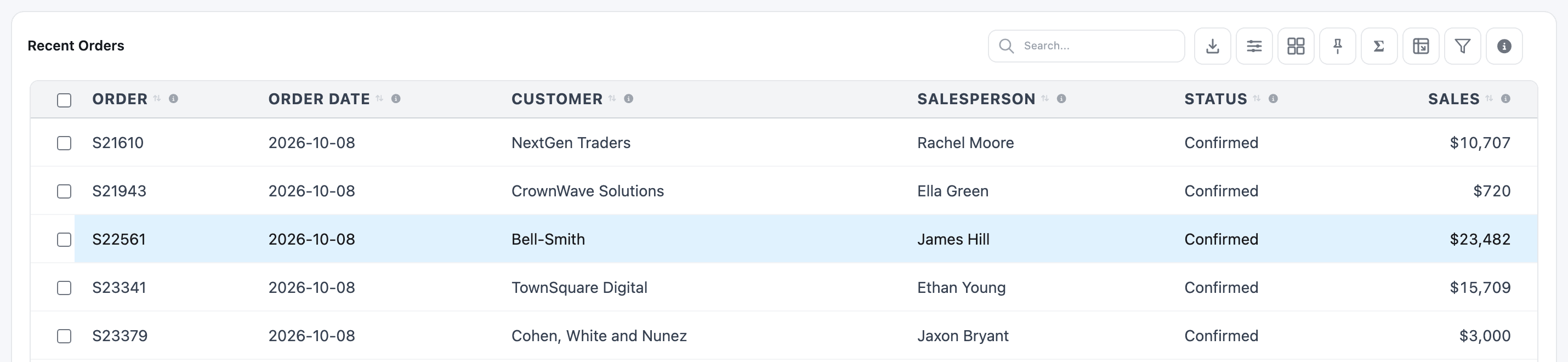
Section titled “Colour the whole row”Set the rule’s scope to Row to colour the entire row instead of one cell. Recent Orders highlights every order of $20,000 or more with a Number ≥ 20000 rule on its Sales column, scope Row:
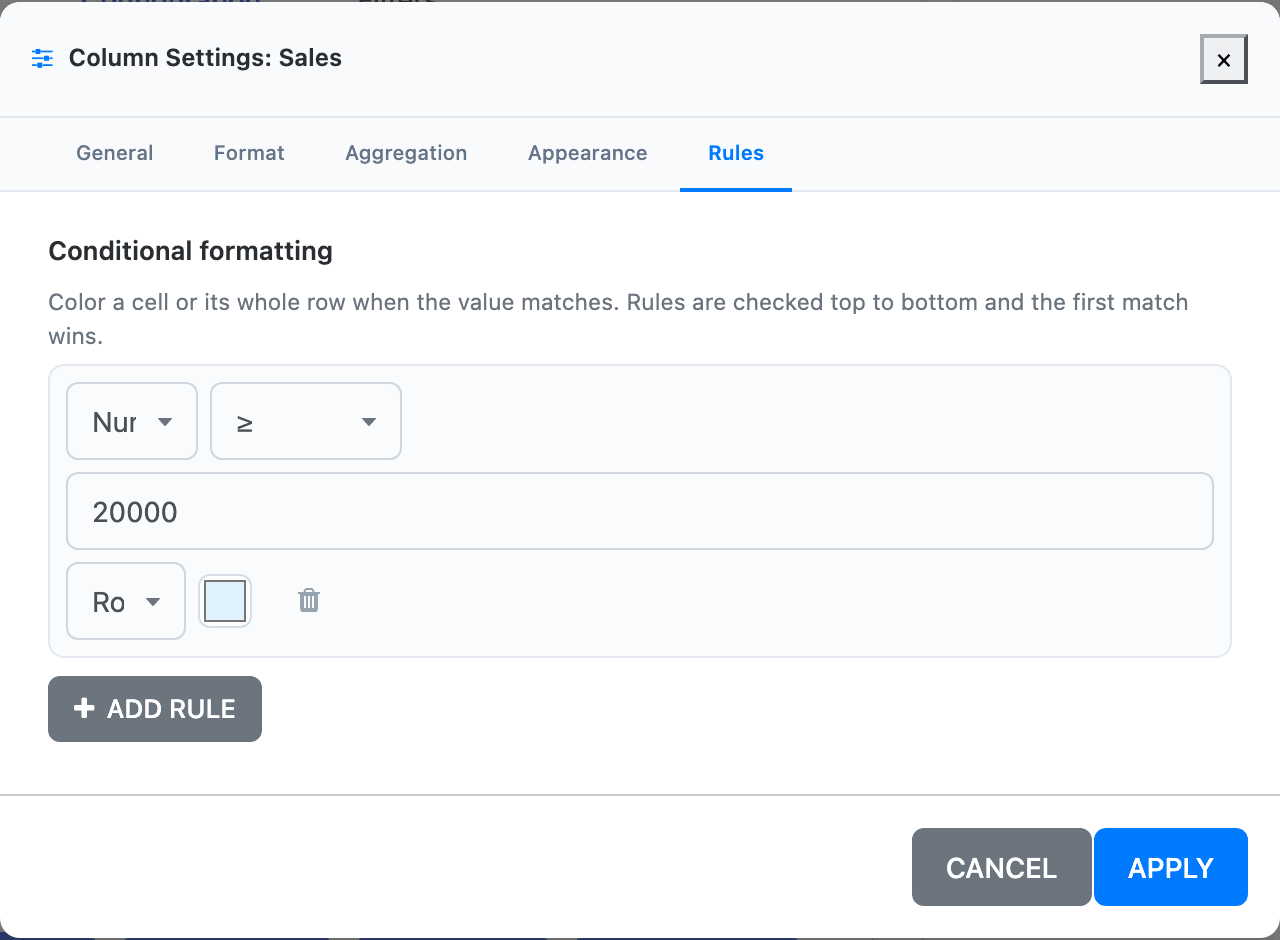
If rules on several columns colour the same row, the leftmost column wins.
- Blank cells count as 0 for number rules. To keep blanks uncoloured, start the lowest band just above zero, for example Between
0.01and9.99, rather than <10. - Say what the colours mean in the column’s description (on the General tab), so viewers can read the bands from the header tooltip.
- Tiles and charts have no conditional formatting. It’s a table feature.