

AI governance and credits
Your company’s AI credits are one shared pool. Out of the box, everyone with the AI Analytics (SAAS) right draws from it freely. AI Governance lets an administrator set limits per person with policies:
- how many credits each person may spend, per month or in total;
- which datasets they may pick in the builder and the AI may use for them;
- what they may do to dashboards: only look, change, or also delete and share.
Governance is for Settings administrators. The menus are under Odoo Dashboards → Configurations: AI Governance (with Policies, User Assignments and Credit Usage) and AI Generation Log.
Until you assign a policy, nothing changes for anyone. Administrators are never limited by a policy, so a mistake in one can’t lock them out.
Credits
Section titled “Credits”Credits are bought for the whole company. Every AI request uses some: chat messages, builds, refinements and Analyst questions, priced by how much work each took. Requests that fail after the AI has answered are charged too.
People without a policy see the pool’s balance as Credits remaining on the AI visualization card, with a Buy credits link that opens a checkout page for a credit top-up.
A policy divides the pool; it doesn’t add to it. A person with 200 credits left in their allowance still can’t use the AI once the company pool is empty.
Create a policy
Section titled “Create a policy”-
Go to Odoo Dashboards → Configurations → AI Governance → Policies and click New.
-
Give the policy a name that says who it is for, such as Sales Analysts.
-
Fill in the three tabs, described below: AI Credits, Data Sources and Dashboards.
-
Save, then assign people to it under User Assignments.

Untick Active to stop a policy from applying without deleting it.
AI credits
Section titled “AI credits”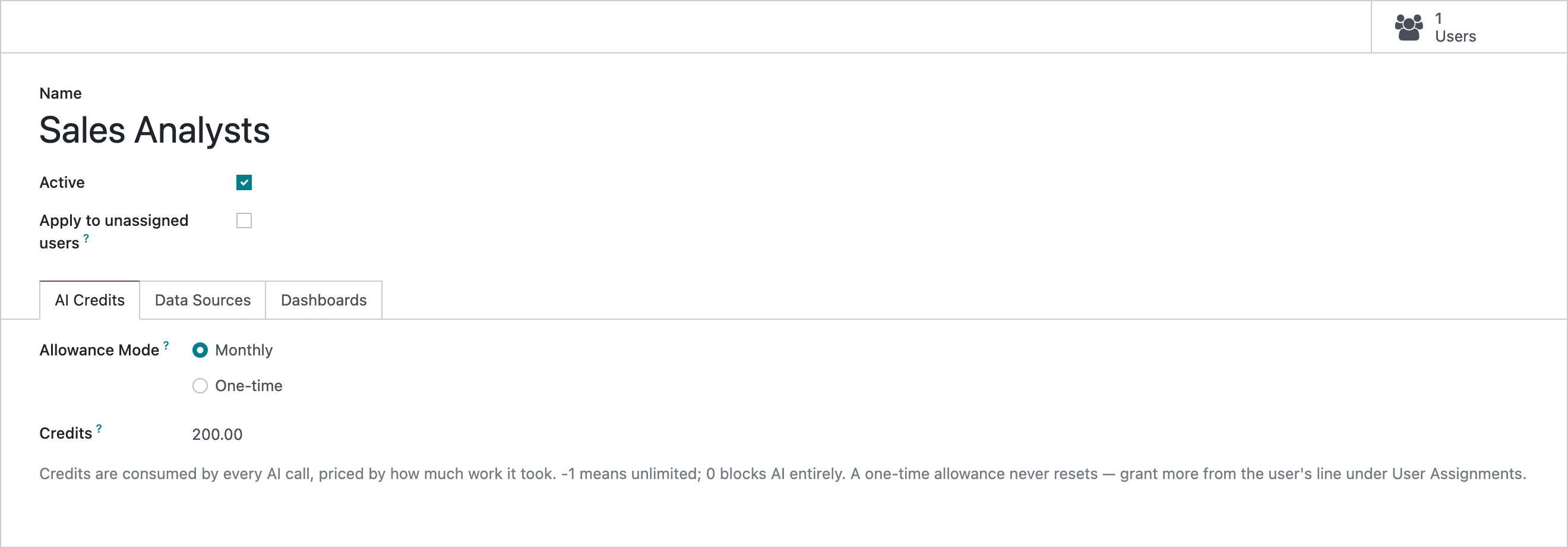
- Allowance Mode: Monthly gives each person the allowance again on the 1st of every month. One-time gives it once; it never resets.
- Credits: the allowance per person, per month or in total. -1 means unlimited. 0 means no AI at all.
The allowance is per person: a policy with 200 credits and five people lets each of them spend 200.
Data sources
Section titled “Data sources”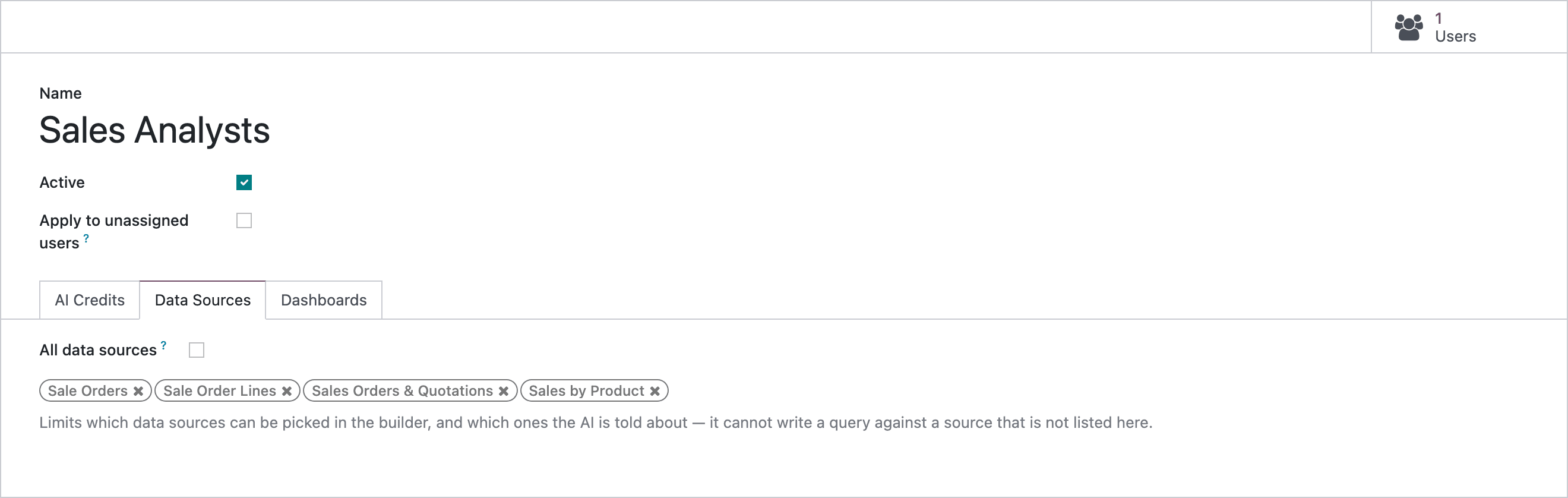
Leave All data sources ticked, or untick it and list the datasets these people may use. With a list:
- the Data Source picker in the Dashboard Builder shows only the listed datasets;
- the AI is told only about the listed datasets, so it can’t build on or query any other;
- the Dataset Builder’s export refuses other datasets with You don’t have access to this data source. Ask an administrator to add it to your AI policy.
It doesn’t hide numbers on dashboards: widgets already built on other datasets still show their data to anyone who can open the dashboard.
Dashboards
Section titled “Dashboards”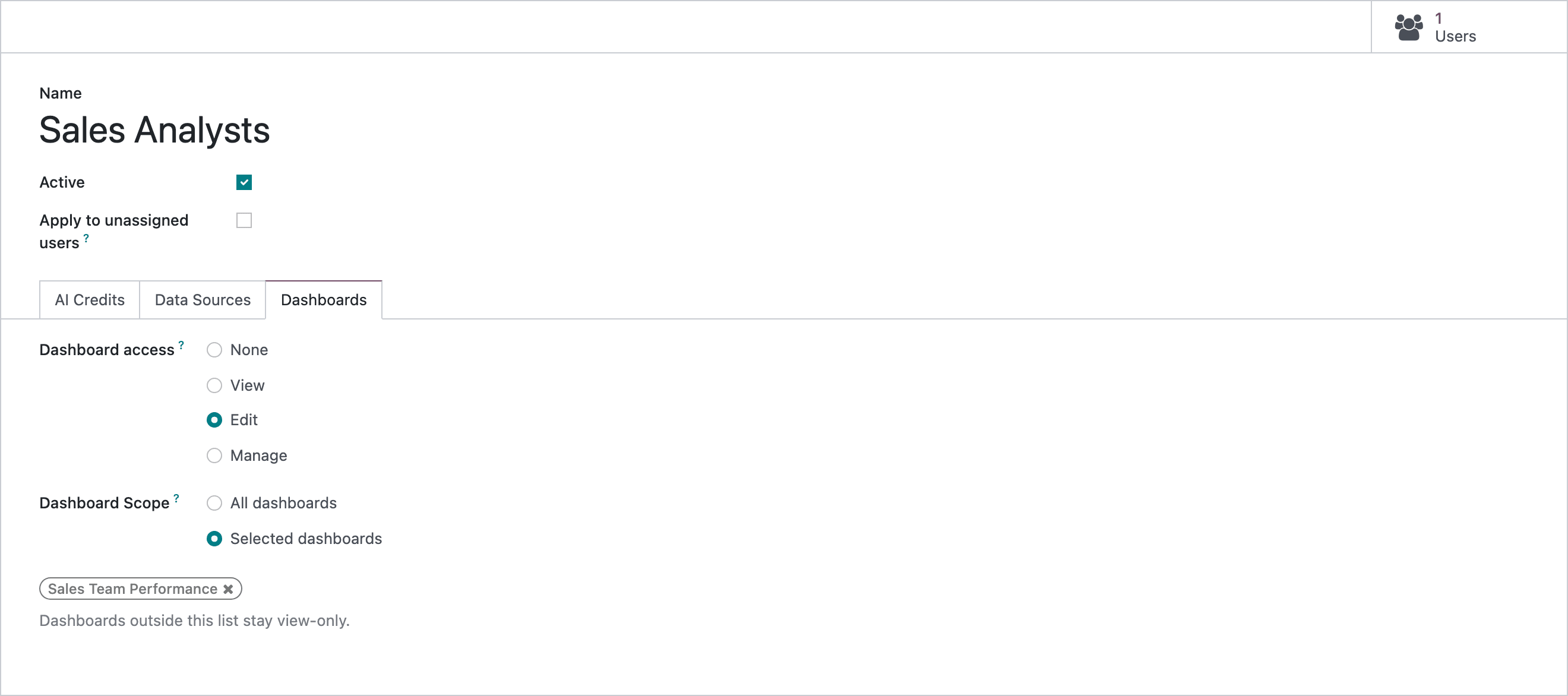
Dashboard access sets what these people may do to dashboards:
| Level | Create a dashboard | Change settings, record buttons, duplicate | Share (users and groups) and delete |
|---|---|---|---|
| None | No | No | No |
| View | No | No | No |
| Edit | Yes | Yes | No |
| Manage | Yes | Yes | Yes |
A refused action shows a message such as You don’t have permission to change ‘Sales Team Performance’. Your AI policy (Finance Reviewers) allows: View.
Dashboard Scope decides where the level applies. All dashboards applies it everywhere. Selected dashboards applies it to the dashboards you list; every other dashboard is view-only for these people.
This sets what people may do, not what they see. Who sees a dashboard in their menu is still decided by the dashboard’s own users and groups (see Sharing and access). None doesn’t hide anything either; it currently behaves like View.
Apply to unassigned users
Section titled “Apply to unassigned users”Tick Apply to unassigned users to make a policy the default for everyone who has no policy of their own. A warning appears on the form, because this limits everyone at once, including people building dashboards today, as soon as you save. Only one policy can be the default.
Assign people
Section titled “Assign people”Each person can be on one policy.
-
Go to AI Governance → User Assignments. It lists your internal users with their AI Policy and the credits Used and Remaining in the current period.
-
Click a user’s AI Policy cell and pick the policy. Picking a new one moves the user off their old one.
-
Save the line.

The Users button at the top of a policy shows who is on it.
Grant extra credits
Section titled “Grant extra credits”When someone runs out before the end of the month, or has used up a one-time allowance, give them more without changing the policy:
-
In User Assignments, click Grant credits on the user’s line.
-
Enter the number of Credits and, optionally, a Note saying why.
-
Click Grant.
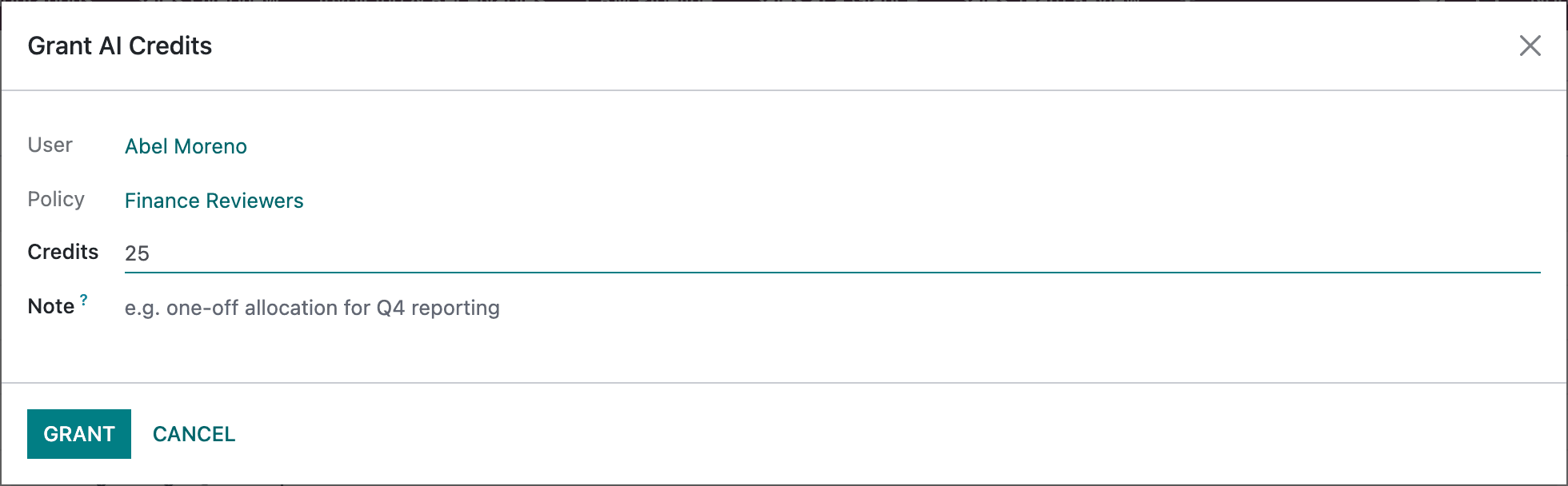
A grant counts for the current period only. On a monthly policy, granted credits expire at the end of the month; on a one-time policy they stay until used.
See where credits went
Section titled “See where credits went”AI Governance → Credit Usage is a ledger of every credit used or granted under a policy, newest first and grouped by user. Each line shows the user, the policy, the period (2026-10 for a monthly policy, once for a one-time one), whether credits were Used or Granted (granted lines are green), which AI feature used them, the credits and the note. Use the Used and Granted filters, or group by User, Period or Operation.

Credits used appear here only for people on a policy with a limited allowance. For every AI request, from everyone, use the AI Generation Log.
When credits run out
Section titled “When credits run out”| Message | Meaning |
|---|---|
| You have used all N of your AI credits for this month. Your allowance resets on the 1st, or an administrator can grant you more. | The person’s monthly allowance is used up. |
| You have used all N AI credits allocated to you. Ask an administrator for more. | A one-time allowance is used up. |
| Your AI policy (…) does not include AI credits. Ask an administrator to grant you some. | The policy’s Credits is 0. |
| You have no AI credits left. Please top up to keep using AI. | The company pool is empty. An administrator buys more with Buy credits. |
AI Generation Log
Section titled “AI Generation Log”Odoo Dashboards → Configurations → AI Generation Log lists the AI requests made in your database. Each line shows when it ran, the Kind of request, the Status, the user, the prompt, the LLM Model, the tokens used, the Credits charged, the Duration (ms), and the dashboard and widget involved.
The kinds are Visualization (Generate this visualization), Visualization Edit (Apply changes), Dashboard (Build this dashboard), Chat (Visualization), Chat (Dashboard), Chat (Refine) and Analyst.
Open a line to read the full Prompt and the Result the AI returned. The log is kept in your own database and only administrators can open it.
In this version, requests that fail don’t reach the log, although the log has a Failed status and an Error section for them. For a failed request, the error message the user saw is the only record.