

Top N per group
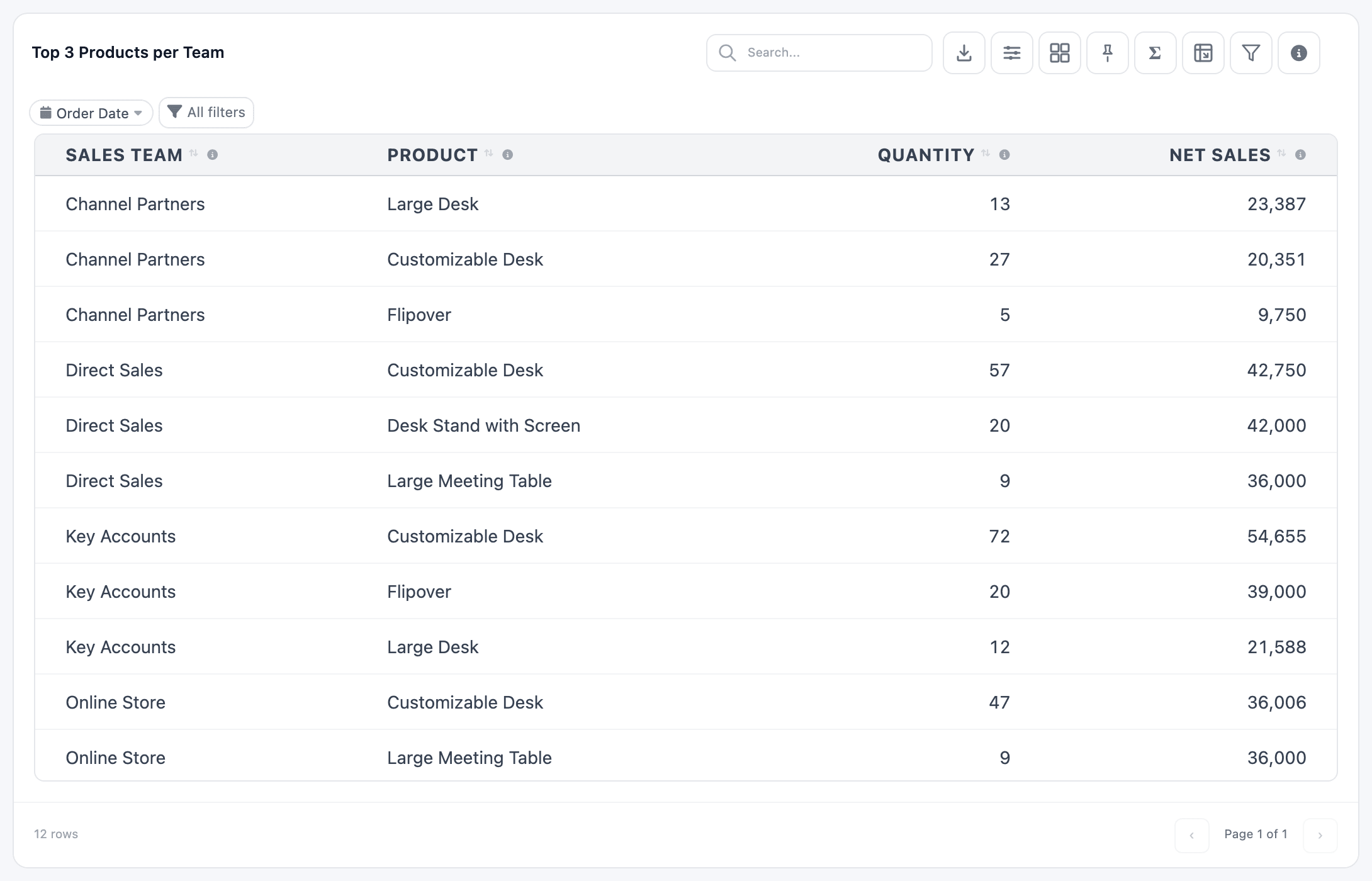
A plain Limit Data keeps the first N rows of the whole table, so one big team can take every slot. Rows per group keeps the first N rows of each group instead. This recipe shows each sales team’s three best-selling products for the picked dates.
What you need
Section titled “What you need”The Confirmed Sales Lines dataset from Compare with the previous period: one row per confirmed order line, with sales_team, product, quantity, untaxed_amount and order_date.
Build it
Section titled “Build it”-
In the Dashboard Builder, click New Item, name it Top 3 Products per Team, and pick Table and Confirmed Sales Lines.
-
On the Configuration tab, add four columns. Pick the first two from the list; type the last two in the Field box and press Enter:
Field Alias sales_teamSales Team productProduct SUM(quantity)Quantity SUM(untaxed_amount)Net Sales -
Set Group By to sales_team and product. Because two columns are summed, every other column has to be grouped.
-
Set Order By to sales_team, then type
SUM(untaxed_amount)and press Enter. Tick Order Descending. -
Set Limit Rows Per to sales_team and Max Rows Per Group to
3. -
On the Filters tab, add an Order Date filter on order_date with Is between, and tick Show in Dashboard, so the dashboard’s Date Filter drives it.
-
Give Quantity and Net Sales the Number format with 0 decimals (gear → Format), then click Save & Preview.
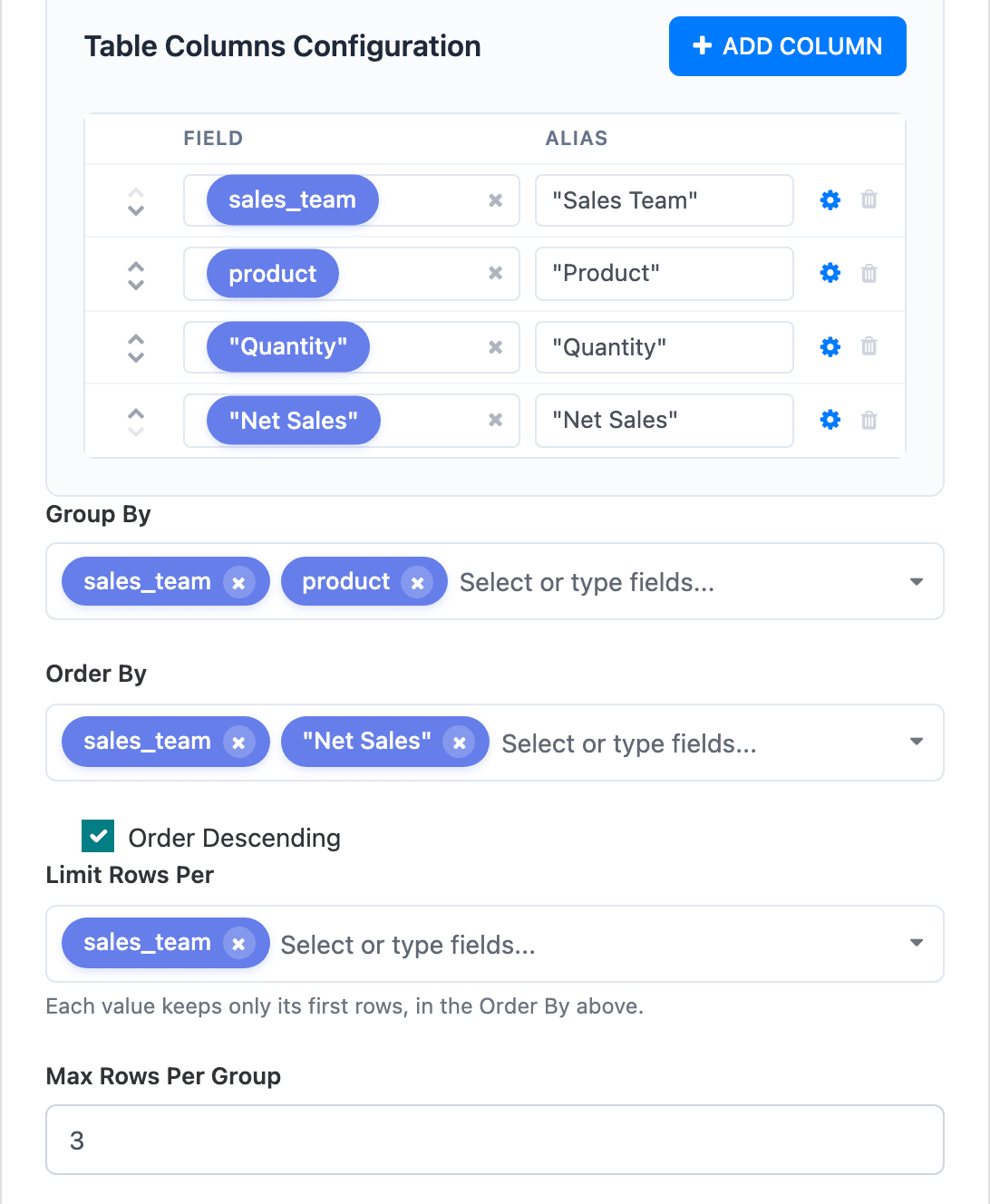
Once saved, the builder shows SUM(untaxed_amount) in Order By under its column name, “Net Sales”.
Why it works
Section titled “Why it works”- Order By decides which rows count as “first”. Here that is the highest Net Sales within each team.
- Order Descending reverses only the last field in Order By. So the teams stay in A to Z order while the products inside each team go from biggest to smallest. Put the field you want reversed last.
- Limit Rows Per names the group. The server numbers the rows inside each team in the Order By order and drops everything after the third, before the table reaches the browser.
Because the cut happens on the server, the table’s search box, column filters, totals and export only see the rows that were kept.
Variations
Section titled “Variations”Last 5 orders per customer. On a dataset with one row per order (customer, order date, reference, amount), add those columns without summing them and leave Group By empty. Set Order By to the order date, tick Order Descending, Limit Rows Per to the customer and Max Rows Per Group to 5.
Top 10 customers per salesperson. Group By salesperson and customer, sum the amount, Order By salesperson then the summed amount, Order Descending, Limit Rows Per salesperson, Max Rows Per Group 10.
Limit by two fields. Limit Rows Per accepts several fields, for example team and month, to keep the top N for each team in each month.
If the preview says…
Section titled “If the preview says…”| Message | Fix |
|---|---|
| Pick the field to limit rows per, or set Max Rows Per Group to 0. | Fill Limit Rows Per, or set Max Rows Per Group back to 0 to turn the feature off. |
| Set “Order By” so each group knows which rows come first. | Add an Order By. |
| Fields you limit rows per must also be in “Group By” when columns are summarized. | Add the Limit Rows Per field to Group By. |
More on the settings: Rows per group, Grouping.