

Custom SQL datasets
When a model dataset can’t express what you need, write the dataset as one SQL query. Typical cases:
- totals worked out across several tables, such as sales per customer with their last order date;
- a dataset that depends on the dates a viewer picks: sales in a period, balances as at a date;
- a list driven by a number the viewer types: customers with no order for N days.
You need the Dataset Builder (SAAS) access right and some SQL. The query runs directly on your Odoo database, so it sees every company’s records and ignores Odoo’s record rules.
Create a custom SQL dataset
Section titled “Create a custom SQL dataset”The Dataset Builder can show custom SQL datasets but not create or edit them. Use the backend form.
-
Go to Odoo Dashboards → Configurations → Advanced Configuration → DTS and click New.
-
Type a Name, such as Customer Sales in Period. Leave Model empty.
-
Tick Use Custom Query.
-
Open the Query tab and write the query.
-
Save the form, then click Generate Dataset in the header. Saving alone doesn’t build anything.
-
Add the columns on the Fields Operations tab (next section) and save again.
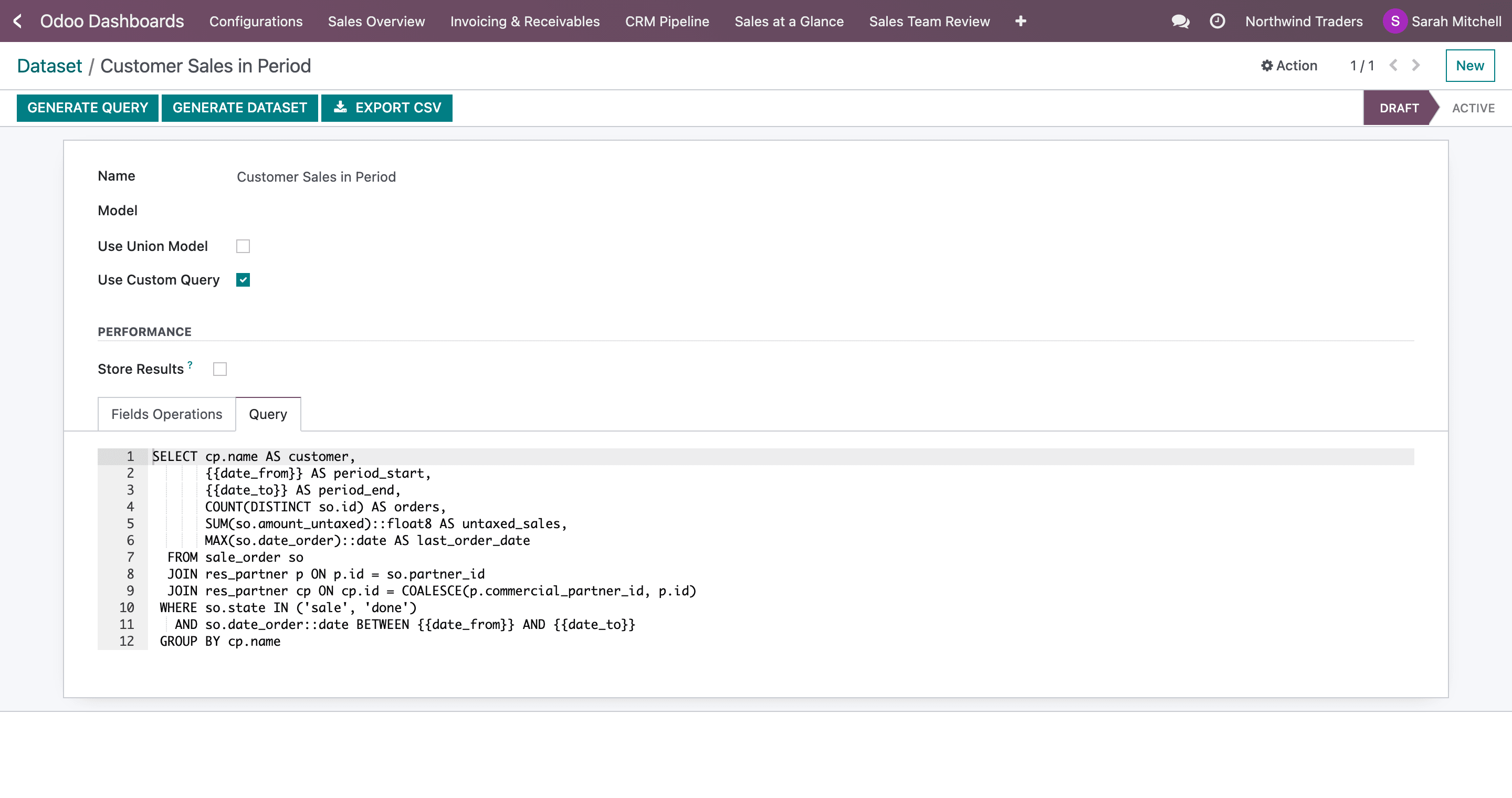
Errors show when you click Generate Dataset: Custom query is empty., Custom query must be a single SELECT (or WITH … SELECT) statement., Custom query must be a single statement – remove the ‘;’ separating multiple statements., or a database error prefixed Error creating dataset:.
Add the columns
Section titled “Add the columns”Widgets find a dataset’s columns through its Fields Operations lines, and Generate Dataset doesn’t create them. Until you add them, the widget field pickers stay empty.
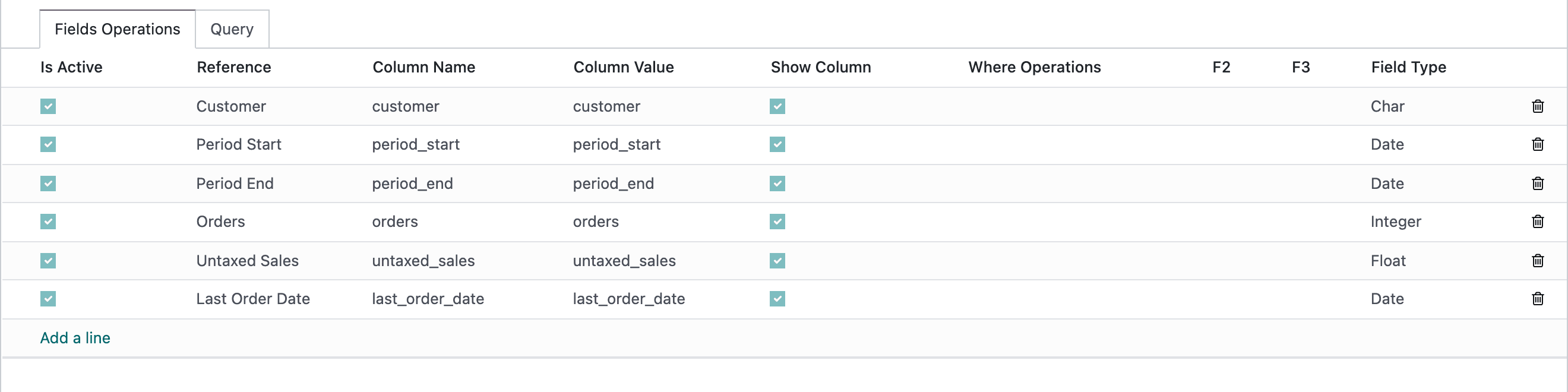
On the Fields Operations tab, click Add a line once per column of your query:
| Column | What to enter |
|---|---|
| Is Active | Ticked. |
| Reference | A readable label, such as Untaxed Sales. |
| Column Name | The column’s name exactly as the query outputs it, such as untaxed_sales. |
| Show Column | Ticked. |
| Field Type | Char, Integer, Float, Monetary, Date, Datetime or Boolean, to match the column. |
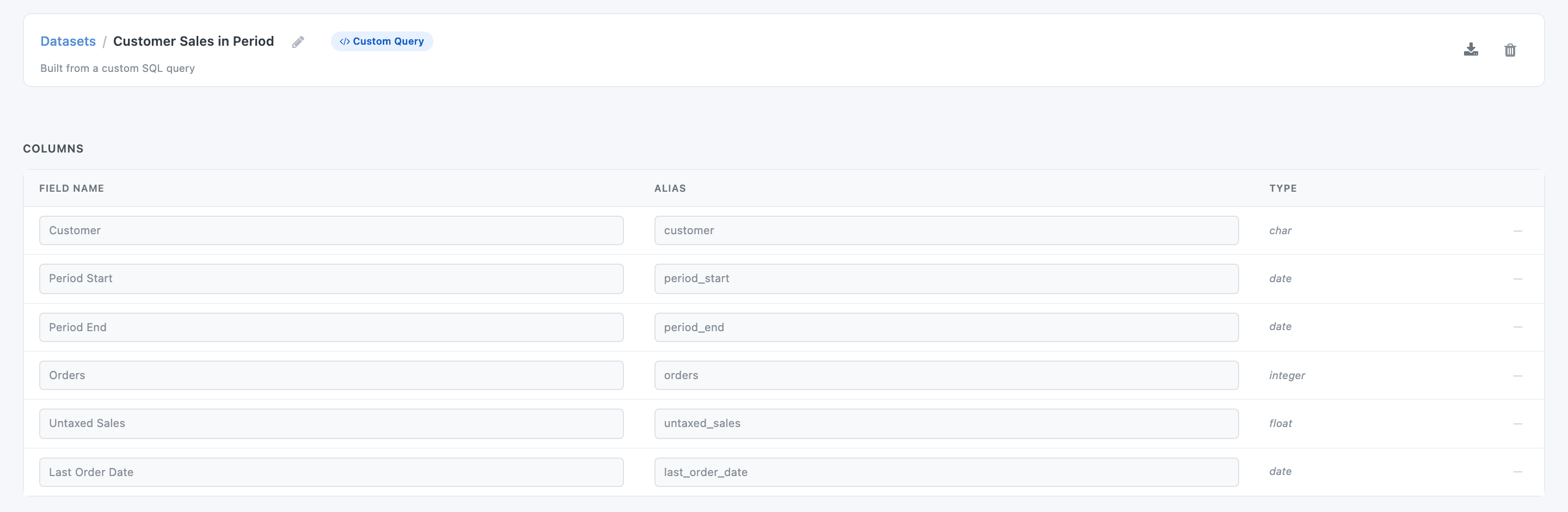
The dataset then shows in the Dataset Builder with a Custom Query badge, read-only, with its columns and sample rows.
Rules for the query
Section titled “Rules for the query”- One statement that starts with
SELECTorWITH. Common table expressions (WITH … AS (…) SELECT …) are fine. - No semicolons anywhere, not even at the end or in a comment. A semicolon inside a quoted string is allowed. A trailing
;passes the checks but makes Store Results fail later. - Don’t start with a comment. A query that begins with
--is rejected. Put comments on later lines, and prefer/* … */to--on the last line. - Give every column a plain name with
AS: lower case, letters, digits and underscores. Widgets use these names. - Cast amounts to a plain number type, for example
SUM(amount_untaxed)::float8. - Read Odoo’s tables, not other datasets’ views. A query that selects from another dataset’s view (
wad_…_view) breaks whenever that dataset is regenerated, and isn’t rebuilt with it: you have to click Generate Dataset again. Converted datasets are the exception: they are rebuilt automatically.
Runtime parameters
Section titled “Runtime parameters”Normally a dataset is the same for every widget, and widget filters narrow it afterwards. Some answers can’t be built that way: a customer’s sales within the picked period, a balance as at a date, customers silent for more than N days. For these, put a token in the SQL. The widget fills it in on every request.
| Token | Becomes | When nothing is picked |
|---|---|---|
{{date_from}} |
The start of the widget’s picked date range, as a date | Today |
{{date_to}} |
The end of the picked date range | Today |
{{as_at_date}} |
The end of the picked date range | Today |
{{int:name}} |
The whole number typed in a widget filter bound to name |
0 |
{{int:name=90}} |
Same, with a default | 90 |
There are no other tokens: no company or user token.
Dates from the widget’s date filter
Section titled “Dates from the widget’s date filter”Customer Sales in Period uses {{date_from}} and {{date_to}} in its WHERE clause, so each customer’s order count and total cover exactly the picked dates:
SELECT cp.name AS customer, {{date_from}} AS period_start, {{date_to}} AS period_end, COUNT(DISTINCT so.id) AS orders, SUM(so.amount_untaxed)::float8 AS untaxed_sales, MAX(so.date_order)::date AS last_order_date FROM sale_order so JOIN res_partner p ON p.id = so.partner_id JOIN res_partner cp ON cp.id = COALESCE(p.commercial_partner_id, p.id) WHERE so.state IN ('sale', 'done') AND so.date_order::date BETWEEN {{date_from}} AND {{date_to}} GROUP BY cp.nameThe widget needs a date filter that viewers can change, on a column that is always inside the range. Here that’s period_end, which is {{date_to}} itself:
-
On the widget’s Filters tab, add a filter with Filter By
period_endand Operation Is between. -
Tick Show in Dashboard and keep Range Mode on.
-
Optionally tick Show Default Date Range Buttons on the Configuration tab for one-click ranges.
When a viewer picks a range, its dates are written into the query. Here YTD shows each customer’s sales from 1 January to today:
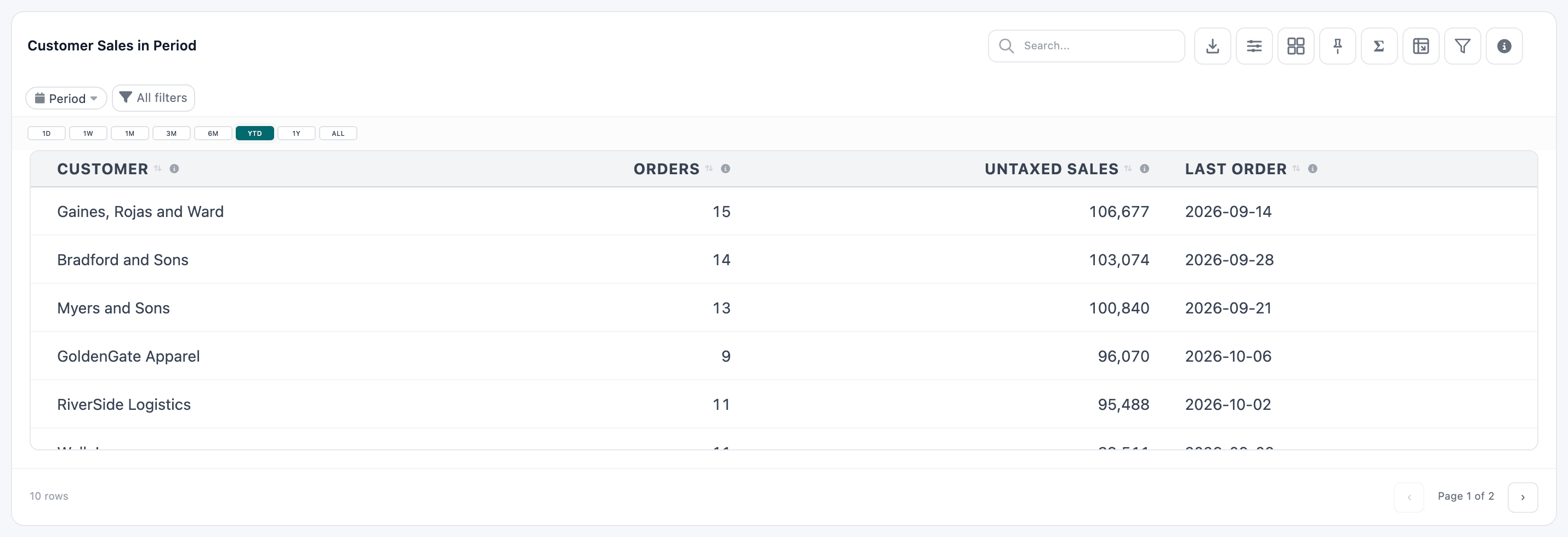
With nothing picked, both tokens are today, so the table shows today’s sales only. If that’s not a useful default, give the filter a default range, or write the fallback into the SQL.
For a balance or stock level as at a date, use {{as_at_date}} the same way, for example WHERE move.date <= {{as_at_date}}.
Numbers from a widget filter
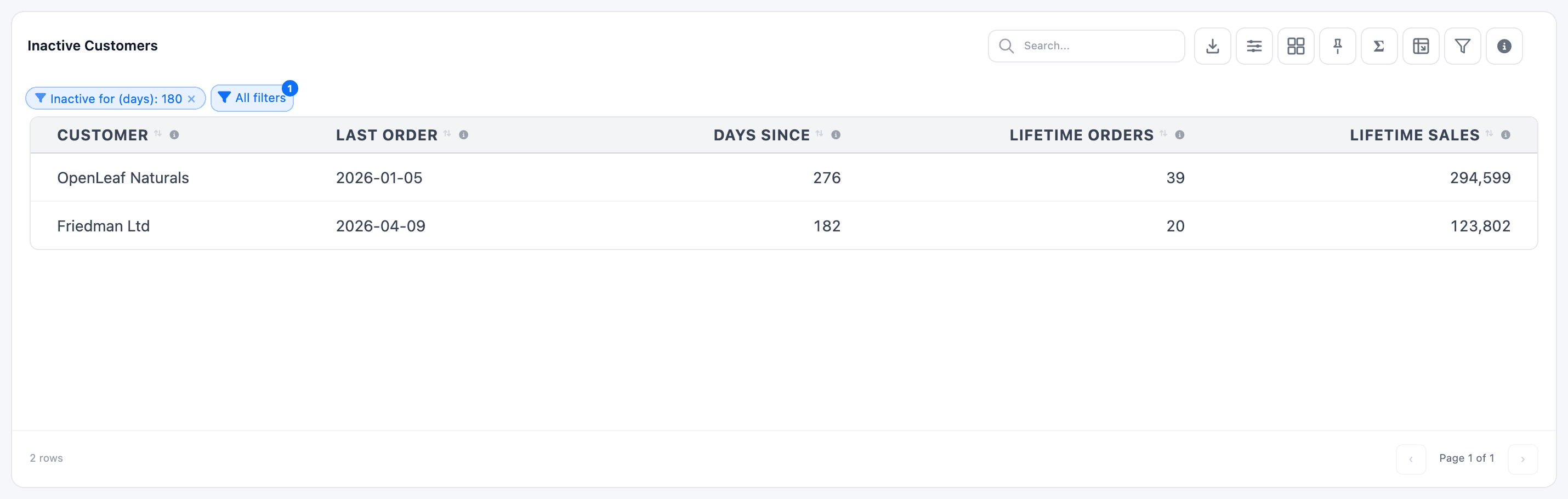
Section titled “Numbers from a widget filter”Inactive Customers lists customers whose last confirmed order is older than a number of days the viewer chooses, 90 by default:
SELECT cp.name AS customer, MAX(so.date_order)::date AS last_order_date, CURRENT_DATE - MAX(so.date_order)::date AS days_since_last_order, COUNT(DISTINCT so.id) AS lifetime_orders, SUM(so.amount_untaxed)::float8 AS lifetime_sales FROM sale_order so JOIN res_partner p ON p.id = so.partner_id JOIN res_partner cp ON cp.id = COALESCE(p.commercial_partner_id, p.id) WHERE so.state IN ('sale', 'done') AND so.date_order < CURRENT_DATE + 1 GROUP BY cp.nameHAVING MAX(so.date_order)::date < CURRENT_DATE - {{int:inactive_days=90}}To let viewers set the number:
-
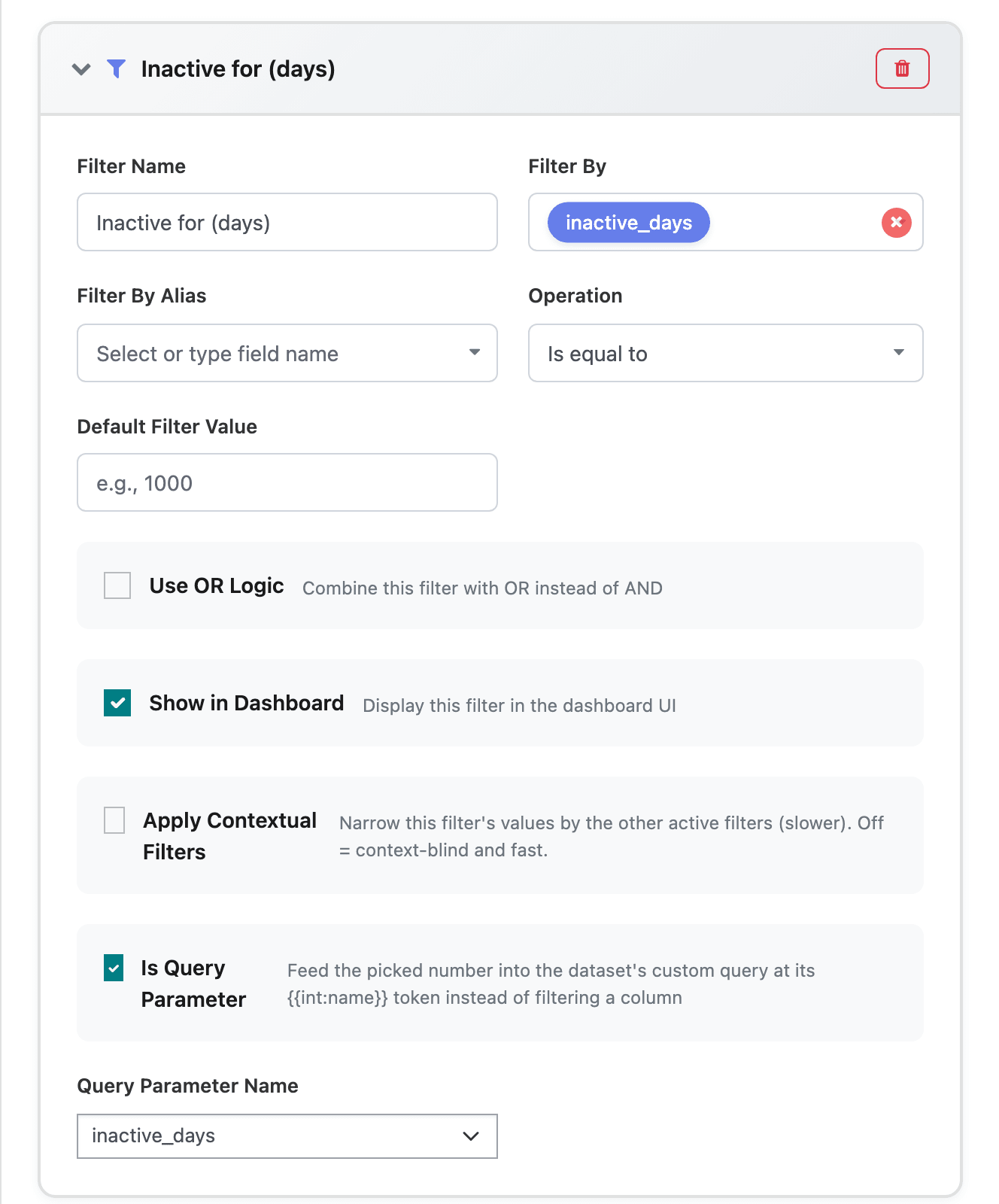
On the widget’s Filters tab, click Add Filter and give it a Filter Name, such as Inactive for (days).
-
Tick Is Query Parameter. It only appears when the dataset’s SQL has an
{{int:…}}token. -
Under Query Parameter Name, pick the token’s name:
inactive_days. -
Tick Show in Dashboard and save.
The viewer types a number in the filter chip, and the query reruns with it. With 180, only the two customers silent for more than 180 days are left:
Only whole numbers are accepted. Global filters can’t feed {{int:…}} tokens; the filter has to be on the widget.
Limits of runtime parameters
Section titled “Limits of runtime parameters”A dataset with any of these tokens is worked out again on every request. As a result it:
- can’t use Store Results;
- can’t take part in a join or union;
- is skipped by dashboard optimization;
- can’t be exported with Export CSV (the download fails);
- lists today’s values in its filter dropdowns, because those are read from the default render.
The view the Dataset Builder shows, and its Sample Data, use the defaults (today, and the int defaults).
Change a custom SQL dataset
Section titled “Change a custom SQL dataset”-
Open the dataset in DTS and edit the Query tab.
-
Save, then click Generate Dataset.
-
If you added, renamed or removed columns, update the Fields Operations lines to match, and check the widgets that use the old names.
The Dataset Builder can’t edit these datasets. Trying to change their columns there gives This dataset’s columns are defined by its custom query and cannot be edited here.
Regenerating rebuilds everything built on the dataset, as for model datasets (see Freshness).