

Filter values
A filter needs values twice: once in the builder, when you pick its Default Filter Value, and again on the dashboard, when viewers choose from a list. Both lists come from your data, but not always in the same way.
Pick a default value
Section titled “Pick a default value”For text, selection and relational columns, Default Filter Value is a picker with the column’s real values. Click it and the values load (Loading values…); type to search the list.
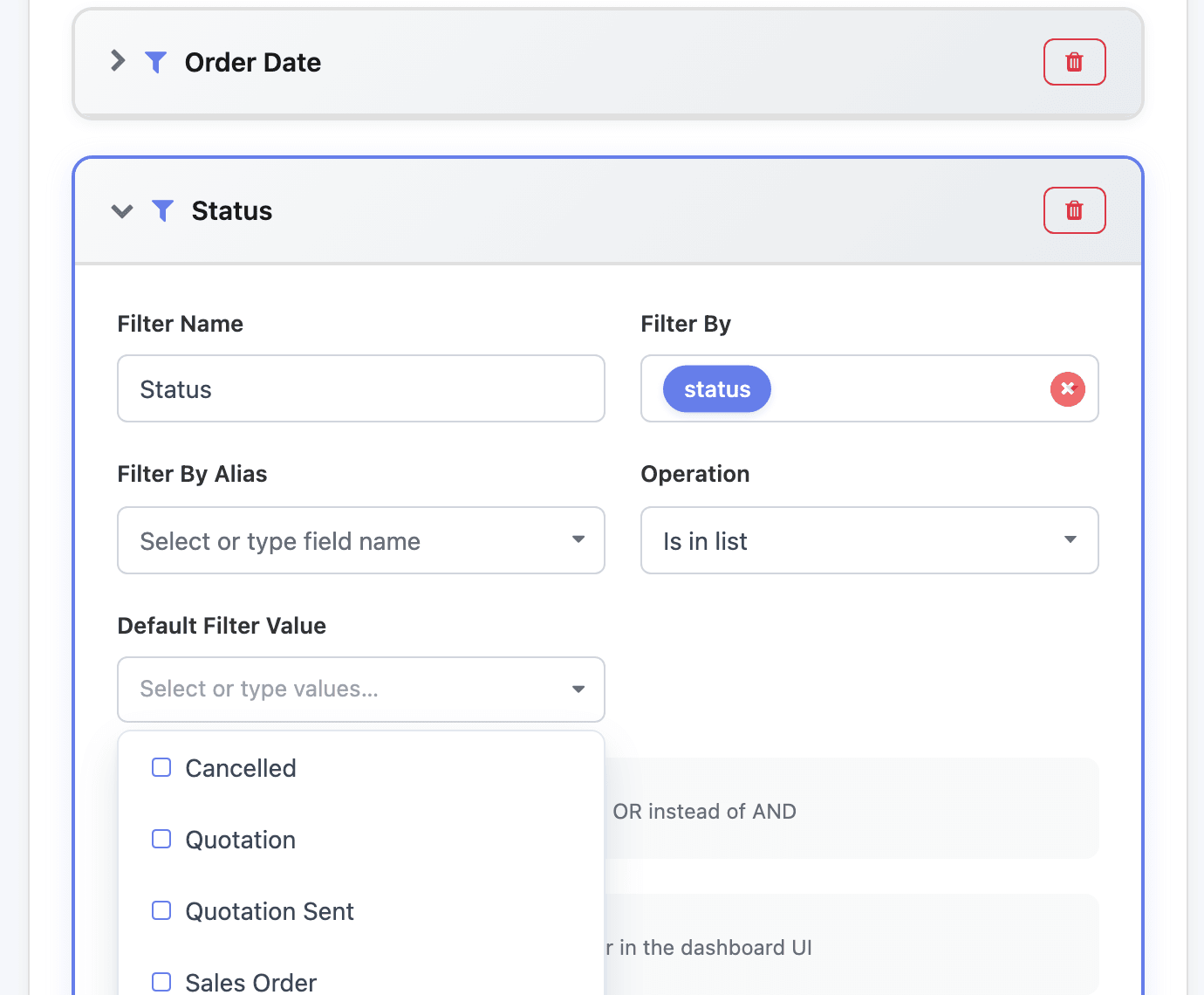
- With a list operation (Is in list, Is not in list), each value has a checkbox and you can pick several. They show as chips in the field; the × on a chip removes it.
- With a one-value operation (Is equal to, Contains…), picking a value replaces the previous one and closes the list.
- A value that isn’t in the list (a status nobody has used yet, say) can still be added: type it and click Add “<text>”, or press Enter.
- Showing the first matches — type to narrow the search. means the column has more values than the list shows; type part of the value. Couldn’t load values — type a value to add it. means reading the values took too long; type the value instead.
Number columns get a plain box (e.g., 1000), and date columns get Date From and Date To.
Where a viewer’s list comes from
Section titled “Where a viewer’s list comes from”On the dashboard, a shown filter gets its control from the column’s type:
| Column | Viewer control | Values listed |
|---|---|---|
| Date, date and time | Calendar | – |
| Number (no alias), HAVING and query parameter filters | Number box | – |
| Relational, such as a customer or salesperson on a model dataset | Pills | Every record of the related model, by its Odoo name, up to 1,000 |
| Any other text column | Pills | The values that occur in the column, read the first time the filter is opened, up to 1,000 |
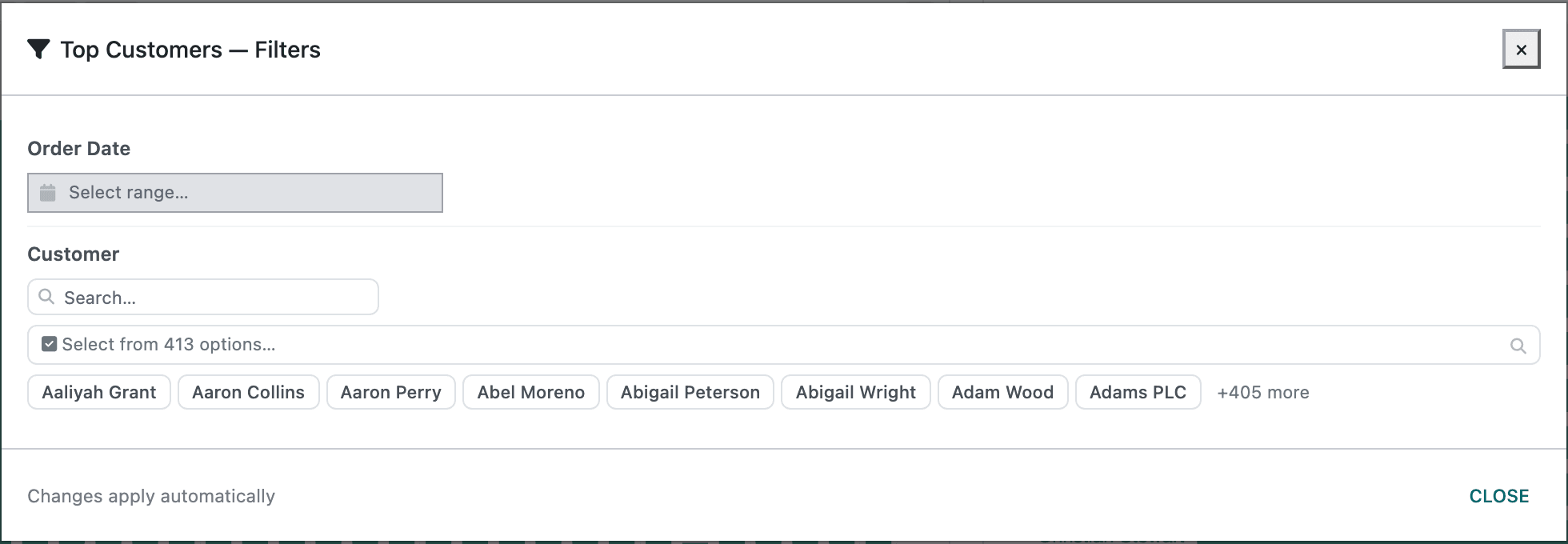
Relational lists are quick because they read the small list of customers, products or users rather than the widget’s data. The trade-off: they list every record, including ones the widget has no rows for. On the screenshot below the Customer filter of a chart built on Sale Orders offers all 413 contacts, salespeople included.
Text lists only hold values that occur in the data, and they load when a viewer first opens the filter, so a dashboard with many filters still opens fast.
Apply Contextual Filters
Section titled “Apply Contextual Filters”Tick Apply Contextual Filters on a shown filter to list only the values left after the widget’s other filters: its fixed filters, its date filter and what the viewer has picked. A Customer filter on a widget fixed to one sales team then lists only that team’s customers.
It costs speed: the list is read from the widget’s data while the dashboard loads, and again after picks, instead of on first use. Relational columns also lose their quick lookup. Leave it off on large datasets unless the full list is confusing.
Long lists
Section titled “Long lists”A list with more than eight values shows the first eight as pills, a Search… box and a Select from N options… button. The button opens a window with a search box and a checkbox per value. It counts matches (11 of 105 results) and selections (2 selected); Clear all and Done are at the bottom.
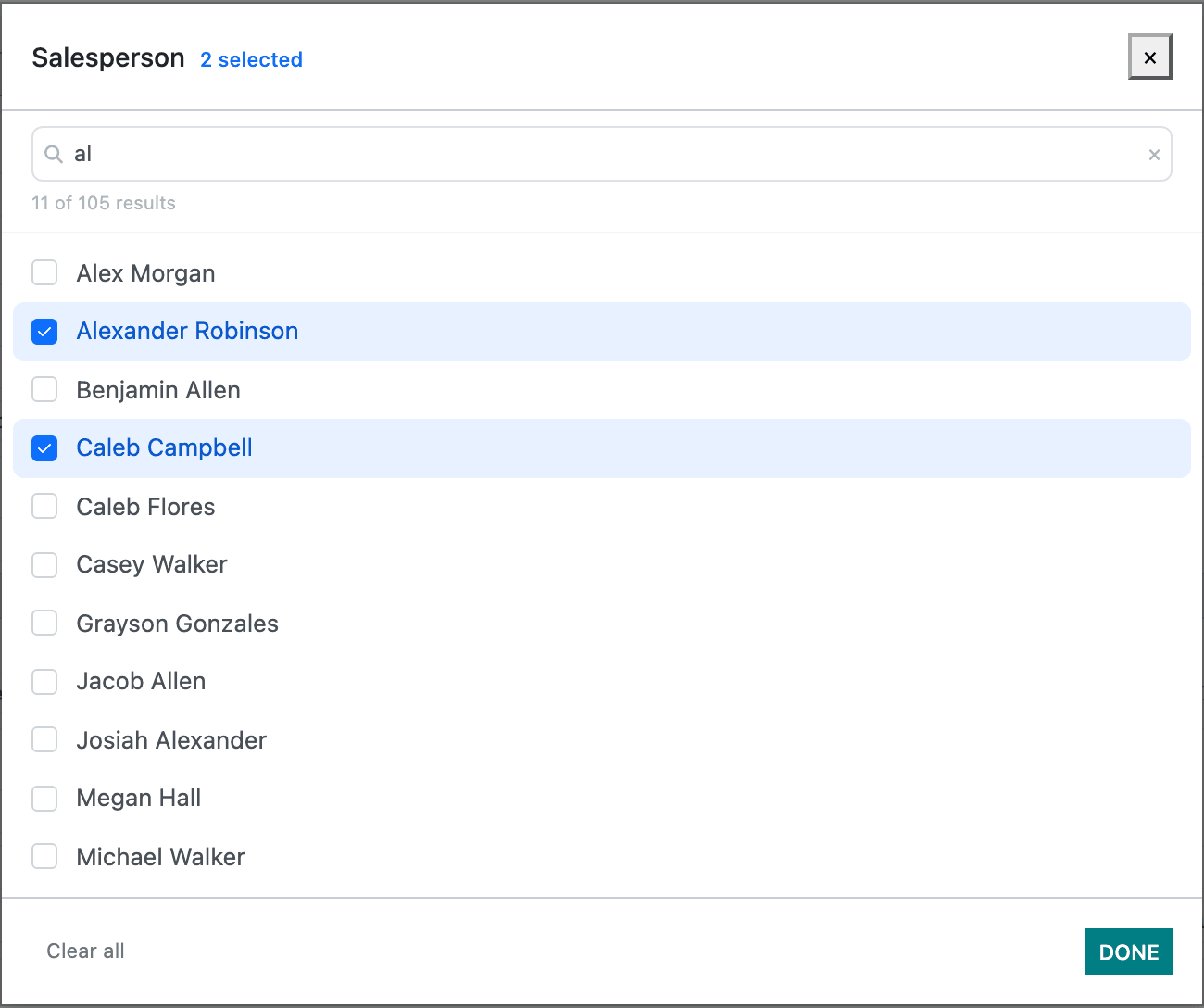
Values you picked that the pills don’t show appear as small chips under the button, so you can always see and remove them.
When a text column has more values than the cap, the list says Showing first matches — type to refine. Typing in the search asks the server again, so values past the cap can still be found. Timed out. Type to search a narrower value. means the column was too slow to read in full.
Show names, filter by id
Section titled “Show names, filter by id”Sometimes the column you filter on isn’t the one people recognise: an order id, a partner id in a custom SQL dataset, a code. Filter By Alias shows a second column’s values to viewers while the filter still compares Filter By.
-
Set Filter By to the id column, for example
order_id. -
Set Filter By Alias to the readable column, for example
order_ref. The list offers text columns only. -
Use Is in list or Is equal to, and tick Show in Dashboard.
Viewers then pick from order references such as S23055, and the widget is filtered on the matching id. An alias also turns a number column into a pick list instead of a number box.
Relational columns on a model dataset don’t need an alias: they already list the records’ names and filter by id.