

Refine a widget with AI
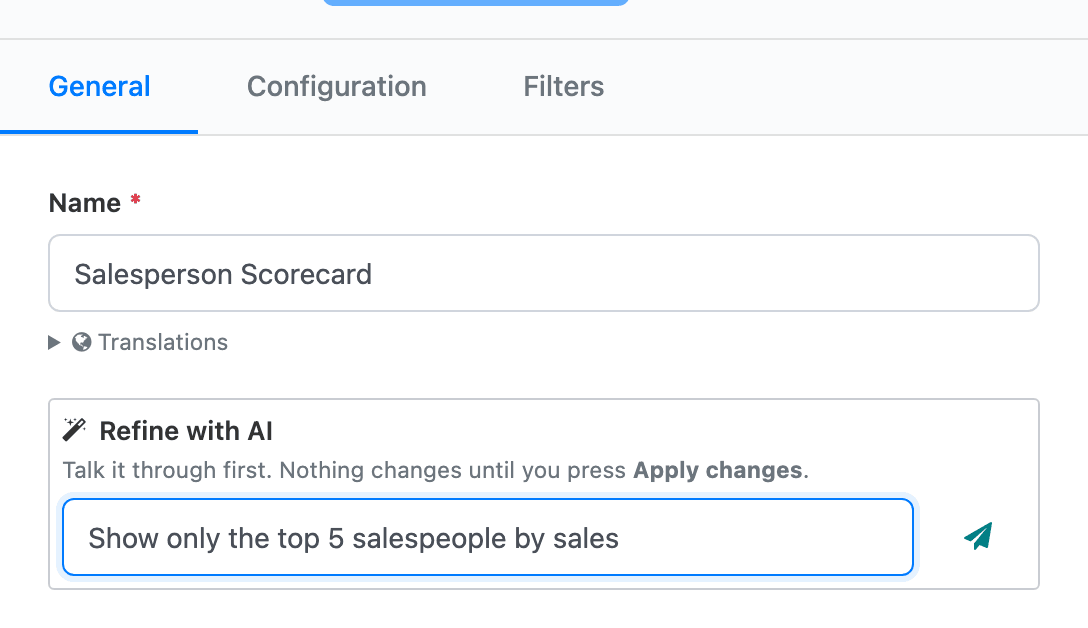
Refine with AI changes an existing widget through a conversation. You say what you want different, the AI proposes the exact changes, and the widget changes only when you click Apply changes. You can also ask questions about how the widget is set up before you decide anything.
Use it for changes that would take several clicks by hand: “make it monthly”, “show the top 5 only”, “add a column with the average order value”, “only count confirmed orders”, “format the amounts as currency”.
The box appears on the General tab, under Name, for every saved widget. You need the AI Analytics (SAAS) right.
Propose a change
Section titled “Propose a change”-
Open the dashboard in the Dashboard Builder and select the widget.
-
In Refine with AI, type what you want changed or what you want to know, and press Enter or click the send button. The send button’s tooltip says it: Send - this only talks, it does not change anything.
-
Read the AI’s answer. When it has a change to suggest, a card titled Proposed changes - not applied yet shows a one-line summary and the list of changes.
-
Reply to adjust the proposal (“keep the current colours”, “top 10, not top 5”). The card updates with each answer.
The AI works from the widget’s current settings: its type, columns, filters, formats and data source. It doesn’t see the data, so a question like “why is the total so low?” gets an answer about the settings (for example a filter that excludes cancelled orders), not about the numbers. To ask about the numbers themselves, use the Analyst.
Apply or discard
Section titled “Apply or discard”- Apply changes makes exactly the changes listed on the card. The widget reloads, the Live Preview shows the result, and a message confirms Updated “<name>”. The chat records the change with a green Applied: line.
- Discard drops the proposal. The chat records Discarded. Nothing was changed.
Apply changes saves the widget straight away; you don’t need to click Save & Preview afterwards.
If you changed the widget by hand and haven’t saved, Apply changes is refused with Save or discard your manual changes first - applying would overwrite them. Click Save & Preview or undo your edits, then apply.
If the change needs a date window that doesn’t exist yet (for example “Last 3 days”), the card says Will create filter operation “…”. When you apply, a yellow box may ask again with Create “…” and apply and Cancel. The new filter operation is then available to every widget.
If the AI couldn’t make part of the change, a yellow message stays on screen and explains what was left out.
The widget’s memory
Section titled “The widget’s memory”The conversation and the list of applied changes are stored on the widget itself. Close the builder, come back a week later, and the conversation is still there. A colleague who opens the same widget sees it too.
- N refinements applied so far (above the chat) opens the history: for each change, its summary, the date, who applied it and the list of changes. The AI reads this history too, so it knows what was already done and why.
- New conversation (top right of the box) clears the chat and any proposal waiting to be applied. Its tooltip says Start a fresh conversation. Applied refinements are remembered.: the history stays.
The widget keeps the last 60 chat messages and the last 50 applied changes.
Error messages
Section titled “Error messages”| Message | What it means |
|---|---|
| This visualization has no dataset to work against. | The widget has no data source, for example a sticky note. Refine works only on widgets with data. |
| There is nothing to apply yet. Describe the change you want first. | There is no proposal on the card. |
| AI chat failed: … | A message failed. It is back in the box; send it again. |
| AI edit failed: … / Could not apply the change: … | Applying failed. The widget was not changed. |
| You have no AI credits left. Please top up to keep using AI. | Your company’s credit pool is empty. See AI governance and credits. |