

Datasets
Every widget reads its numbers from a dataset. A dataset is a table of data you prepare once: the Odoo records you care about, with the columns you want to chart, filter and group by. Ten widgets on five dashboards can share one dataset.
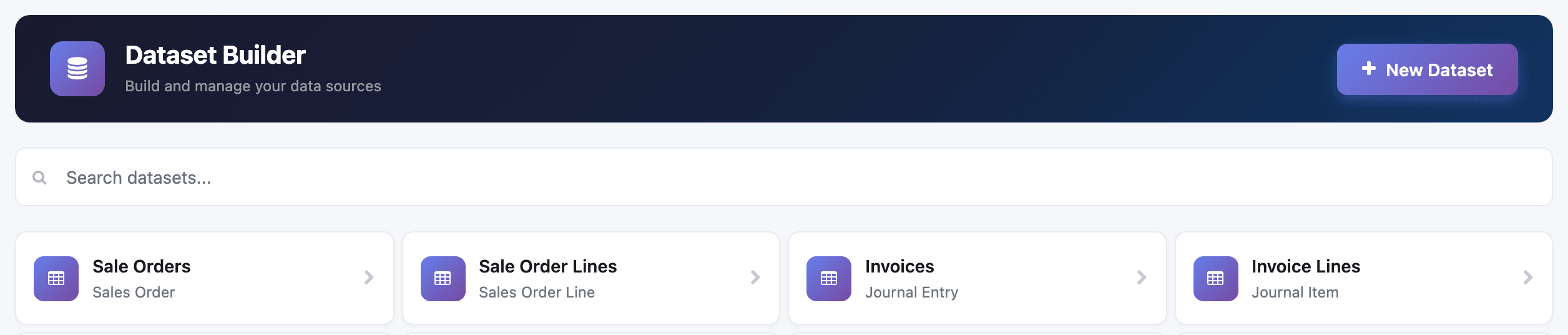
What a dataset is
Section titled “What a dataset is”Behind the scenes, each dataset is a PostgreSQL view in your Odoo database. It holds no copy of your data: every time a widget asks for numbers, the view reads the current Odoo records. A sale confirmed a minute ago shows up on the next refresh.
A dataset decides two things for every widget built on it:
- Which columns exist. A widget can only measure, group or filter by columns the dataset has. If a chart needs the salesperson’s team, add it to the dataset first.
- Which rows exist. A dataset can carry a permanent filter (its Where Clause), such as “only products that can be sold”. Every widget built on it sees only those rows.
Widget filters are different: they live on the widget, apply at query time, and are what viewers can change. See Filters.
Three kinds of data source
Section titled “Three kinds of data source”| Kind | Built in | Use it when |
|---|---|---|
| Model dataset | Dataset Builder | You need fields from one Odoo model and its related records, such as sales order lines with their product, customer and salesperson. This covers most needs. |
| Custom SQL dataset | Configurations → Advanced Configuration → DTS | You need something one model can’t express: aggregates over several tables, a calculation that depends on the picked dates, an “as at” balance. See Custom SQL datasets. |
| Joined or stacked datasets | The widget’s Data Source in the Dashboard Builder | One widget needs columns from several datasets (order lines with their product category), or rows from several datasets stacked together. The combination belongs to that widget only. See Joins and unions. |
Two more tools build on these. Convert to dataset turns a table widget into a reusable custom SQL dataset. Store Results keeps a stored copy of a heavy dataset so its widgets load fast.
How datasets and widgets fit together
Section titled “How datasets and widgets fit together”In the Dashboard Builder, every widget has a Data Source. With Single dataset you pick one dataset from a searchable list; with Join datasets you combine several. The widget’s field pickers then offer that source’s columns.
A widget can also add its own calculated columns, called custom fields, without changing the dataset. They belong to that widget only. See Custom fields.
Who can create datasets
Section titled “Who can create datasets”You need the Dataset Builder (SAAS) access right to see the Dataset Builder and DTS menus. People with only Dashboard Builder (SAAS) can use existing datasets in widgets but don’t see these menus. See Install the app.
Freshness
Section titled “Freshness”A dataset view is live: there is nothing to refresh. What does change a view is editing the dataset.
- Editing a model dataset regenerates its view straight away. Adding, changing or deleting a column in the Dataset Builder rebuilds the view.
- Regenerating cascades. The database drops the old view with everything built on it, then the app rebuilds the joined views of widgets that use the dataset and any dataset converted from a table built on it. A custom SQL dataset you wrote by hand that reads another dataset’s view is not rebuilt: open it in DTS and click Generate Dataset again.
- Editing a custom SQL dataset’s query doesn’t apply until you click Generate Dataset. Saving the form alone keeps the old view.
- A stored dataset serves a copy that is rebuilt on a schedule, so its figures can lag. See Store Results.
- Dashboard optimization, set per dashboard, pre-computes each widget’s unfiltered answer. See Optimization.
Changing a dataset that many dashboards use is safe for the data, but plan it outside busy hours: every view built on it is rebuilt while you save.
Naming datasets
Section titled “Naming datasets”The view’s name comes from the dataset’s name: lower case, with every character that isn’t a letter or digit turned into _. Product Catalogue becomes wad_product_catalogue_view.
Where to go next
Section titled “Where to go next”- Create a model dataset step by step.
- Add calculated columns to a widget with Custom fields.
- Join or stack datasets for one widget.